WordPress vs Squarespace (2026): Real Costs and Which to Pick
Choose Squarespace for a polished portfolio, service site or small shop with less maintenance. Choose self-hosted WordPress for lower running costs, more control and room to expand. WordPress asks more of you during setup and upkeep; Squarespace charges more to bundle that work.

What it costs: year 1 and year 2
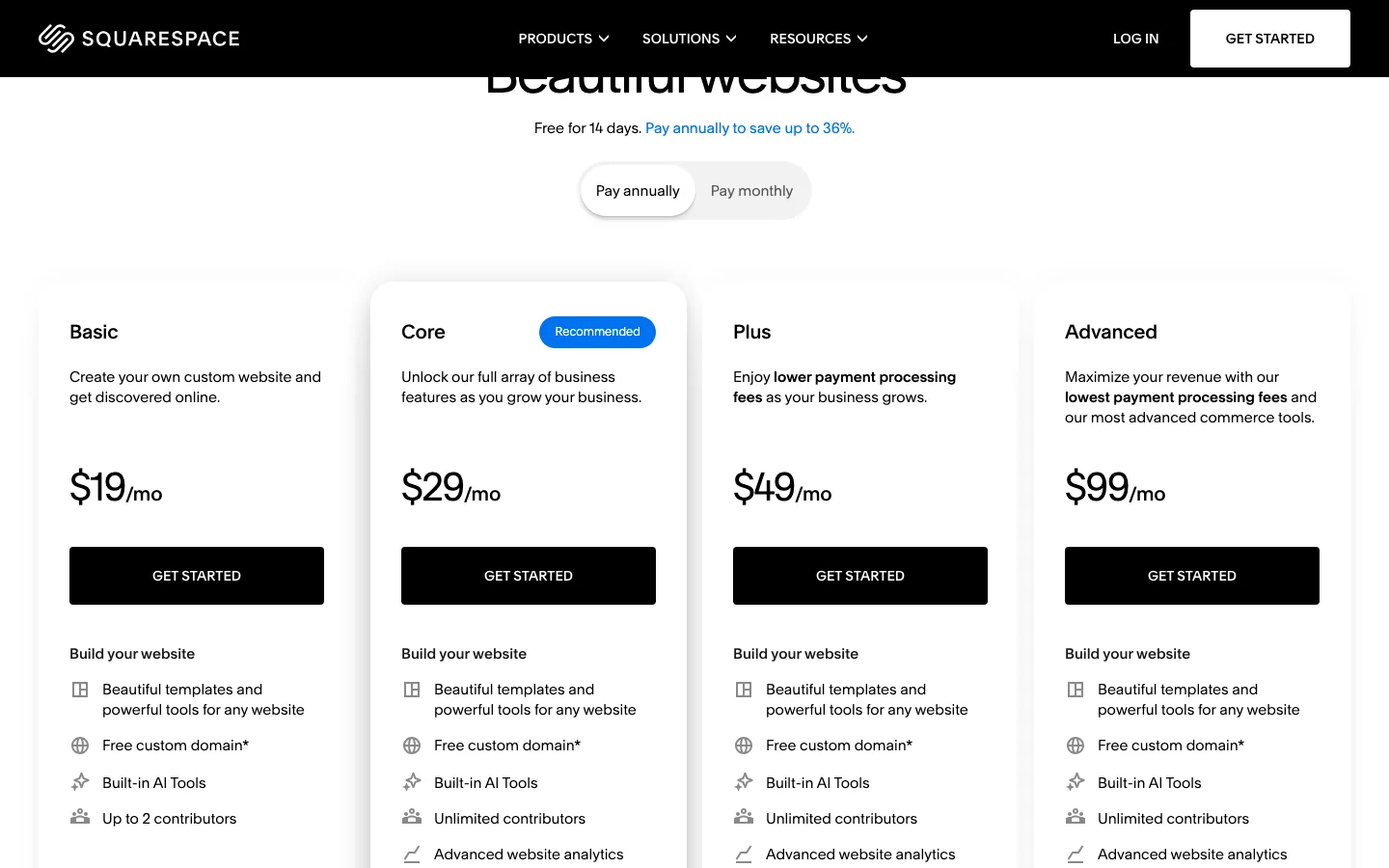
Squarespace’s pricing page with annual billing selected. Switching to monthly billing shows $25, $39, $65 and $139, and removes the free domain.
Squarespace has four website plans. Annual billing includes a free domain for the first year, and Squarespace says paying annually saves up to 36%.
Squarespace Basic costs $228 annually, equivalent to $19 monthly, or $25 month to month. It charges 2% on store sales and 7% on digital content and memberships. Core costs $348 annually at $29 monthly, or $39 month to month, removing the store fee but charging 5% on digital content.
Plus costs $588 annually at $49 monthly, or $65 month to month, with no store fee and 1% on digital content. Advanced costs $1,188 annually at $99 monthly, or $139 month to month, with neither platform fee. Payment processing remains separate.
WordPress itself is free, so its cost is split between hosting, a domain and any paid themes or plugins you pick. The table adds both platforms up for the first two years, because year two is when intro prices end and domain renewals start.
WordPress on yearly Hostinger Premium with free software costs $47.88 in year one and $151.87 in year two: hosting renews at $131.88 annually and the initially free domain at $19.99. Paying $143.52 for 48 months instead covers four years of hosting at $2.99 monthly, leaving only the $19.99 domain renewal in year two. Adding Kadence Essentials at $99 and Yoast Premium at $118.80 to the yearly setup raises totals to $265.68 and $369.67.
Cloudways at $14 monthly plus a $19.99 domain costs $187.99 each year. Kinsta at $350 annually plus the domain costs $369.99 each year.
Squarespace Basic on annual billing costs $228 initially, then $248 with a $20 domain renewal, plus its 2% store fee. Monthly Basic costs $310 initially and $320 next year, using $25 monthly hosting and a $10 domain initially, then $20. Core costs $348 then $368 annually or $478 then $488 month to month, adding code injection and removing the store fee. Annual Plus costs $588 then $608, with the lower 2.7% plus $0.30 card rate.
What this means in practice:
- Budget WordPress is the cheapest option in both years. Over two years, WordPress on Hostinger’s 12-month plan costs $199.75. Squarespace Basic costs $476 and Core $716 on annual billing. The catch is Hostinger’s renewal: the plan nearly triples from $47.88 to $131.88 a year. Our Hostinger review breaks down that renewal math, and the 48-month prepay is the cheapest way to run WordPress for several years.
- Paid extras close the gap. Add a premium theme and a premium SEO plugin and WordPress costs about the same as Squarespace Core in year two. A cheaper premium theme helps: GeneratePress Premium is $59 a year. Our test site used only free plugins and did the job.
- Managed hosting costs about the same as Squarespace Core. Cloudways and Kinsta handle server upkeep for you, at prices close to Squarespace’s middle plans. See our Cloudways vs SiteGround comparison and our guide to managed WordPress hosting for what you get at that level.
- Monthly billing on Squarespace costs about a third more and drops the free domain.
Ease of use
Squarespace’s Blueprint setup quickly produced a styled site with pages, a contact form and sample products. Editing was straightforward, but the draft omitted a blog despite that goal and left placeholder contact details. It still needed review before publication.
WordPress needed a theme, starter import and separate form and SEO setup. Our imported pages initially returned Not Found until we saved permalinks again. The contact form worked, but placeholder content and plugin promotions added cleanup. It was manageable work, with more pieces to maintain afterwards.
Squarespace is easier for a first site because it manages those pieces together. WordPress offers more choices in exchange for responsibility. Our three-way comparison covers the same distinction across Wix as well.
Templates and design
Squarespace’s templates are genuinely good. The gallery listed 202 templates when we checked, with filters for site type and topic. They share a consistent, editorial look, and each template’s preview page lets you try its preset color palettes and font packs before you start a trial, as in the Fletcher preview at the top of this page.
Switching templates is not simple on Squarespace, though. On current version 7.1 sites, Squarespace’s help center says you cannot switch templates. Instead, you restyle the site you have: change colors and fonts, pick a preset style pack (such as Professional, Bold or Playful), or add pre-built page and section layouts. Your content stays in place, but you are always working inside the same block system. There is no way to upload an outside theme file the way you can on WordPress, and full custom code (advanced code blocks and code injection) starts on Core. Only older version 7.0 sites can still switch templates. Our new trial site was labeled “Version 7.1” in the Pages panel, so this rule applies to every site you start today. Our Squarespace vs Wix breakdown compares both builders’ template rules, and Wix is stricter still, as our Wix vs WordPress comparison explains.
WordPress has no such ceiling. About 8,700 free themes are listed on WordPress.org, and theme starter libraries add more (Kadence offered 93 starter templates on our test install). You can change themes and keep every post and page, and if you can write code (or hire someone who can), you can build almost anything. The free Kadence theme looked professional after one import on our test install. Themes like Astra and GeneratePress are other popular, lightweight starting points. The flip side is that WordPress themes vary a lot in quality, and you have to judge them yourself.
Winner: WordPress for flexibility, Squarespace for polish with no effort.
SEO
Both handle the basics: editable page titles and descriptions, automatic sitemaps, clean URLs, mobile-friendly pages and free SSL.
- Squarespace does a sensible job by default and is fine for most small sites. You are limited to the tools Squarespace builds, and code injection (which some tracking and schema scripts need) starts on Core. On our trial site, the “SEO / AI Visibility” page gave a simple score (0 of 5 pages had a custom description, 7 of 9 images had alt text) with buttons to fix each, and its settings covered search titles and descriptions for the home page, pages and items, plus an LLMS.txt tab for AI tools. Its AI Visibility checker needs a paid, published site.
- WordPress gives far more control. On our test site, Yoast SEO took about a minute to configure and adds title and description fields, schema markup and an XML sitemap. Rank Math is the main alternative; our Rank Math vs Yoast comparison weighs the two. Redirect managers, internal-link tools and schema plugins are all a few clicks away.
Winner: WordPress, especially for content-heavy sites and blogs.
Speed
On our WordPress test install, Google’s Lighthouse tool gave the finished homepage a mobile performance score of 88 and a desktop score of 98. That page was served from a local test environment with no real network distance or traffic, so treat it as a measurement of one page, not a prediction. For a rough comparison, our Squarespace vs Wix test measured an official Squarespace template demo over the internet at 60 on mobile.
Winner: neither clearly. Your host, images and plugins will matter more than the platform. On WordPress, speed is in your hands; on Squarespace, it is mostly in Squarespace’s.
Ecommerce
WooCommerce is free, with more than seven million installations, no software-imposed product cap and no platform fee on sales. It supports extensions for subscriptions, bookings and memberships, whose costs and fees depend on the chosen plugin. The US WooPayments example is 2.9% plus $0.30.
Squarespace includes store software on all plans but caps products at 10,000 site-wide. Basic takes 2% on product sales; higher plans remove it. Digital-content and membership fees are 7%, 5%, 1% and 0% from Basic through Advanced. Card rates are 2.9% plus $0.30 on Basic/Core, 2.7% on Plus and 2.5% on Advanced, with the same fixed fee. Abandoned-cart emails are included on every plan and Google Shopping starts on Core.
Squarespace’s store lives in the same editor as the rest of your site, and its checkout runs on your own domain on every plan.
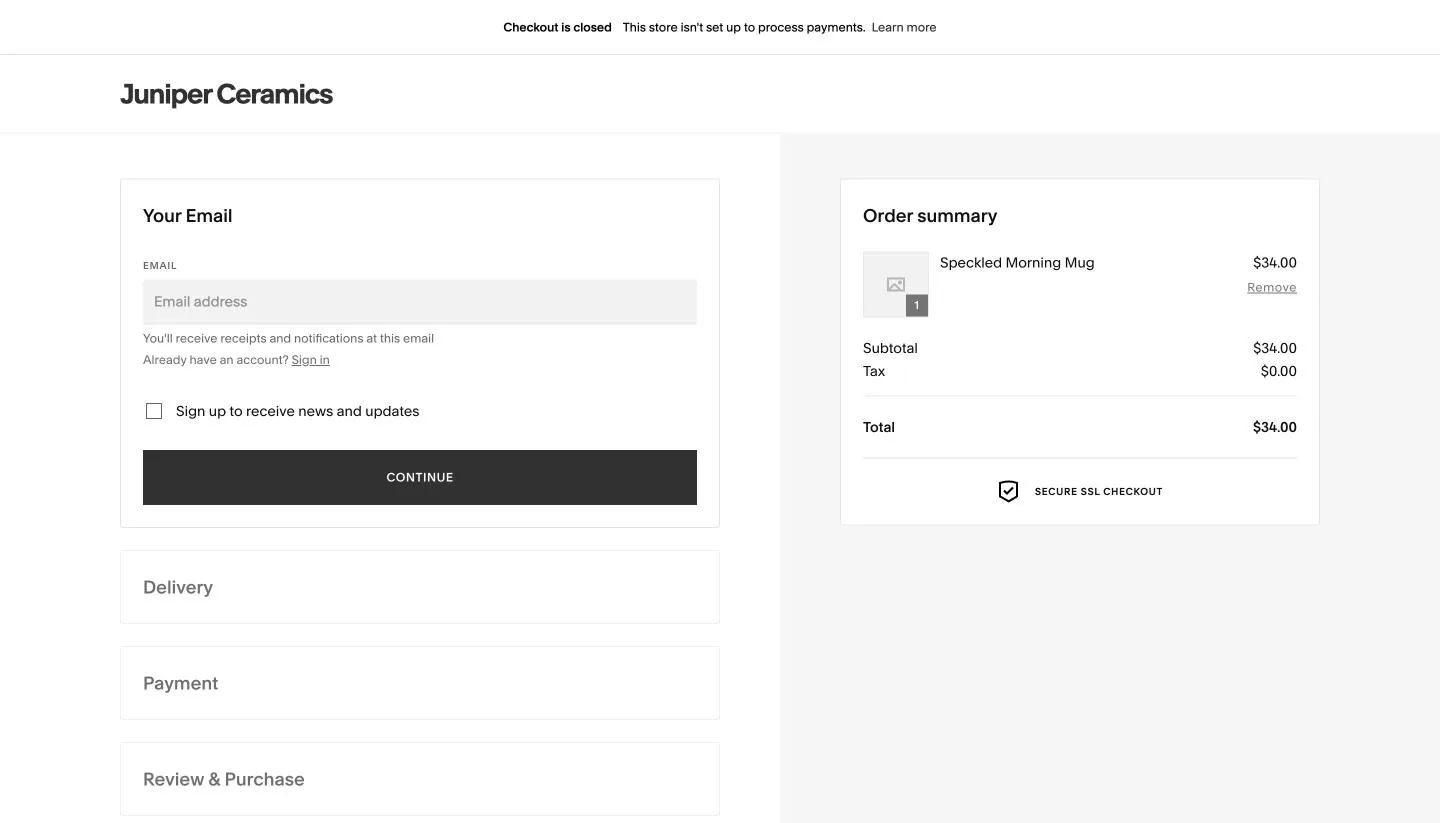
Checking out from our Squarespace trial store: the cart works, but a banner says checkout is closed.
On our trial, Blueprint filled the shop with sample products, and we added a $34 mug in about two minutes. Adding it to the cart worked, but the checkout page showed “Checkout is closed. This store isn’t set up to process payments.” To take real orders you have to connect a payment processor first. We stopped there, so we could not run a test purchase. On Basic, the 2% fee adds $10 for every $500 in monthly sales. Core costs $10 a month more and drops the fee, so once you sell more than about $500 a month, Core is the cheaper Squarespace plan. Note that the pricing page says you can sell unlimited products, while the help center gives a site-wide limit of 10,000.
WooCommerce is free, charges no platform fee, and has no product cap, but you run it yourself, and a busy store usually needs better hosting than a $3.99 plan. If you are also weighing a dedicated store builder, see our Shopify vs WordPress comparison.
Winner: WordPress for a store you plan to grow, Squarespace for a small, good-looking shop.
Ownership, upkeep and support
WordPress is open-source software that you install on hosting you control. You own the files and the database, and you can download a full copy and move to another host at any time with a migration plugin such as All-in-One WP Migration (see our All-in-One WP Migration guide). The price of that freedom is upkeep: you update WordPress, the theme and every plugin, and keep backups, unless your host does it for you. Support comes from your host, community forums and each plugin’s own support.
Squarespace runs your site on its own platform. It handles hosting, security and updates, and lists 24/7 customer support on every plan. In return, your design stays locked inside Squarespace, and only part of your content can leave, as the next section shows. The same trade-off applies to free hosted blogs, as our WordPress vs Blogger comparison shows.
Winner: WordPress for ownership, Squarespace for zero upkeep.
Moving between the platforms
Squarespace’s WordPress-format export is partial. It covers supported pages, one blog and some text and images, but leaves out design, many page types, store content and other blocks. Products use a separate CSV export and still need image and field checks.
The help center requires an active, public site for a proper export. Our trial offered an export button, but the resulting file contained empty entries rather than the page and blog content. That trial result does not establish what a paid-site export will contain; test it before planning the move.
Build the WordPress copy while Squarespace remains live. Import supported content, copy images to your own storage, rebuild the missing pages and set up redirects for changed URLs. Check everything before pointing the domain and cancelling. Moving the other way also involves rebuilding the design.