Best WordPress Backup Plugin (2026): 8 Picks, Real Restores

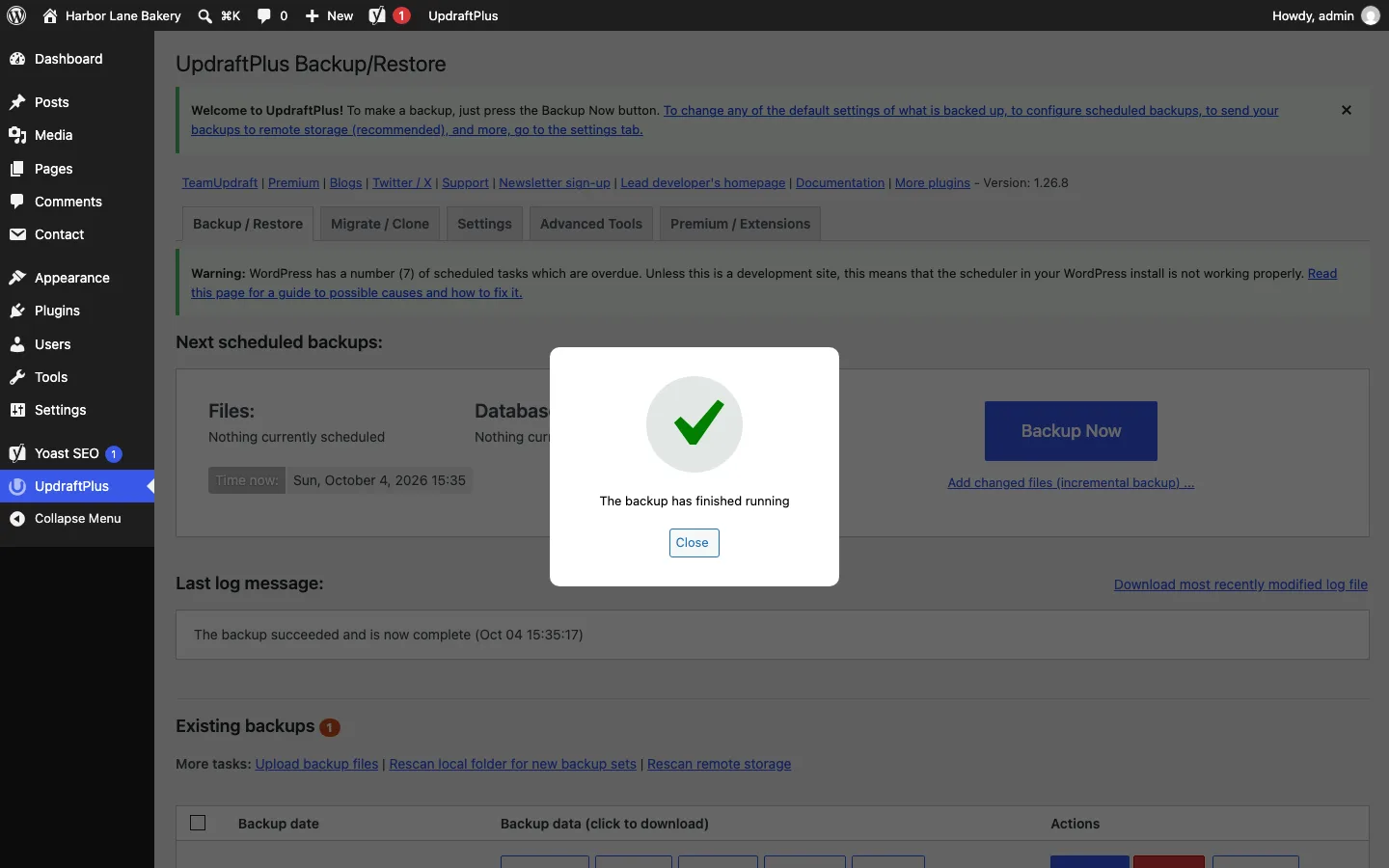
A finished UpdraftPlus backup on our test site, UpdraftPlus 1.26.8, October 2026.
Our verdict: UpdraftPlus is the best WordPress backup plugin for most sites. The free version backs up on a schedule, sends copies to Dropbox, Google Drive or Amazon S3, and restores from your dashboard. On our test site it backed up in about 5 seconds and brought back a deleted post, a changed title and a deleted photo. WPvivid is the best free alternative, with more free cloud destinations and free migration. If your site takes orders, pay for a service that stores backups off your server, like BlogVault or Jetpack VaultPress Backup.
Below: break-and-restore results for six free plugins, two paid services, what happened to BackupBuddy, and how to back up a site step by step.
Quick Facts: WordPress Backup Plugins Compared
Versions and install counts are from WordPress.org, and prices from each vendor’s site, as of October 2026.
| Plugin | Free restore | Free off-site storage | Free schedules | Paid plans from | Active installs |
|---|---|---|---|---|---|
| UpdraftPlus 1.26.8 | Yes, one click | Dropbox, Google Drive, S3, FTP and more (one at a time) | Yes | $70/year (2 sites) | 4,000,000+ |
| WPvivid 0.9.136 | Yes, one click | Google Drive, Dropbox, OneDrive, S3, SFTP and more | Yes | $49/year (2 domains) | 900,000+ |
| Duplicator 5.0.5 | Yes, through its installer | None | No | $69.30/year (2 sites, sale price) | 1,000,000+ |
| All-in-One WP Migration 7.111 | Only by re-importing the file | None | No | $69/year (Unlimited Extension) | 5,000,000+ |
| BackWPup 5.7.6 | Yes, by uploading the archive | Dropbox, S3, Azure, FTP and more | Yes | $49/year (2 domains) | 400,000+ |
| Total Upkeep 1.17.4 | Yes, one click | FTP/SFTP | Yes | $2.50/month, billed yearly | 50,000+ |
| BlogVault | Paid service | Its own cloud | Daily (paid) | $49.50/year per site (sale price) | 80,000+ |
| Jetpack VaultPress Backup | Paid service | Its own cloud | Real time (paid) | $4.95/month for the first year | 20,000+ |
How We Broke and Restored the Same Site
We ran every free plugin against one test site: WordPress 7.1.2 (PHP 8.3, MariaDB 11.8) in a local Docker sandbox, with 20 posts, 7 pages, 8 photos, Yoast SEO and Contact Form 7, about 150 MB in all. We reset the site to the same starting point before each plugin.
For each plugin we timed a full backup, then broke the site three ways: we deleted a post, changed the site title to “Site Broken”, and deleted one photo’s files from the uploads folder. Then we restored and checked what came back.
Our sandbox needed three settings most real hosts already have: a 128 MB upload limit (up from 2 MB), PHP’s PDO MySQL extension, and the ability for the server to call itself (a loopback request). Where a plugin failed before that, we say so.
| Plugin | Backup time | Backup size | Includes WordPress core | Restore on our test site |
|---|---|---|---|---|
| UpdraftPlus | About 5 seconds | 39 MB in 5 files | No | All three fixed in 3 of 4 runs; 1 run broke the site while reporting success |
| WPvivid | 9 seconds | 52 MB, one ZIP | Yes | All three fixed, about 14 seconds |
| Duplicator | About 16 seconds | 68 MB archive plus installer | Yes | All three fixed, but 3 database warnings and 2 Yoast SEO tables missing |
| All-in-One WP Migration | About 4 seconds | 55 MB, one .wpress file | No | Restore button locked; re-importing the file fixed all three |
| BackWPup | 3 seconds (plugin’s count) | 146 MB, uncompressed TAR | Yes | All three fixed after uploading the archive |
| Total Upkeep | About 12 seconds | 55 MB, one ZIP | Yes | All three fixed, about 4 seconds |
This was one session on a small site, and a real host can behave differently. Treat the times as a comparison, not a promise.
The Best WordPress Backup Plugins
1. UpdraftPlus: Best overall
UpdraftPlus is the most popular backup plugin on WordPress.org, with 4,000,000+ active installs and a 4.8 out of 5 rating from about 8,670 reviews. It was last updated on September 21, 2026. Our full UpdraftPlus review has more on the setup wizard, partial restores and Premium pricing.
On our test site. A setup wizard opens first; “Exit setup” skips it. Click Backup Now and it runs. Our backups took about 5 seconds (one took 18) and made five files, database, plugins, themes, uploads and “others”, 39 MB in all. Free backups skip WordPress core (you can download it again) and wp-config.php, so keep your own copy of that file.

The end of an UpdraftPlus restore on our test site, version 1.26.8, October 2026.
Restore lets you pick which parts to bring back, so you can roll back just the database or just the uploads. Restores took 6 to 13 seconds and brought back the post, the title and the photo.
One of four runs went wrong. The restore log showed an error while building a temporary copy of the settings table, the plugin replaced the table anyway, and the page still said “Restore successful!” The site then showed “Error establishing a database connection” until we fixed the database by hand. We could not repeat it, and it may be down to our test server, but it is a good reason to check your site after every restore.
Where free stops. Free sends backups to one remote destination at a time: Dropbox, Google Drive, Amazon S3 or S3-compatible storage, FTP, Rackspace, OpenStack, DreamObjects or email. OneDrive, SFTP, Backblaze, Google Cloud, Azure, WebDAV and pCloud need Premium. Free schedules run from every 2 hours (files) or hourly (database) to monthly; a fixed time of day, incremental backups, backups before updates and migration are Premium.
Pricing as of October 2026. Premium is $70/year for 2 sites, $95 for 10, $145 for 35 or $195 for unlimited, each with 1 GB of UpdraftVault cloud storage.
Pros: strong free version; restore parts of a site; cheap Premium for 2 sites.
Cons: no core files or wp-config.php in free backups; one free remote destination; one bad restore in four runs on our site.
2. WPvivid: Best free alternative

A finished WPvivid backup in the Backups list on our test site, version 0.9.136, October 2026.
WPvivid has 900,000+ active installs, a 4.9 out of 5 rating from about 1,560 reviews, and was last updated on September 28, 2026. It does backups, migration and staging in one free plugin.
On our test site. There is no wizard: pick “Database + Files” and click Backup Now. The backup took 9 seconds and made one 52 MB ZIP, WordPress core included. After one “Are you sure?” prompt, Restore took about 14 seconds and fixed all three things we broke.

WPvivid’s restore log at 100% on our test site, version 0.9.136, October 2026.
Where free stops. WPvivid gives away more than UpdraftPlus. Free remote storage covers Google Drive, Dropbox, Microsoft OneDrive, Amazon S3, DigitalOcean Spaces, FTP and SFTP. You also get one free schedule (every 12 hours to monthly), free site-to-site migration and one free staging site; our WordPress staging plugin roundup shows how that copy behaved. Incremental backups, custom backup contents, extra schedules and pushing staging to live are in Pro.
Pricing as of October 2026. WPvivid Pro costs $49/year (2 domains), $69 (10), $99 (50) or $149 (unlimited), or $99, $139, $199 or $299 once for lifetime licenses.
Pros: the most free cloud destinations here; one-click restore; free migration and staging.
Cons: plainer screens; one schedule on the free version; smaller user base than UpdraftPlus.
3. Duplicator: Best for full-site copies and moves

A finished backup in Duplicator Lite on our test site, version 5.0.5, October 2026.
Duplicator has 1,000,000+ active installs, a 4.9 out of 5 rating from about 4,940 reviews, and was last updated on September 29, 2026. It packs the whole site, WordPress core included, into one archive plus an installer file, which is why it is popular for moving sites. Our full Duplicator review times a complete move to an empty server.
On our test site. Add New runs a quick scan, then Create Backup. The build took about 16 seconds and made a 68 MB archive. (It sat at “Initializing Backup” until our sandbox allowed loopback requests, which Duplicator uses to build in the background.) Lite now has a Restore button that runs the installer in a pop-up and overwrites the site. It took 6 to 9 seconds, and the post, title and photo came back.

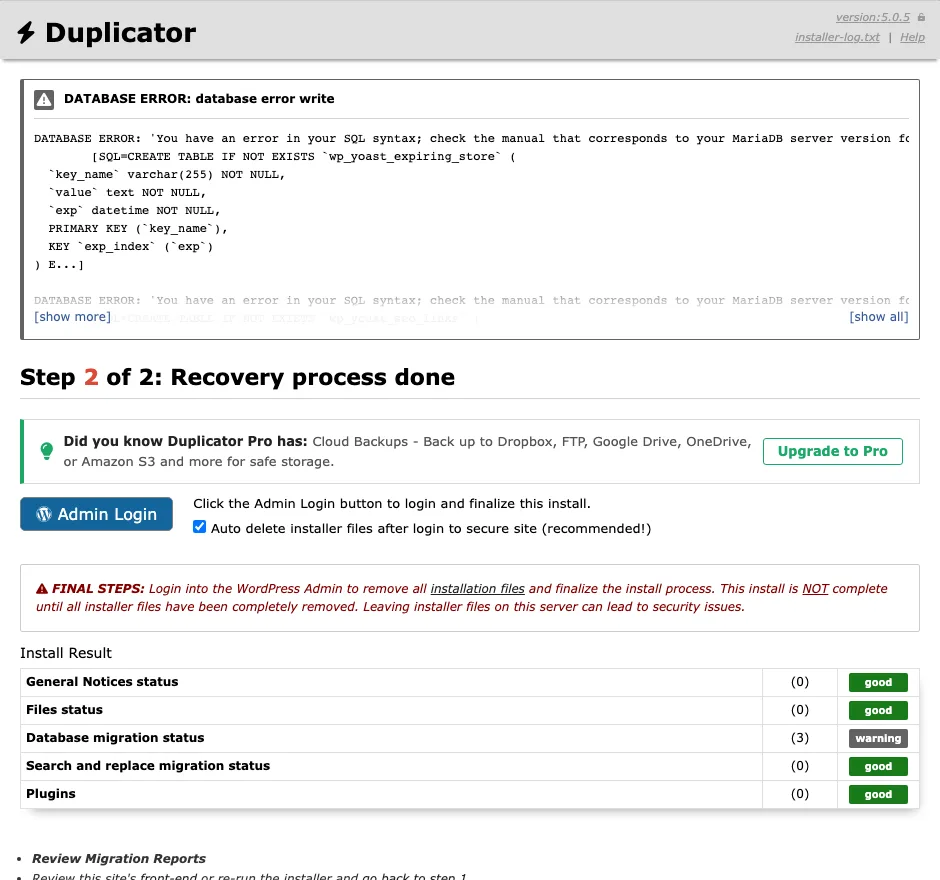
Duplicator’s restore result on our test site, with three database warnings, version 5.0.5, October 2026.
It was not fully clean. The installer warned that our database’s collation (its text-sorting rules) was not supported, even though we were restoring to the same server. It finished with three database warnings, and two of Yoast SEO’s six tables were not recreated. Two runs gave the same result.
Where free stops. Lite has no schedules, no drag-and-drop import and no third-party cloud storage. Its only remote option is Duplicator Cloud, from $29/year for 2 GB.
Pricing as of October 2026 (first-year sale prices): Basic $69.30/year for 2 sites (normally $99) adds schedules and one cloud destination; Plus $99.50 for 5 sites adds hourly backups; Pro $159.60 for 20 sites adds staging; Elite $239.60 for 100 sites.
Pros: one archive with everything; good for moving or cloning sites; restore button in the free version.
Cons: no free schedules or cloud storage; database warnings and missing plugin tables on our restore.
4. All-in-One WP Migration: Best for one-off moves
All-in-One WP Migration has 5,000,000+ active installs, a 4.5 out of 5 rating from about 7,670 reviews, and was last updated on September 15, 2026. It is built for moving sites, and many people use it for manual backups.
On our test site. Create Backup finished in about 4 seconds and made a 55 MB .wpress file (no WordPress core).

Clicking Restore in the free All-in-One WP Migration, version 7.111, October 2026.
Restoring is the catch. Restore on the Backups page opens a pop-up pointing to the paid Unlimited Extension. The free route is to download the .wpress file and upload it on the Import page, which our sandbox’s 2 MB upload limit blocked at first. With the limit at 128 MB, the import took about 7 seconds and fixed all three things we broke.

Re-importing the backup file on our test site, All-in-One WP Migration 7.111, October 2026.
Where free stops. Free exports go to a file only. Cloud destinations need All-in-One WP Migration Pro ($99/year, up to 50 sites), and schedules are Premium too. The Unlimited Extension ($69/year, up to 50 sites) adds one-click restore and lifts upload limits. Our All-in-One WP Migration tutorial walks through a full move.
Pros: fastest backup we saw; one file that is easy to move; huge user base.
Cons: no free restore button, schedules or cloud storage; host upload limits get in the way.
5. BackWPup: Best for free scheduled archives

Choosing where to store backups in BackWPup’s setup, version 5.7.6, October 2026. Locked options need Pro.
BackWPup has 400,000+ active installs, a 4.0 out of 5 rating from about 1,320 reviews, and was last updated on September 7, 2026.
On our test site. A three-step setup asks what to back up, when (monthly by default) and where. Free storage covers your server, Dropbox, FTP, Microsoft Azure, Amazon S3, SugarSync and Rackspace; Google Drive, Amazon Glacier, HiDrive and OneDrive are locked. The first backup runs when you save. BackWPup reported 3 seconds, and the archive was a 146 MB uncompressed TAR, the default format (ZIP and TAR GZIP are in Advanced settings).

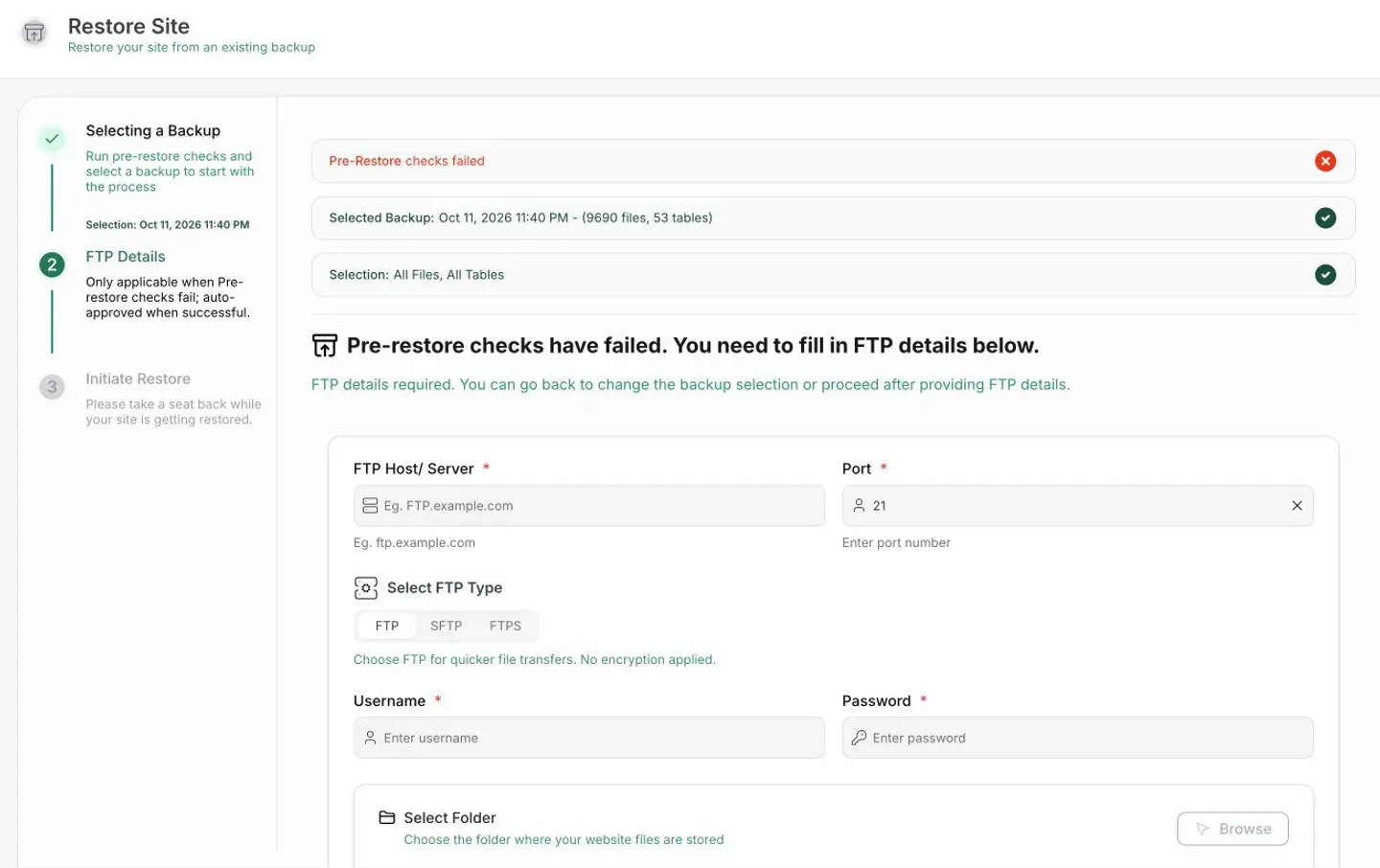
BackWPup’s free restore tool partway through a restore on our test site, version 5.7.6, October 2026.
The free version restores, but not from the backup list. On Restore backup you upload the archive, pick Full Restore, Database Only or Files Only, confirm the pre-filled database details, and press Start. Our 146 MB upload took about 5 seconds. A few seconds into the restore, the page sent us to the login screen with no success message. After logging in, everything we broke was fixed.
Pricing as of October 2026. BackWPup Pro costs $49/year (2 domains), $99 (5) or $199 (20). It adds one-click restores without uploads, the locked storage options, encryption and migration.
Pros: free schedules and many free cloud destinations; free restore of files, database or both.
Cons: restore needs a manual upload; no success message on our restore; big uncompressed archives by default.
6. Total Upkeep: Best low-cost premium upgrade

Total Upkeep after a restore on our test site, version 1.17.4, October 2026.
Total Upkeep, made by BoldGrid, has 50,000+ active installs, a 4.8 out of 5 rating from about 440 reviews, and was last updated on August 18, 2026.
On our test site. The screens are busy, with a BoldGrid Connect Key prompt (you can dismiss it) and two warning boxes. Our first backup failed with a PHP fatal error because the sandbox lacked the PDO MySQL extension, though the plugin’s Preflight Check said PASS. With it added, a full backup took about 12 seconds and made a 55 MB ZIP, core included. View details then Restore finished in about 4 seconds and fixed everything.
Where free stops. Free schedules let you pick weekdays and a time. Free storage is your server plus FTP/SFTP; Google Drive and Amazon S3 need Premium, as does restoring a single file from a backup. BoldGrid says Total Upkeep can also roll back failed plugin and theme updates.
Pricing as of October 2026. Premium costs $2.50 a month, billed yearly ($30/year), and BoldGrid says one license covers every site you or your business owns. See Total Upkeep Premium.
Pros: cheapest premium plan here; fast one-click restore; free schedules.
Cons: cluttered screens; only FTP/SFTP free; needs PHP’s PDO MySQL extension.
7. BlogVault: Best off-server backups for busy sites
BlogVault is a paid service with a small connector plugin (80,000+ active installs, updated September 17, 2026). Backups live on BlogVault’s servers, so a dead or hacked host does not take them with it, and BlogVault says restores work even when your site is down. The plugin asks for an email address and agreement to BlogVault’s terms before it does anything, so we stopped there; details below are from BlogVault’s pricing page.
As of October 2026, with a 50% sale shown: Personal is $49.50/year per site (normally $99) with daily backups kept 30 days, for sites up to 20 GB. Business is $149.50 (normally $299) with twice-daily backups. WooCommerce is $249.50 (normally $499) with real-time backups kept 365 days. Every plan includes staging, the vendor says.
Pros: backups off your server; real-time order backups on the WooCommerce plan; staging included.
Cons: no free plan; normal prices are double the sale prices.
8. Jetpack VaultPress Backup: Best real-time backups on a budget
Jetpack VaultPress Backup, from Automattic, saves changes to Jetpack’s cloud as they happen and restores in one click, the vendor says. It needs a WordPress.com connection and a paid plan. On our local test site the plugin showed only a sales page, its button marked “Unavailable in Offline Mode”, so this section is based on Jetpack’s published details.
As of October 2026 it costs $4.95 a month for the first year, billed yearly ($59.40), then renews at $9.95 a month. That includes 10 GB of storage, a 30-day backup archive and an activity log. The Security bundle adds malware scanning, a firewall and Akismet spam protection for $9.95 a month in the first year.
Pros: real-time backups; low first-year price; restores from desktop or mobile, the vendor says.
Cons: price doubles at renewal; 30-day history on the base plan; needs a WordPress.com account.
What Happened to BackupBuddy? (Now Solid Backups, Then Kadence Backups)
BackupBuddy was one of the best-known paid backup plugins. Its maker, iThemes, became part of Liquid Web, and in October 2023 BackupBuddy was renamed Solid Backups. In 2026 Liquid Web folded the Solid products into its Kadence bundle and is renaming the plugin again, to Kadence Backups. The old BackupBuddy and Solid web addresses now redirect to Liquid Web’s Kadence pages. According to Liquid Web’s documentation, there are now two products:
- Kadence Backups Legacy (the old BackupBuddy plugin) is in maintenance mode, with only security fixes and small tweaks since 2025, the latest on July 26, 2026. It dropped Google Drive in November 2024 and still restores with the separate
importbuddy.phpfile. - Kadence Backups (formerly Solid Backups NextGen) is a separate, cloud-only service. It connects to your server over SSH or SFTP, keeps backups in its own US or EU cloud for 7 days to a year, and restores from the Kadence Central dashboard. Legacy backups can’t be moved into it.
Liquid Web no longer sells it on its own. Kadence Backups comes with Kadence Pro ($299/year, which adds security, WooCommerce and membership tools) or Elite ($499/year). That is fine if you already use Kadence (see our Kadence review), but steep for backups alone. If you still run BackupBuddy, UpdraftPlus is the closest in-dashboard replacement and BlogVault the closest off-server one. Keep the old plugin until your new backups run and one test restore works. More on the company in our Liquid Web review.
Your Host’s Backups Are Not Enough on Their Own
Most hosts back up your site, so check what yours does first. Here is what five hosts we cover include, as of October 2026:
| Host | Backups included | Notes |
|---|---|---|
| Hostinger | Weekly on Premium; daily on Unlimited and higher | On-demand backups on Cloud plans |
| SiteGround | Daily, kept up to 30 days | Stored in a different data center |
| Kinsta | Daily, kept 14 days (more on larger plans) | External backups to S3 or Google Cloud cost extra |
| Cloudways | Every 24 hours, kept a week by default | Off-site storage billed at $0.033 per GB |
| Liquid Web | Daily, kept 7, 14 or 30 days | Depends on the plan |
Host backups are a good safety net, but they live with the same company as your site. If the host has an outage, closes your account, or a hack goes unnoticed for weeks, you want a copy somewhere else, and a plugin sending backups to your own cloud storage covers that. Our Hostinger review, Hostinger vs SiteGround comparison, Kinsta review and Cloudways review have the details.
How to Back Up a WordPress Site
A full WordPress backup has two parts: the database (posts, pages, settings, users, orders) and the files (themes, plugins, uploads, and wp-config.php). You need both.
With a plugin (easiest). Using free UpdraftPlus as the example:
- Go to Plugins > Add New, search for UpdraftPlus, install and activate it.
- Open Settings > UpdraftPlus Backups and skip or finish the setup wizard.
- On the Settings tab, set a files schedule (weekly suits most blogs) and a database schedule (daily if you post or sell often), and how many copies to keep.
- Pick a remote storage service, such as Google Drive or Dropbox, connect it, and save.
- Back on Backup / Restore, click Backup Now to make your first backup.
- Check that the files show up in your cloud storage, and download one copy to your computer.
From your host. In cPanel, hPanel or your host’s dashboard, open Backups and download a full backup. This is the quickest option before a big change.
By hand. Download the wp-content folder and wp-config.php with your host’s file manager or an SFTP app, then export the database in phpMyAdmin (Export > Quick > SQL), or run wp db export if you have WP-CLI.
Then test a restore. Restore a copy once on a staging or local site and check it; our UpdraftPlus and Duplicator results show why. If your site has been hacked, save a labeled copy of the infected site before cleaning it, as our guide to removing spam links explains, then work through our WordPress malware removal steps. To move hosts with UpdraftPlus, follow the steps in our Lunarpages guide.
Which Backup Plugin Should You Pick?
- A blog or small business site: UpdraftPlus, with weekly file and daily database backups sent to Google Drive or Dropbox. Premium ($70/year for 2 sites) adds backups before updates and more storage locations.
- The most for free: WPvivid, with free OneDrive and SFTP storage, core files in every backup, and free migration and staging.
- You move or clone sites often: Duplicator for one complete package, or All-in-One WP Migration for the quickest one-file export.
- An online store or membership site: BlogVault’s WooCommerce plan or Jetpack VaultPress Backup, so recent orders are not lost and backups live off your server.
- Many sites on a small budget: Total Upkeep Premium, $30/year for every site you own.
- Already on Kadence Pro: use the Kadence Backups you already pay for.
Whatever you pick, keep one copy away from your host, keep a few weeks of history (hacks are often found late), and test a restore at least once.
FAQ
What is the best free WordPress backup plugin?
UpdraftPlus for most people: free schedules, free backups to Dropbox, Google Drive or Amazon S3, and a restore button in your dashboard. WPvivid is a close second with more free storage options, including OneDrive and SFTP. Both fixed everything we broke on our test site, though one of four UpdraftPlus restores left the site down.
Can I restore a WordPress backup for free?
With most plugins, yes. UpdraftPlus, WPvivid, Duplicator Lite and Total Upkeep restore from the dashboard for free, and BackWPup restores if you upload the archive. All-in-One WP Migration is the exception: its restore button needs the $69/year Unlimited Extension, so free users re-import the backup file instead, which runs into host upload limits.
Do I need a backup plugin if my host backs up my site?
It is still a good idea. Host backups stay with the same company and may run only weekly on cheap plans (Hostinger Premium, for example). A plugin that sends copies to your own Google Drive, Dropbox or S3 account gives you a backup that doesn’t depend on your host.
What happened to BackupBuddy?
It was renamed Solid Backups in October 2023, and in 2026 Liquid Web folded it into its Kadence bundle as Kadence Backups. The original plugin is now Kadence Backups Legacy and gets only maintenance updates. The new Kadence Backups is a cloud service sold only as part of Kadence Pro ($299/year) or Elite ($499/year) as of October 2026.
Where should I store WordPress backups?
Somewhere other than your web server. Good options are a cloud account you control (Google Drive, Dropbox, OneDrive, Amazon S3 or Backblaze), or a backup service like BlogVault or Jetpack that stores copies on its own servers. Keep one recent copy on your computer too.
How often should I back up WordPress?
Match it to how often the site changes. A weekly blog is fine with weekly file and daily database backups. A store or busy membership site needs daily or real-time backups so recent orders are not lost. Always back up before updating WordPress, your theme or plugins.