Best WordPress Staging Plugin (2026): 5 Picks, Free and Paid
Our verdict: WP Staging is the best free WordPress staging plugin. On our test site it made a full copy in about 10 seconds, with no account needed. The catch is that pushing changes back to the live site needs a paid plan (€139 a year). WPvivid is the cheapest way to get push-to-live, from $49 a year. BlogVault is the pick if you want the staging copy off your server and the option to merge back only the files and database tables you pick. If your host already includes staging, use that first.
Below: what a staging site is, how push-to-live works, five plugins we installed on a test WordPress site in October 2026, and the staging tools built into popular hosts.
Quick Facts: WordPress Staging Plugins Compared
Versions and install counts are from WordPress.org, and prices from each vendor’s site, as of October 2026.
| Plugin | Free staging copy | Cheapest plan with push to live | Active installs | Where the copy runs |
|---|---|---|---|---|
| WP Staging 4.16.0 | Yes, unlimited | €139/year (Business, 3 sites, excl. VAT) | 100,000+ | Subfolder on your server |
| WPvivid 0.9.136 | Yes, one site | $49/year (2 domains) | 900,000+ | Subfolder on your server |
| BlogVault 6.76 | No (paid service; first backup free, no card) | $49.50/year (1 site, 1-day staging) | 80,000+ | BlogVault’s cloud |
| InstaWP Connect 0.1.4.1 | No (card needed before any site) | Two $2/month sandboxes plus usage-based sync; built-in staging from $15/month (Pro) | 40,000+ | InstaWP’s cloud |
| Duplicator 5.0.5 | No (Pro only) | $159.60/year (Pro, 20 sites) | 1,000,000+ | Your server, built from a backup |
What Is a WordPress Staging Site?
A staging site is a private copy of your live website. It has the same theme, plugins, content and settings, but visitors and search engines can’t see it. You use it to try risky changes, like a plugin update or a redesign, without touching the site your customers use.
The workflow has three steps:
- Clone. The tool copies your files and database to a new location, such as
example.com/stagingorstaging.example.com, and rewrites the site address inside the copy so it works on its own. - Test. You log in to the copy, run updates or make changes, and check that nothing breaks.
- Push to live. You copy the tested changes back to the real site. This is the step most free plugins lock behind a paid plan.
Why push-to-live is the risky part
Pushing means overwriting files and database tables on the live site with the versions from the copy. That is simple for a brochure site. On a busy site, the live database keeps changing while you test: new orders, comments and sign-ups land on the live site, not the copy. Push the whole staging database over the top and those records can be lost.
Tools handle this differently. WP Staging Pro lets you choose which tables and folders to push and backs up the live site first, the vendor says. BlogVault compares the copy with the live site and lets you pick which files and tables to push; on our test site, pushing only the settings table kept a post we had added on live. WP Stagecoach says it merges changes instead of overwriting. If your site takes orders, push files (themes and plugins) plus only the tables you changed, or redo small content edits by hand on the live site.
Our Test Setup
We used a fresh WordPress 7.1.2 install in a local Docker sandbox (PHP 8.3) with 40 posts, 6 pages and 8 images, about 150 MB in total. We installed each plugin’s free version from WordPress.org, made a staging copy wherever the free version allowed it, changed the site tagline on the copy, and checked that the live site stayed the same. For InstaWP and BlogVault we used each service’s own dashboard. On InstaWP, with a card on file and the $25 starter credit, we built a small cloud test site (“Juniper Ceramics”, a made-up pottery studio with a post and a page), cloned it as a second site, changed the clone and synced the changes back. We then added that cloud site to BlogVault and installed the BlogVault plugin on it, but stopped before linking it to a BlogVault account. For BlogVault’s staging and merge we came back later with a separate temporary test site, described in its section below. This was one session on small sites; times on a real host with a bigger site will differ.
The 5 Best WordPress Staging Plugins
1. WP Staging: Best free staging plugin
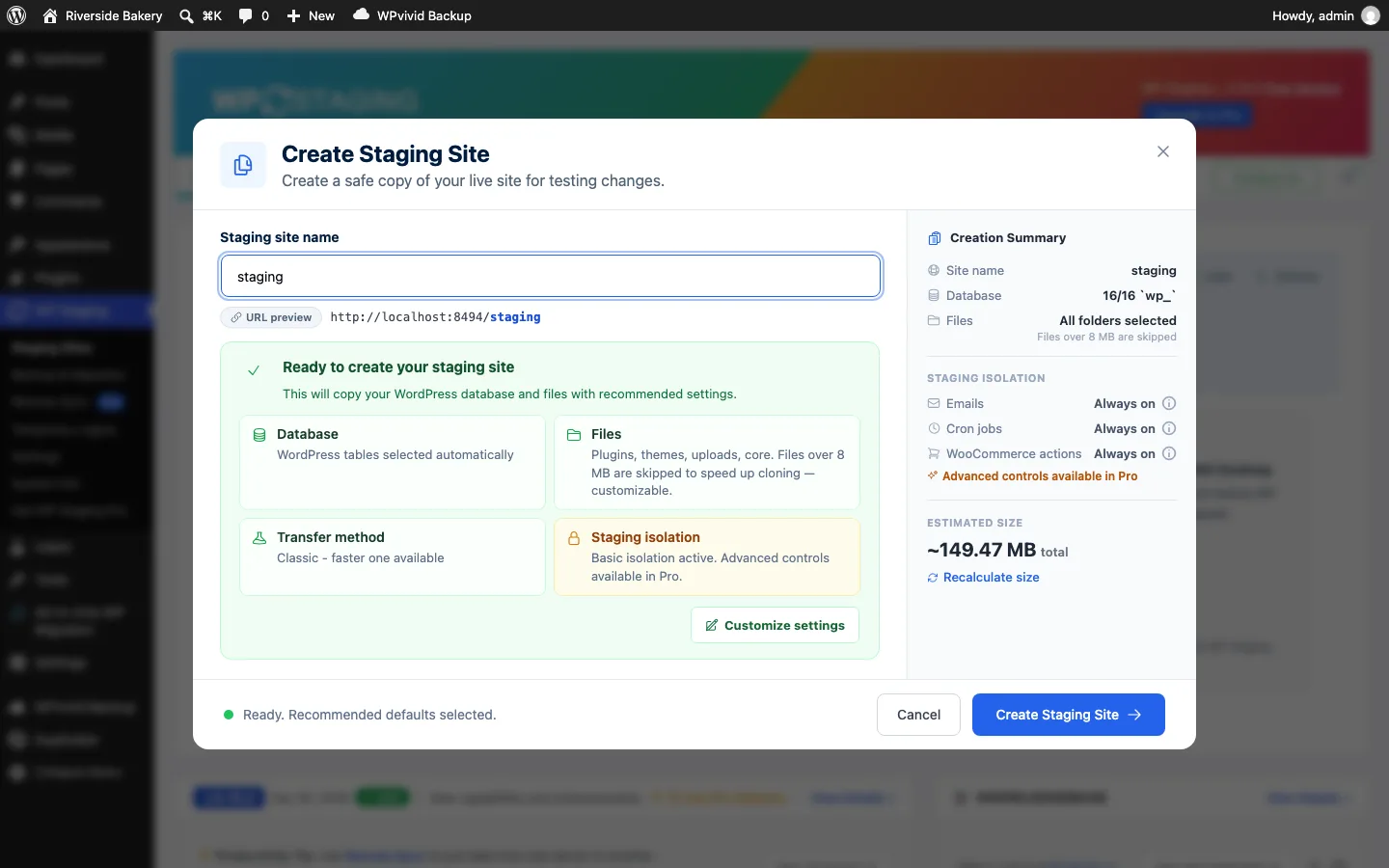
The WP Staging “Create Staging Site” dialog on our test install, version 4.16.0, October 2026.
WP Staging is what most people mean when they search “wp staging”. It has 100,000+ active installs, a 4.8 out of 5 rating from about 2,470 reviews on WordPress.org, and was last updated on October 1, 2026.
On our test site. The first screen asked us to turn on “security alerts” that share technical usage data; we clicked Skip. The create dialog then filled in sensible defaults: all WordPress tables and folders, with single files over 8 MB skipped to save time, and basic “staging isolation” for emails, cron jobs and WooCommerce actions (finer controls are in Pro). We named the copy “staging” and clicked Create. WP Staging reported it was created in 7 seconds, about 10 seconds on the clock.
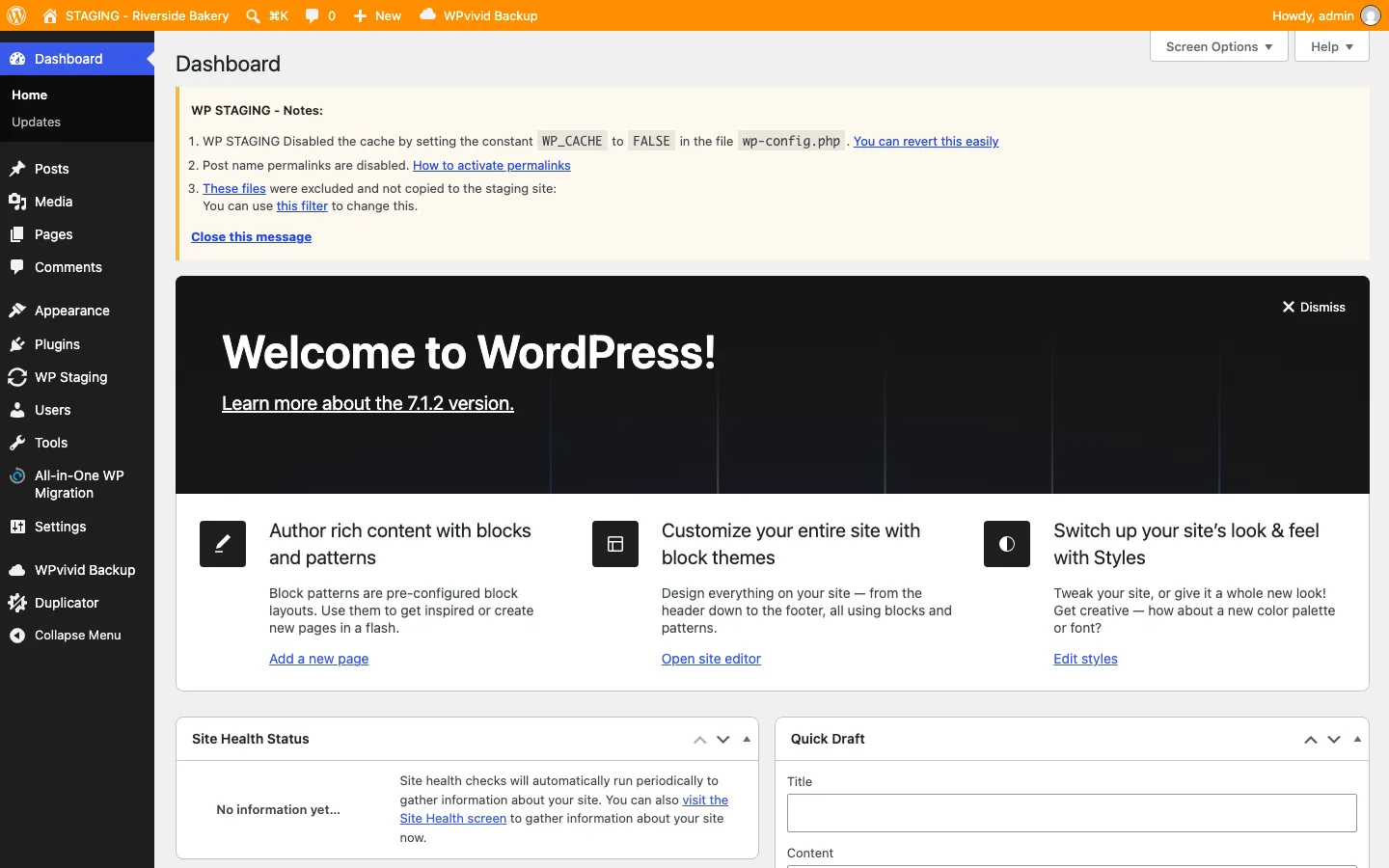
The staging copy’s dashboard with WP Staging’s orange admin bar, on our test install, October 2026.
What we liked about the copy:
- It is private. A logged-out visitor got a login form, not the site.
- It is hard to mistake for the live site. The admin bar turns orange and the site name gets a “STAGING” prefix.
- Search engines are kept out. The copy sent a
noindex, nofollowtag and had “discourage search engines” on. - It explains itself. A notes box said it had turned off caching and pretty permalinks on the copy and listed the files it left out.
Our tagline change on the copy did not touch the live site. One lesson: the copying runs while the WP Staging page is open. On our first try we closed the browser mid-copy and the plugin marked the half-built clone “Unhealthy”. We deleted it and the second attempt worked, so leave the tab open until you see “Your staging site is ready”.
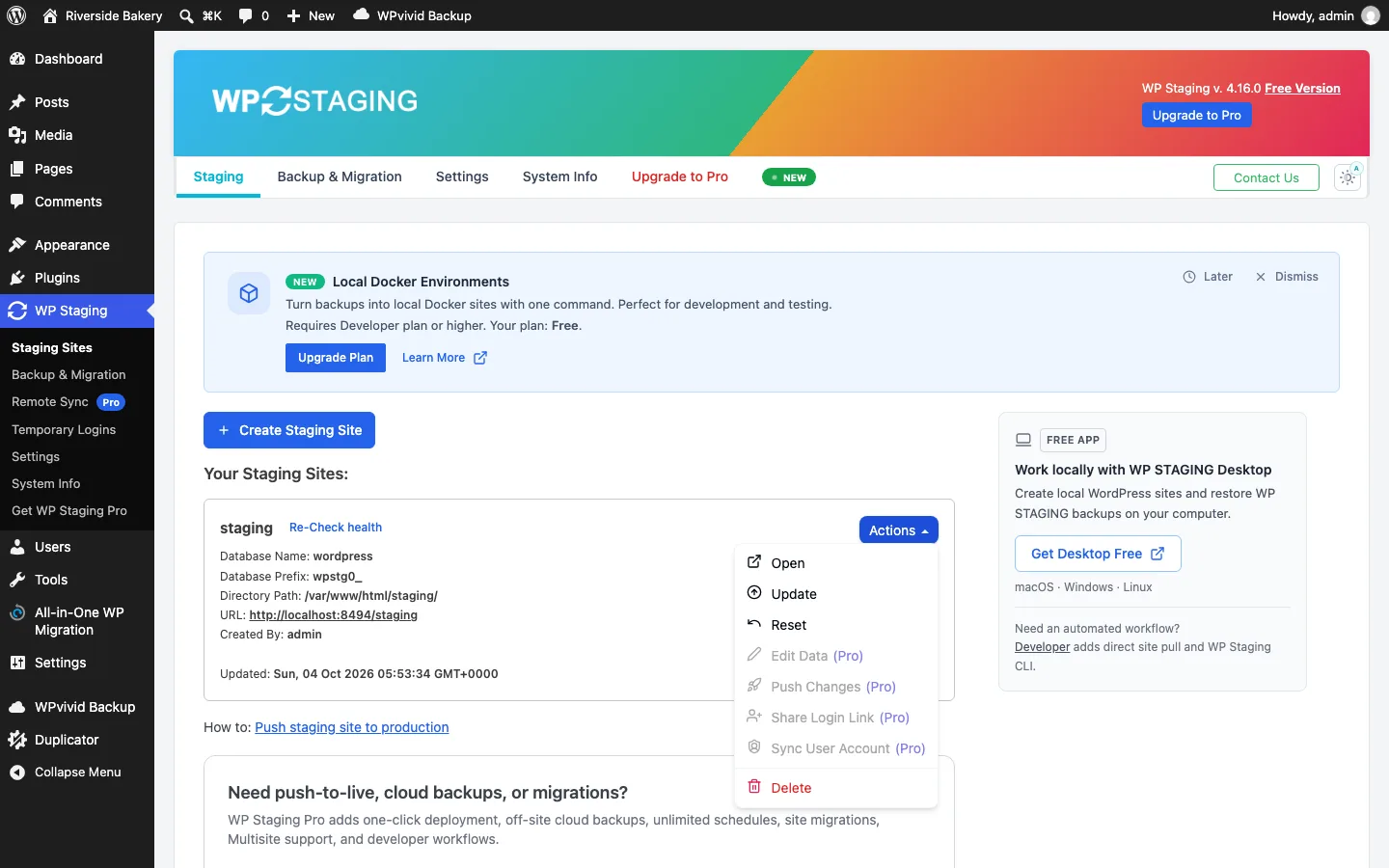
The free version’s Actions menu, where Push Changes is greyed out and marked Pro, October 2026.
Where free stops. You can open, update (re-copy live to staging) or reset the copy for free. “Push Changes” is greyed out and marked Pro, and so are login links for clients and user syncing. Free clones go to a subfolder only; a subdomain or separate database needs Pro. Expect upsells: our install showed a banner for local Docker sites, a “Need push-to-live?” box, and a review request after the clone.
Pricing as of October 2026 (excluding VAT): Personal €89/year for 1 site (no push), Business €139/year for 3 sites (adds push to live), Developer €239/year for 25 sites, Agency €499/year for 99 sites. Lifetime licenses cost €699 for 1 site or €1,399 for 3. If push-to-live is why you upgrade, skip Personal.
Pros: fastest clone we saw; unlimited free copies with no account; login-protected and hidden from search engines.
Cons: push to live starts at €139/year; free copies only in a subfolder; several upsell banners.
2. WPvivid: Cheapest push-to-live
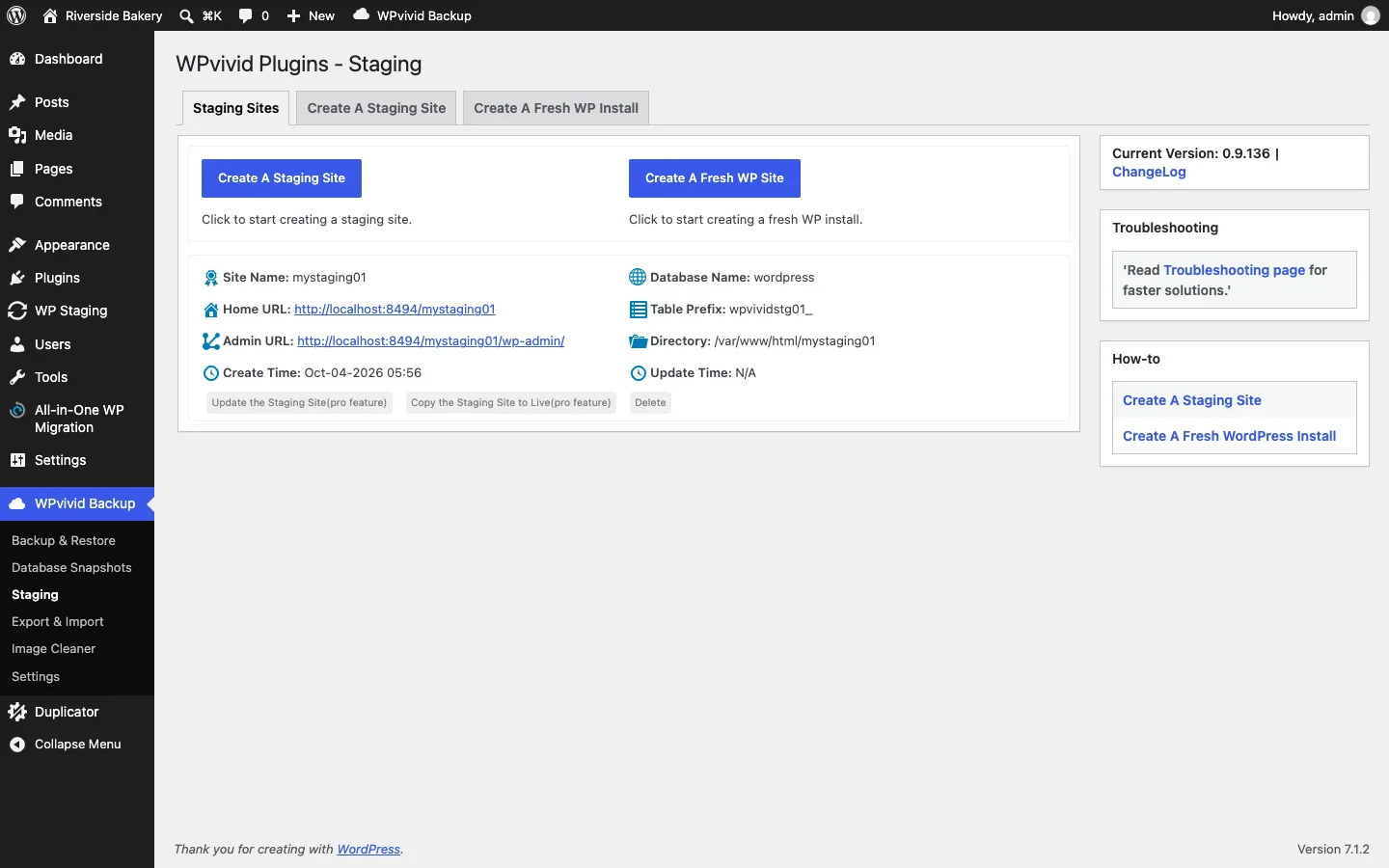
WPvivid’s Staging screen after creating a copy on our test install, version 0.9.136, October 2026.
WPvivid is a free backup and migration plugin with staging built in. It has 900,000+ active installs, a 4.9 out of 5 rating from about 1,560 reviews, and was last updated on September 28, 2026.
On our test site. The staging form is plainer than WP Staging’s but gives more choices: copy to the site root or wp-content folder (subdomain is a pro feature), a folder name, a table prefix, and the live database or a separate one. After a confirmation pop-up it built the copy in about a minute, slower than WP Staging on the same site but still quick. There were no upsell banners on the staging screen; paid features are simply labeled “(pro feature)”.
One difference matters: the copy was visible to logged-out visitors. It did send noindex, nofollow and had “discourage search engines” on, but anyone with the URL could see the front end. Our tagline edit stayed on the copy. “Update the Staging Site” and “Copy the Staging Site to Live” are pro features, and free users get one staging site at a time.
Pricing as of October 2026. WPvivid Pro, which bundles backup, migration and staging, costs $49/year (2 domains), $69 (10), $99 (50) or $149 (unlimited). Lifetime licenses are $99, $139, $199 and $299 for the same tiers. That makes it the cheapest plugin here with push-to-live.
Pros: free staging plus free backups and migration; push to live from $49/year or $99 once; separate-database option on the free version.
Cons: free copy was public on our install; slower clone than WP Staging; one free staging site.
3. BlogVault: Best cloud staging with selective merge
BlogVault is a backup service with staging included in every plan. The staging copy runs on BlogVault’s servers, so it adds no load to your host. The plugin has 80,000+ active installs and was last updated on September 17, 2026; BlogVault says it protects more than 400,000 sites.
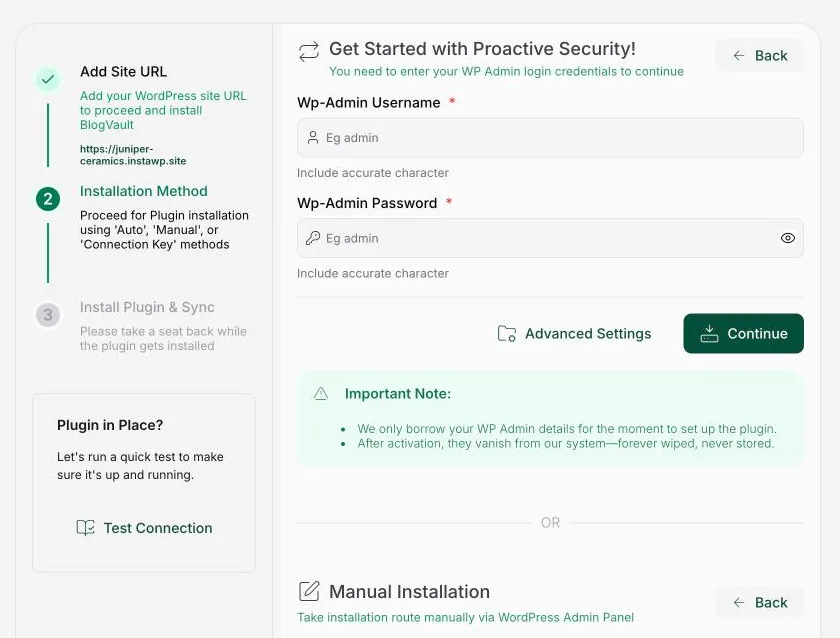
The install step after entering our InstaWP test site’s address in BlogVault, October 2026.
Adding a site. BlogVault’s servers have to reach your site over the internet, so it can’t back up a site that only runs on your computer. Adding a site from the dashboard takes three steps: the site’s URL, an install method, then “Install Plugin & Sync”. There are three install methods:
- Auto. You type your WordPress admin username and password into BlogVault’s dashboard and it installs the plugin for you. BlogVault says it only borrows the login to set up the plugin and does not store it.
- Manual. You download the plugin as a ZIP file and upload it under Plugins > Add New.
- Connection Key. You install the plugin yourself, copy a key from its settings page and paste it into the dashboard.
There is a fourth way inside the plugin itself: its settings page asks for an email address and a tick for BlogVault’s terms. On our first try, with the InstaWP site above, we stopped at that page.
Our second test. In October 2026 we went back with a temporary test site: WordPress 7.1.2 on PHP 8.3 with WooCommerce, Contact Form 7, seven posts and nine photos, about 167 MB. We gave it a temporary public web address for the test and deleted the site afterwards. When we asked for a review license, BlogVault’s support team suggested its 7-day premium trial instead. We used a new BlogVault account, and its dashboard labeled our site “Free” and never showed a trial countdown. It did not affect our verdict. With the BlogVault account signed in, the plugin’s email form linked the site without asking for a password, and the first backup finished within about two and a half minutes. Our backup plugin roundup has the backup and restore results.
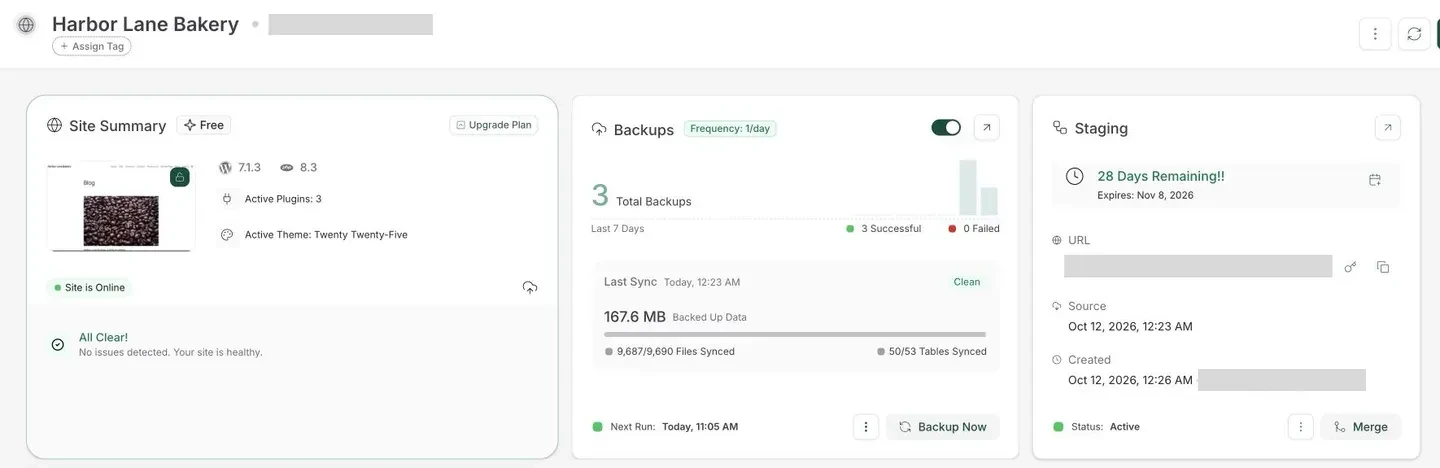
The staging card on our test site’s BlogVault page, site addresses hidden, October 2026.
Staging on our test site. “Create Staging Site” asks which backup to copy and which PHP version to run (5.6 to 8.5). The copy was ready within 80 seconds of our click, on a BlogVault web address. On our account it was set to expire after 28 days; on paid plans the limit is 1 day, 30 days or 6 months (table below). The copy is behind a browser username and password, but the “Access WordPress Admin” button logged us straight in. The staging page also offers SFTP details, phpMyAdmin, a download, Extend and Delete.
Merging back. We changed the site tagline on the copy. Then, to act like a busy store, we added a post on the live site. “Merge to Source” first compared the two sites, which took about two minutes, then listed changed files (there were none) and all 50 database tables, every one ticked. We unticked everything except wp_options, the table where WordPress keeps the tagline. BlogVault warned that the merge “will permanently overwrite content on your live site”. It took under 40 seconds. The live site then showed the new tagline, and the post we had added on live was still there. The comparison step also left a fresh backup of the live site in BlogVault’s history.
The catch is that you pick whole tables, not single changes. The warning only says the merge “will permanently overwrite content on your live site”, but leaving wp_posts ticked would most likely have wiped our live-only post. We did not try it. On a store, leave the order, post and user tables unticked and redo small content edits by hand.
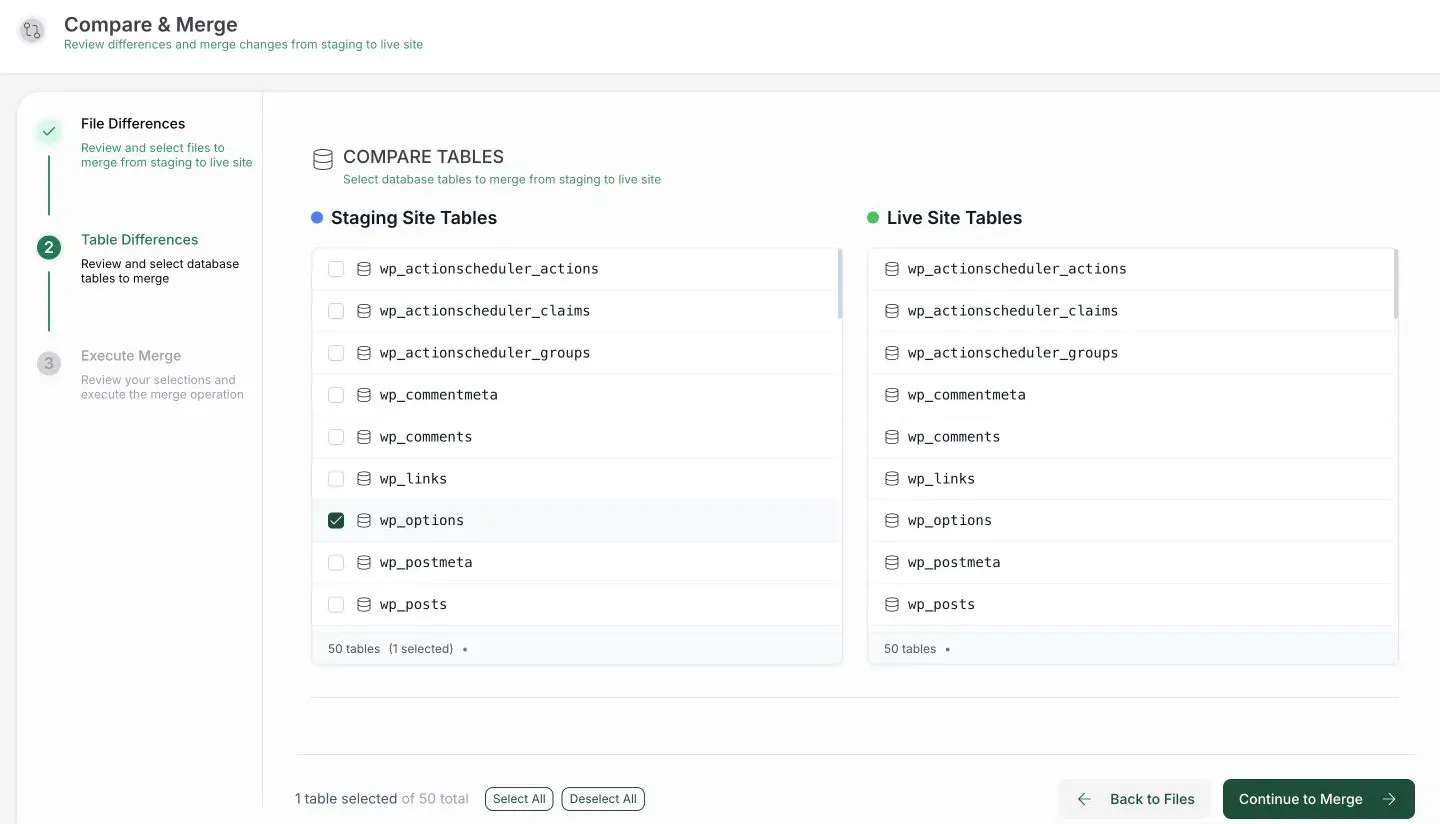
Picking only the wp_options table before merging our test site’s staging copy, October 2026.
How long a staging site lasts depends on the plan. Prices are from BlogVault’s pricing page as of October 2026, shown with a 50% sale:
| Plan | Price per site | Staging lasts | Backups |
|---|---|---|---|
| Personal | $49.50/year (normally $99) | 1 day | Daily, 30-day history |
| Business | $149.50/year (normally $299) | 30 days | Twice daily, 90-day history |
| WooCommerce | $249.50/year (normally $499) | 6 months | Real-time, 365-day history |
You can run a first backup without a credit card, and plans come with a 14-day money-back guarantee, the vendor says.
Pros: staging off your server, ready in under 2 minutes; merge lets you pick files and tables; one-click login to the copy; bundled offsite backups and migration.
Cons: no free plan on the pricing page, only a free first backup; Personal staging lasts one day; merge picks whole tables, not single changes; regular prices are double the sale price.
4. InstaWP: Best for developers and agencies
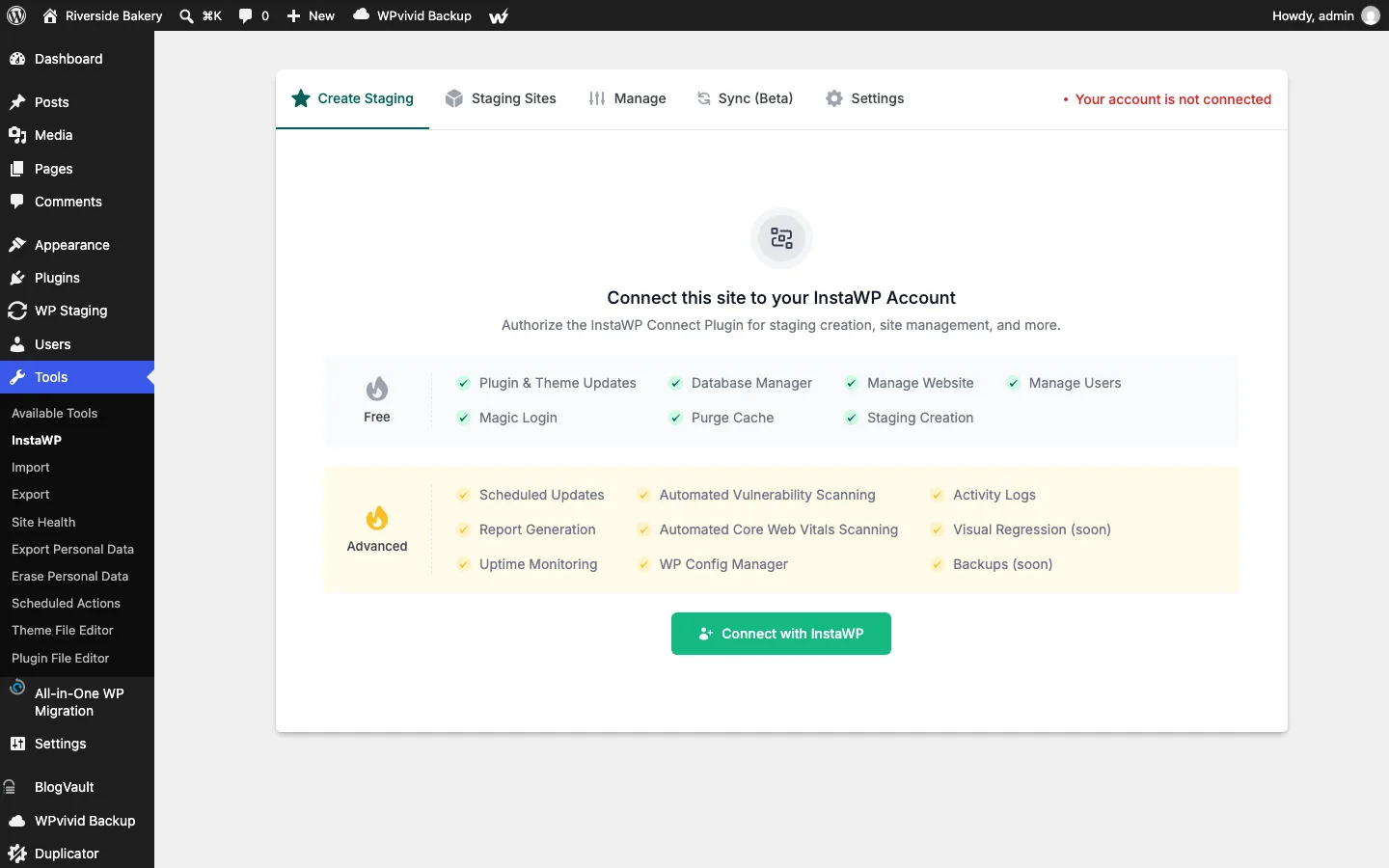
The InstaWP Connect plugin before connecting an account, version 0.1.4.1, on our test install, October 2026.
InstaWP is a cloud platform for spinning up WordPress sites. Its free InstaWP Connect plugin (40,000+ active installs, updated September 29, 2026) links your live site to an InstaWP account and creates the staging copy there. On our local install, every option in the plugin sat behind “Connect with InstaWP”.
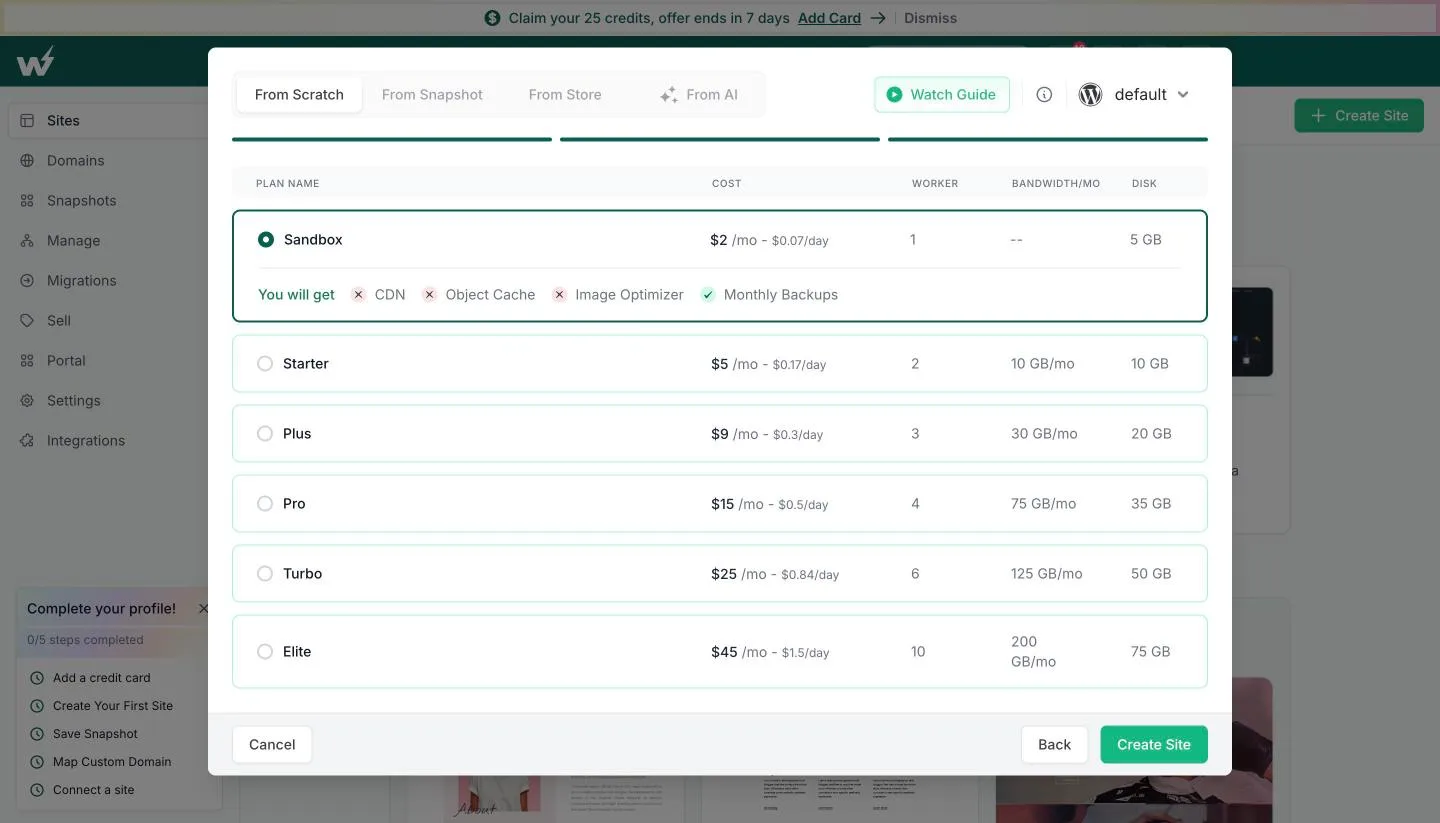
The plan step of InstaWP’s Create Site wizard on a free account, October 2026.
What we saw in the dashboard. Signing up is free. Creating a blank site is a three-step wizard: pick the WordPress version (7.1 was the default), PHP version (8.2), server location and a name on instawp.site; optionally tick some suggested plugins; then choose a plan. The cheapest is Sandbox at $2 a month, or $0.07 a day, with 1 worker and 5 GB of disk. It has monthly backups but no CDN, object cache or image optimizer. Production plans run from Starter at $5 a month to Elite at $45.
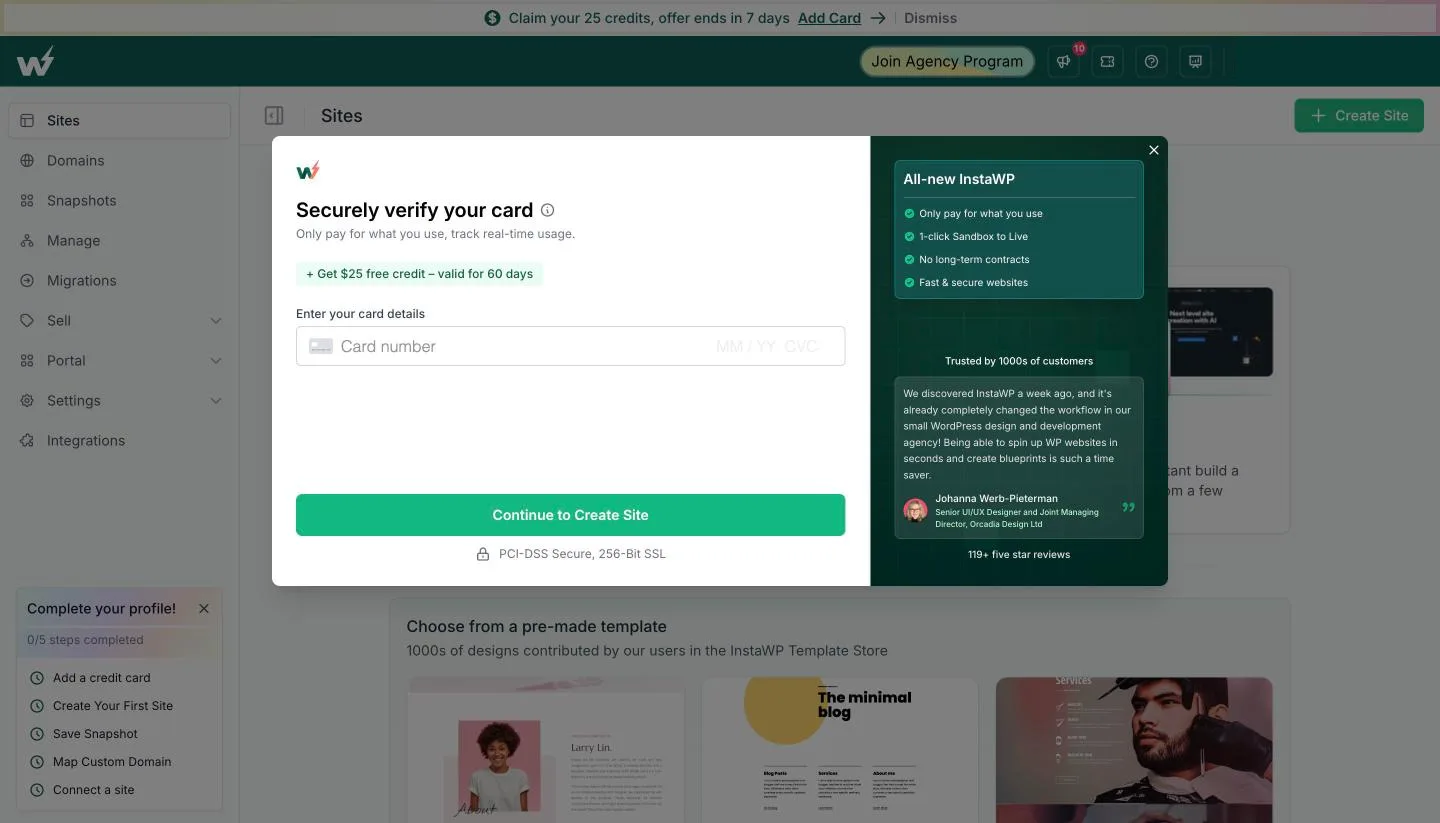
Clicking Create Site on a free InstaWP account opens this card check, October 2026.
Without a card on file, clicking Create Site opens a “Securely verify your card” box. Adding a card unlocks $25 in free credit, valid for 60 days. InstaWP’s pricing FAQ says a card is required to spin up any site, so the template and AI routes need one too.
On our test account. With a card on file, the same click built a Sandbox site called juniper-ceramics with no further prompt. InstaWP’s activity log shows it was ready 48 seconds later, running WordPress 7.1 even though WordPress itself offered an update to 7.1.2. Magic Login opened the WordPress dashboard without a password, and we added a post and a page.
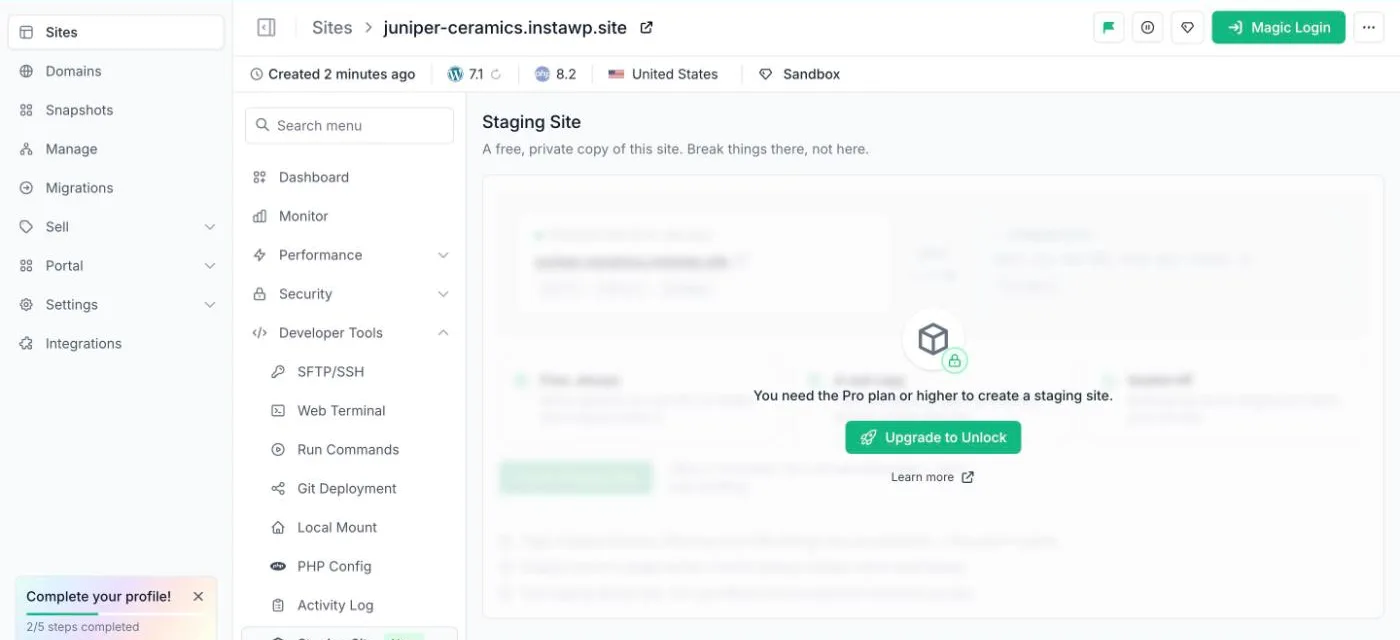
The built-in Staging Site page on a $2 Sandbox site, October 2026.
The site menu has a Staging Site page under Developer Tools, but on a Sandbox site it said “You need the Pro plan or higher to create a staging site.” InstaWP’s docs say this built-in copy comes free with Pro ($15 a month) and higher. Its “Push to production” replaces the whole live site, files and database, and the confirmation says no backup is taken first.
On a cheaper plan, the route is the one InstaWP suggests: a second $2 sandbox as the staging site. We used Clone from the site’s menu. The copy, juniper-ceramics-staging, was ready in about 80 seconds, with our post and page in place. Linking the two for sync took more steps than we expected:
- Install the free InstaWP Connect plugin on both sites. InstaWP’s own sites did not come with it.
- Click “Connect with InstaWP” on each and approve read and write access to the account.
- On InstaWP’s Manage page, open the live site’s Staging Sites panel and link the clone.
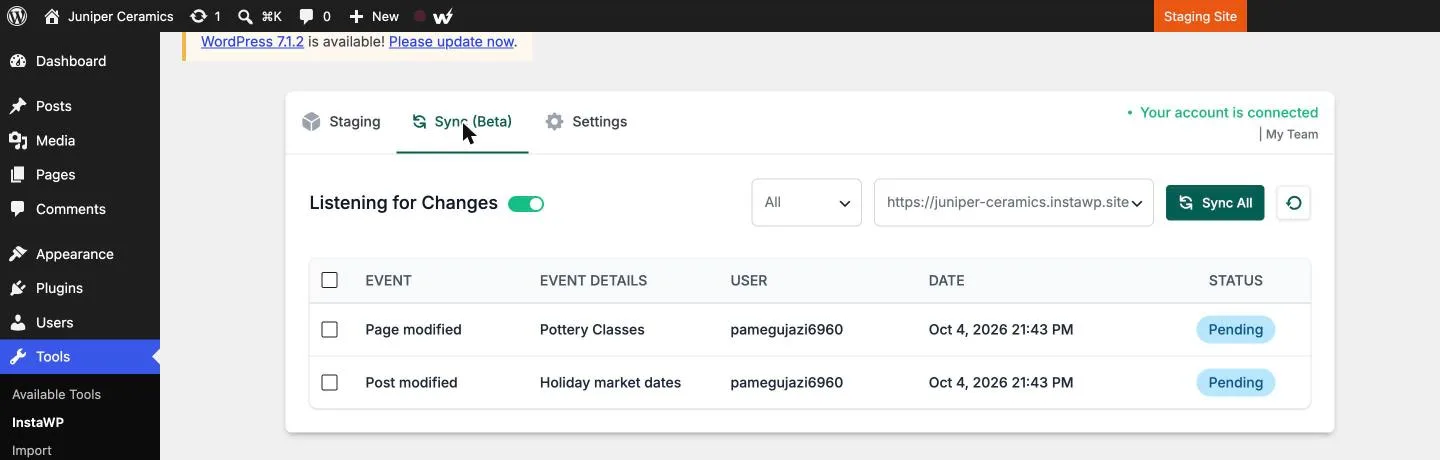
Two recorded changes waiting to sync from our InstaWP staging clone, InstaWP Connect 0.1.4.1, October 2026.
On the clone’s Sync (Beta) tab we turned on “Listening for Changes” (a red dot appears in the admin bar), then added a post and renamed the Classes page to “Pottery Classes”. Both showed up as pending events. To mimic a live site that keeps changing, we also published a post on the live site only. Sync All asked for a destination and an optional message, showed no price, and finished in a few seconds.
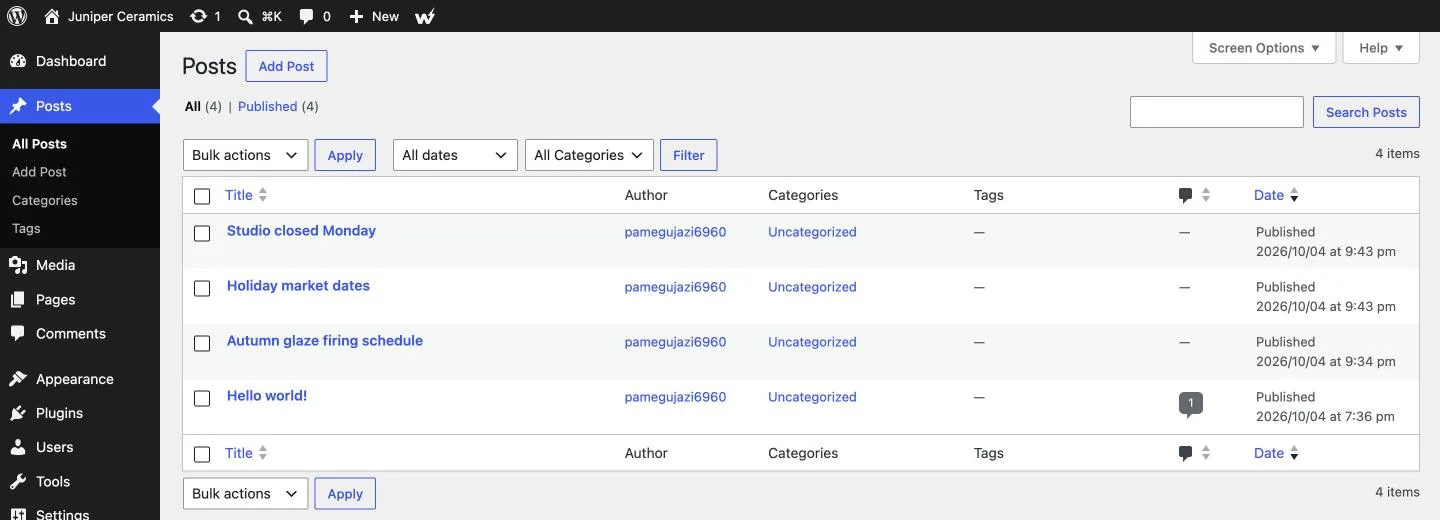
The live test site’s posts after one sync: the synced “Holiday market dates” post sits next to the live-only “Studio closed Monday” post, October 2026.
On the live site, the new post was there, the page now read “Pottery Classes”, and the live-only post was untouched. So sync merges the recorded changes instead of copying the whole site over. InstaWP’s docs add the limits: it only records changes made in the WordPress dashboard, not by FTP or directly in the database, and it matches pages by their URL slug.
From InstaWP’s site and plugin listing: the plugin can also make quick (no media), custom and full staging copies of a site hosted elsewhere, and InstaWP sites include SSH, WP-CLI, Git tools and a magic login link for clients. Sites are billed daily and you can delete one any day. Two-way sync is billed by usage on top (“you pay only for the syncs you run”, per the pricing page).
Pros: a new site in under a minute and a clone in under two minutes; sync merged our changes and kept live-only content; strong developer and client-sharing tools.
Cons: card needed before your first site, even a sandbox; built-in staging needs the $15 Pro plan; the sandbox route means a second site, a plugin and three setup steps; sync is in beta and billed on top; your copy lives on a third-party platform; overkill for a single blog.
5. Duplicator Pro: Best if you already use Duplicator
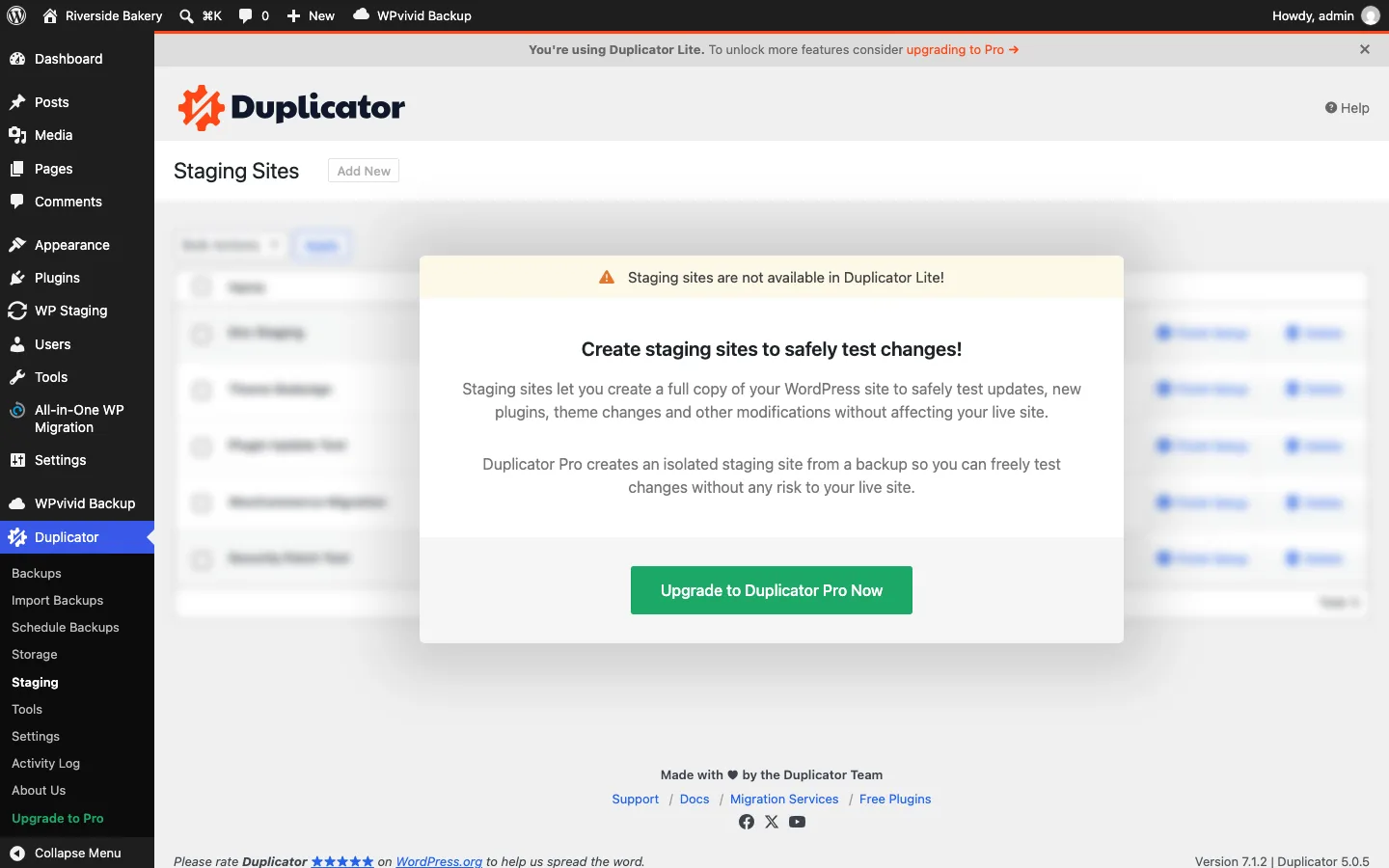
The Staging page in the free Duplicator plugin, version 5.0.5, October 2026.
Duplicator is one of the most popular backup and migration plugins, with 1,000,000+ active installs and an update on September 29, 2026.
The free version adds a Staging menu, but on our install it showed “Staging sites are not available in Duplicator Lite!” with an upgrade button. Duplicator Pro builds a staging site from one of your backups, the vendor says. We did build a 170 MB backup with the free version, and its pre-backup scan flagged the two staging copies we had made with other plugins as “Addon Sites”. Old staging folders bloat backups, so delete them when you are done.
Staging is only in the Pro tier ($159.60/year for 20 sites, normally $399) and the Elite bundle ($239.60/year for 100 sites) as of October 2026. Basic and Plus plans don’t include it. Duplicator makes sense if you already pay for it (our Duplicator review covers what each plan includes); for staging alone, WP Staging or WPvivid cost less. If backups are your main goal, see our best WordPress backup plugins, including how Duplicator’s free restore went.
Pros: staging, backups and migration from one vendor; solid free backup tool.
Cons: no free staging; staging needs the $159.60/year tier or higher.
Other Options Worth Knowing
All-in-One WP Migration: Manual staging for free
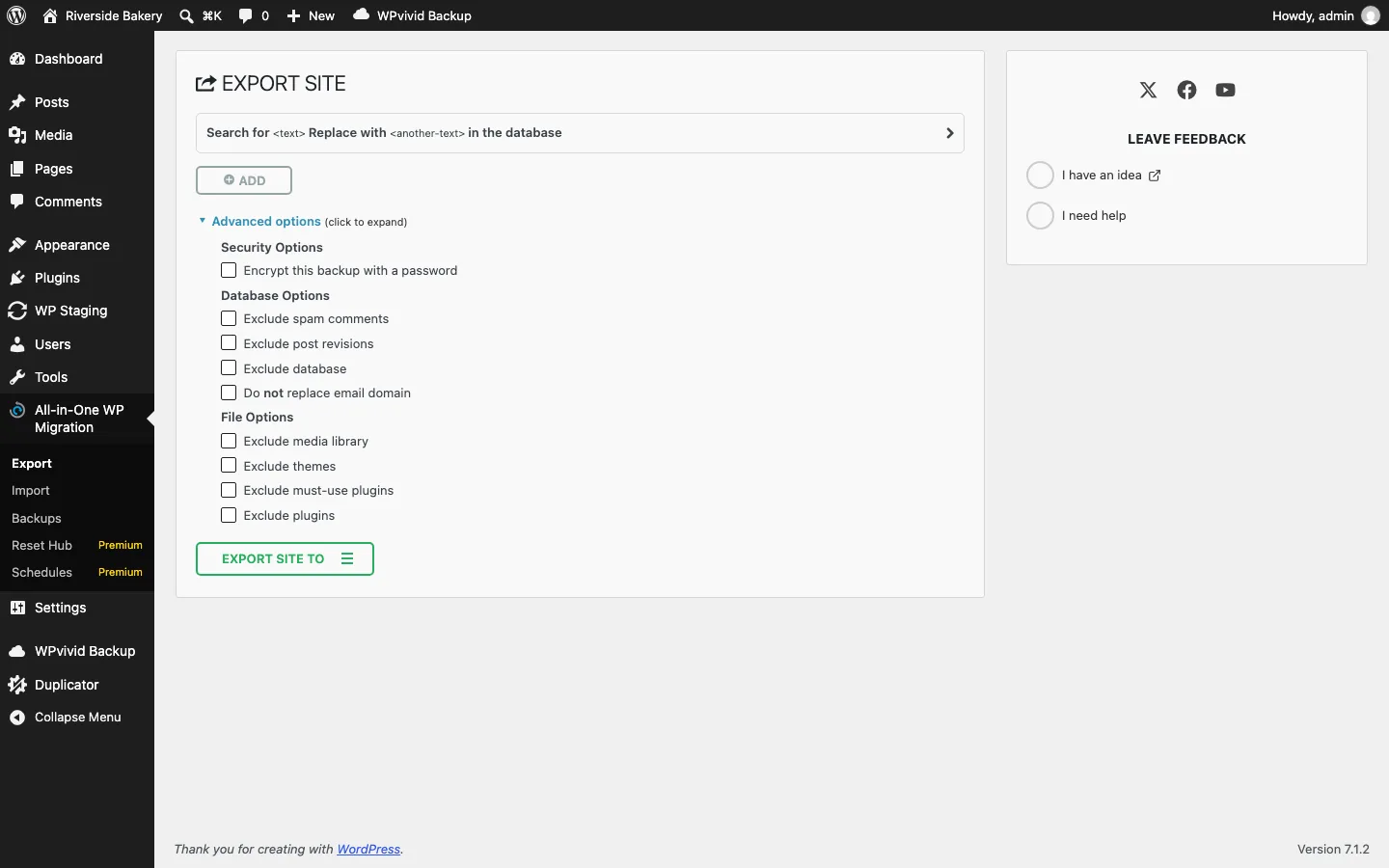
The All-in-One WP Migration export screen with advanced options open, version 7.111, October 2026.
All-in-One WP Migration (5,000,000+ active installs, updated September 15, 2026) is a migration plugin, but you can use it to build a staging site by hand: export the live site to a .wpress file, then import it into a second WordPress install on a subdomain or your computer.
On our test install, exporting took about 30 seconds, and the advanced options let you leave out spam comments, revisions, media, themes or plugins. The catch is import: the import screen said “Your host restricts uploads to 2 MB” (our sandbox’s default PHP limit) and pointed to the paid Unlimited Extension, from $69. On a real host you would raise the upload limit or buy the extension. There is no push-to-live either; moving changes back means another full export and import that overwrites the live site. Our All-in-One WP Migration tutorial walks through the steps.
WP Stagecoach: Still on sale, but quiet
The WP Stagecoach website now says it has been acquired by WP Masters, the plugin is not on WordPress.org, and its newest blog posts are from 2022, so we could not confirm how actively it is maintained. The vendor says it hosts the copy on its servers and merges database changes on push, so orders taken during testing are kept. Pricing as of October 2026 is $149/year for 1 domain, $299/year (or $29/month) for 5 and $549/year (or $49/month) for 30, with a 5-day free trial. If database merging is a must, try it on a non-critical site first.
Staging From Your Web Host
Check your hosting dashboard before installing a plugin. Host staging copies the site at the server level, so it is usually faster and costs nothing extra. Here is what four hosts offer as of October 2026, from their help pages:
| Host | Staging included | Notes |
|---|---|---|
| SiteGround | GrowBig and GoGeek plans | Site Tools > WordPress > Staging |
| Hostinger | Business plan and higher | Create and publish from the hosting panel |
| WP Engine | Every site | Production, Staging and Development environments per site |
| Kinsta | Every site, free standard staging | Premium staging costs $20/month each |
A plugin still makes sense if your plan has no staging, you want the copy on another server, or you change hosts often. More on these hosts: our Hostinger review, Hostinger vs Bluehost, WP Engine vs SiteGround, Kinsta vs WP Engine and the best managed WordPress hosting.
How to Choose
- Need one-click push? If you test and then repeat changes by hand, free WP Staging or WPvivid is enough. Otherwise budget for WPvivid Pro ($49/year) or WP Staging Business (€139/year).
- Does the live site change while you test? Stores and membership sites should avoid pushing a whole database. Look for selective push (WP Staging Pro, host tools) or merging (InstaWP’s two-way sync and BlogVault’s table-by-table merge both kept our live-only post).
- Small server? A subfolder copy uses your disk and database. Cloud staging (BlogVault, InstaWP) or host staging avoids that.
- Keep it private and tidy. Check Settings > Reading on the copy, and delete old copies so they don’t bloat backups or go un-updated.
FAQ
What is the best free WordPress staging plugin?
WP Staging. Its free version makes unlimited login-protected copies in a subfolder with no account, and on our test site it finished in about 10 seconds. WPvivid is a good free alternative with backups included, but it allows one staging site and its copy was public on our install.
Can I push a staging site to live for free?
Not with the plugins we tried. WP Staging, WPvivid and Duplicator keep push-to-live for paid plans, and BlogVault and InstaWP are paid services. The free routes are your host’s staging tool, if your plan has one, or repeating tested changes by hand.
Does a staging site hurt SEO?
Not if it can’t be indexed. WP Staging and WPvivid both added noindex, nofollow and turned on “discourage search engines” on our copies, and WP Staging also requires an admin login. Check these settings on any new staging site.
Is host staging better than a staging plugin?
Usually, if your plan includes it. Staging from SiteGround (GrowBig and up), Hostinger (Business and up), WP Engine and Kinsta costs nothing extra and runs at the server level. A plugin wins when your plan lacks staging or you want features like selective merge.
Is WP Stagecoach still available?
Yes, from $149 a year with a 5-day trial as of October 2026. Its site says it was acquired by WP Masters, it is not on WordPress.org, and its blog has been quiet since 2022, so confirm support for your WordPress version before buying.
How long does it take to create a staging site?
It depends on site size and server. On our 150 MB test site, WP Staging took about 10 seconds and WPvivid about a minute. On InstaWP, a new 110 MB sandbox site was ready in 48 seconds and a clone of it in about 80 seconds. BlogVault’s cloud copy of a 167 MB site was ready within 80 seconds. Sites with gigabytes of media take much longer.