UpdraftPlus Review 2026: Free vs Premium, Real Restores

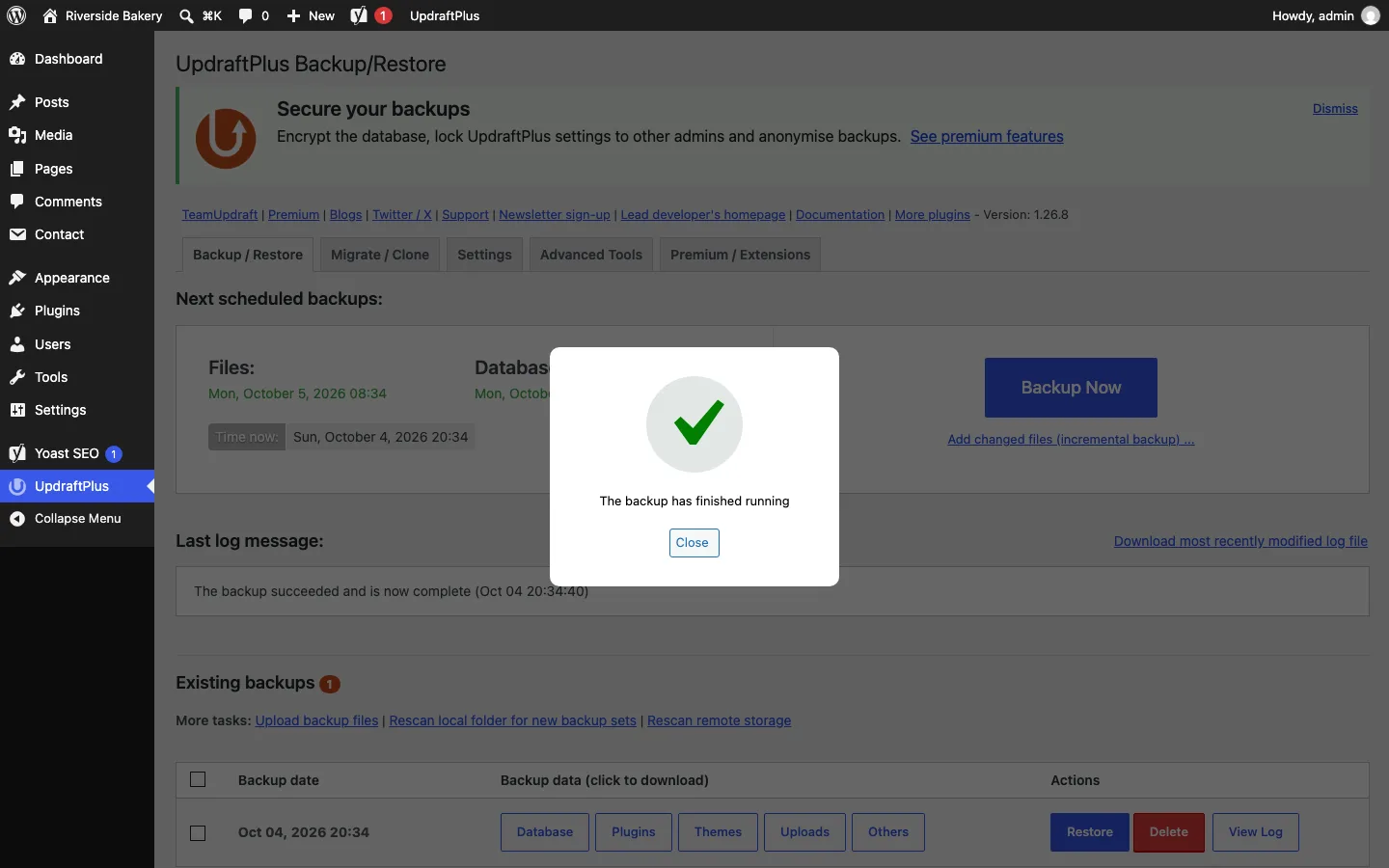
UpdraftPlus Backup/Restore screen with a “The backup has finished running” pop-up and one backup in the Existing backups list with Database, Plugins, Themes, Uploads and Others buttons

A finished manual backup on our test site, UpdraftPlus 1.26.8, October 2026.

Our verdict: UpdraftPlus is still the backup plugin most WordPress sites should start with, and the free version is enough for many of them. On our test site it backed up in about 6 seconds and restored a deleted post, a changed site title and a deleted photo in under 3 seconds. You can also restore just the database or just the uploads. Pay for Premium ($70 a year for 2 sites) if you want backups before every update, more than one storage location, or a backup that includes wp-config.php. Two things to watch: the setup wizard’s schedule does not start until you save the Settings tab, and free backups stay on your server until you connect cloud storage.

UpdraftPlus Quick Facts

Facts below come from the WordPress.org listing and teamupdraft.com, checked in October 2026.

Item Details
Latest free version 1.26.8 (updated September 21, 2026)
Active installs 4,000,000+ on WordPress.org
Rating 4.8 out of 5 from about 8,670 reviews
Made by TeamUpdraft, a company based in Wales, UK
Free version Manual and scheduled backups, one-click restore, one remote storage location at a time
Premium price $70/year (2 sites), $95 (10 sites), $145 (35 sites), $195 (unlimited), $399 Gold (unlimited, plus 50 GB of storage)
Renewal Plans renew yearly at the listed price; the pricing page shows no separate first-year discount
Refunds 14-day money-back guarantee, per the refund terms page
Backup time on our test site About 6 seconds for a 32 MB backup
Restore time on our test site Under 3 seconds for a full restore
Best for Blogs, small business sites and freelancers who want free scheduled backups to their own cloud storage

What Is UpdraftPlus?

UpdraftPlus is a WordPress plugin that backs up your site’s database and files, sends copies to cloud storage, and restores them from your dashboard. With 4,000,000+ active installs, it is one of the most used plugins on WordPress.org.

It grew out of Updraft, a plugin Paul Kehrer released in 2010, and has been on WordPress.org as UpdraftPlus since May 2012. TeamUpdraft, which also makes WP-Optimize and All-In-One Security, says its plugins run on more than 5 million sites.

UpdraftPlus splits every backup into separate parts: the database, plugins, themes, uploads and “others” (anything else in wp-content). That split is why you can restore one part without touching the rest.

How We Backed Up and Restored a Test Site

We installed the free UpdraftPlus 1.26.8 on a fresh test site: WordPress 7.1.2 on PHP 8.3 and MariaDB 11.8, in a local Docker sandbox. The site had 20 posts, 7 pages, 8 photos, Yoast SEO and Contact Form 7. We set the server up the way most hosts are: files owned by the web server, a 128 MB upload limit, and working loopback requests (the server can call itself, which WordPress uses to run scheduled tasks).

Here is what we measured.

Task Result on our test site
Setup wizard 6 steps, all of them skippable
Full manual backup 3.3 to 5.7 seconds in the plugin’s log over three runs; 6.6 seconds from click to “finished” on screen
Backup size 32.3 MB in 5 files (database 207 KB, plugins 12.6 MB, themes 12.8 MB, uploads 6.7 MB, others under 1 KB)
Full restore 2.7 seconds from the final Restore click to “Restore successful!”; all three changes undone
Database-only restore 2.7 seconds; post and title back, photo still missing (as expected)
Uploads-only restore Under 1 second; photo back

This was one session on a small site. A large site on shared hosting will take much longer.

Setup Wizard

The first time you open Settings > UpdraftPlus Backups, a six-step wizard opens:

  1. Backup schedule and how many backups to keep (Manual and 2 by default).
  2. Remote storage.
  3. A newsletter sign-up. Your admin email is filled in, but the consent box is unticked.
  4. Three “recommended” plugins from the same company: All-In-One Security, Burst Statistics and WP-Optimize.
  5. An “Upgrade to premium” pitch.
  6. A done screen.

UpdraftPlus setup wizard step 4 of 6, “Recommended for your setup”, with All-In-One Security, Burst Statistics and WP-Optimize ticked and an “Install and continue” button

Step 4 of the UpdraftPlus 1.26.8 setup wizard on our test site, October 2026. All three plugins are ticked by default.

Step 4 is the one to read carefully. All three plugins are ticked already, and the big orange button says Install and continue. If you only want backups, click Skip this step.

We set Weekly in step 1 and skipped the rest. Then we found a catch. The wizard saved “Weekly” in the settings, but the Backup/Restore tab still said “Nothing currently scheduled” for files and the database, and WordPress had no backup task queued. Nothing was scheduled until we opened the Settings tab and clicked Save Changes. After that, the first weekly backup was set for 12 hours later. If you use the wizard, check that “Next scheduled backups” shows a date.

Running a Backup

Click Backup Now, keep the database and files ticked in the dialog, and click Backup Now again. Our backups made the same five files each time. Each part gets its own button in the Existing backups list, so you can download just the database or just the uploads.

Free backups leave out two things. WordPress core files are skipped, which is fine because you can download WordPress again. wp-config.php, which holds your database login and security keys, is also skipped. Keep your own copy of that file, or pay for Premium, which can include it.

Restoring After a Change

To test the restore, we deleted a post (“Cinnamon Roll Recipe”), changed the site title to “Site Broken”, and deleted one photo and its resized copies from the uploads folder. Then we clicked Restore next to the backup.

UpdraftPlus restore screen “Choose the components to restore” with Plugins, Themes, Uploads, Others and Database all ticked

Step 1 of a restore in UpdraftPlus 1.26.8 on our test site, October 2026. Untick any part you do not want to replace.

The restore has three screens: pick the parts, review warnings, then watch a live activity log.

UpdraftPlus restore warning that the database server does not support the collation utf8mb3_uca1400_ai_ci, with a replacement collation menu set to “Choose a default for each table”

The collation warning UpdraftPlus 1.26.8 showed before every database restore on our test site, October 2026.

Every database restore showed a warning on the second screen. UpdraftPlus said our database server did not support the backup’s collation (the rules for sorting text), even though the same server had made the backup. We left the replacement menu on “Choose a default for each table” and the restore worked. Our server ran MariaDB 11.8, whose newer collation names UpdraftPlus does not seem to recognize yet.

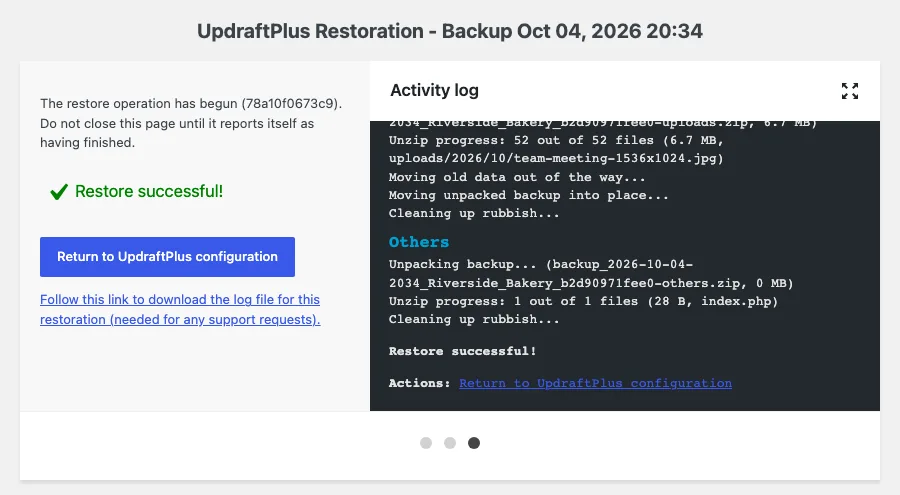
UpdraftPlus Restoration page showing “Restore successful!” with the activity log listing the Uploads and Others archives being unpacked

The end of a full restore on our test site, UpdraftPlus 1.26.8, October 2026.

The full restore finished 2.7 seconds after we clicked Restore. The post, the title and the photo were all back, and the site loaded normally.

UpdraftPlus keeps the replaced folders on the server with “-old” added to their names. Once you have checked the site, the Delete old folders button in its notice removes them in one click.

Restoring One Part at a Time

We broke the site the same way again, then restored only the Database. That took 2.7 seconds. The post and the title came back, and the photo stayed missing, which is the point: a database restore does not touch your files. Restoring only Uploads then brought the photo back in under a second.

So if a plugin update breaks your site, you can restore the plugins without losing orders or comments that came in since the backup.

Keep the Page Open

The restore page says not to close it until it finishes. In an earlier session we closed the browser too soon: the database came back, but the plugins folder was left half-restored. (That session also had a file permission problem of our own making.) And in our WordPress backup plugin roundup, one of four UpdraftPlus restores reported success but left a database error. Wait for “Restore successful!”, then check your site.

UpdraftPlus Free vs Premium

The free version covers the basics well. Premium adds automation and more places to store backups. Here is the split as of October 2026, from the plugin’s own screens and TeamUpdraft’s comparison page.

Feature Free Premium
Manual backups and one-click restore Yes Yes
Restore single parts (database, plugins, themes, uploads, others) Yes Yes
Scheduled backups Files every 2 hours to monthly; database every hour to monthly Same, plus a fixed time of day
Remote storage Dropbox, Google Drive, Amazon S3, S3-compatible, Rackspace, FTP, OpenStack, DreamObjects, email Adds OneDrive, Azure, SFTP/SCP, FTPS, Google Cloud, Backblaze, WebDAV, pCloud
More than one storage location per backup No Yes
Backup before updates No Yes
Incremental backups (only changed files) No Yes
Retention rules (thin out older backups) No, just a count to keep Yes
wp-config.php, WordPress core and other folders No Yes
Non-WordPress tables and external databases No Yes
Database encryption and data anonymization No Yes
Migration Restore a backup on the new site, the vendor says Direct site-to-site migration
Multisite and WP-CLI No Yes
Support WordPress.org forums Email support from TeamUpdraft

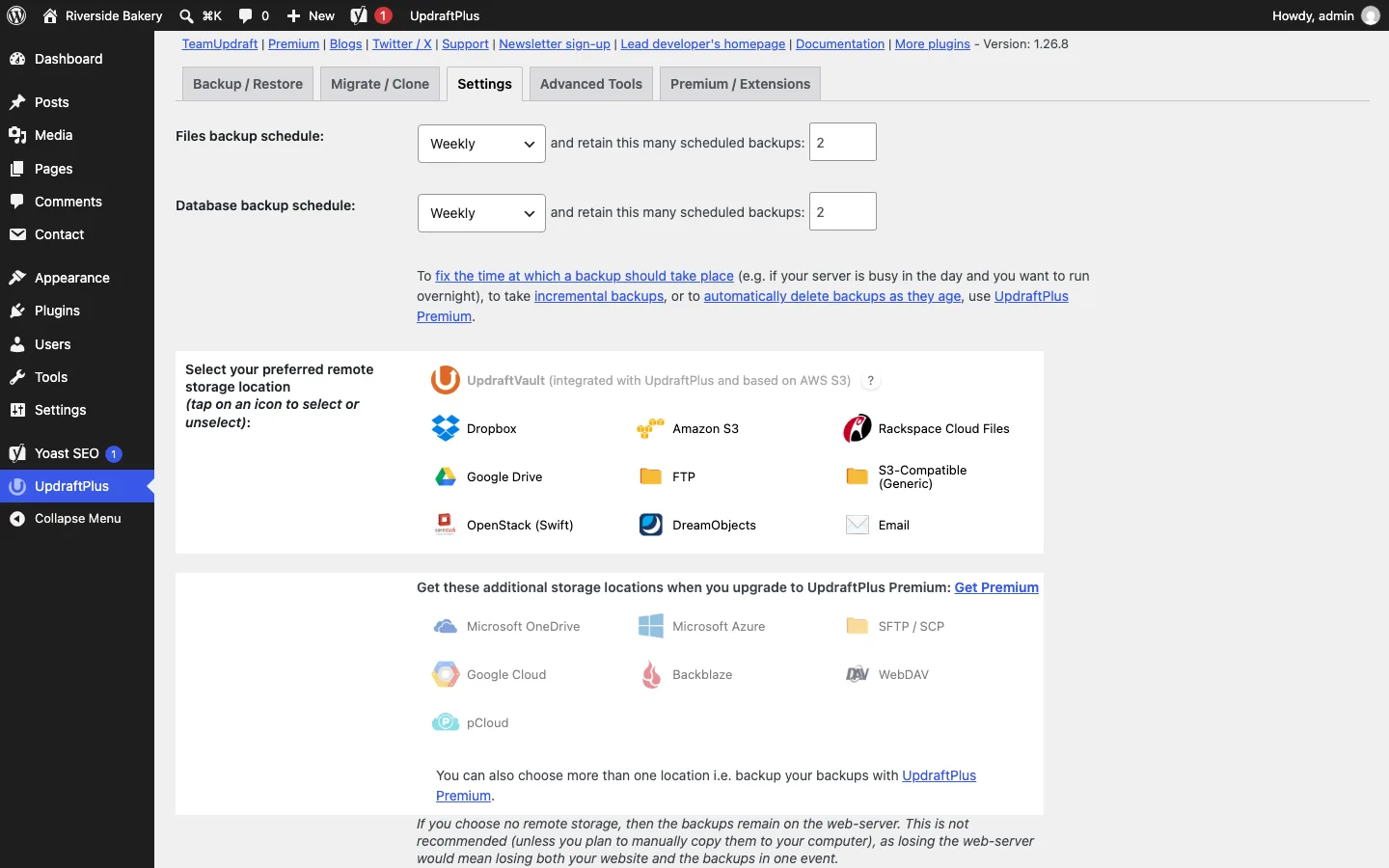
UpdraftPlus Settings tab with Weekly schedules and the free remote storage choices (Dropbox, Amazon S3, Rackspace Cloud Files, Google Drive, FTP, S3-Compatible, OpenStack, DreamObjects, Email), and greyed-out Premium choices (Microsoft OneDrive, Microsoft Azure, SFTP/SCP, Google Cloud, Backblaze, WebDAV, pCloud)

Free and Premium storage choices on the Settings tab, UpdraftPlus 1.26.8 on our test site, October 2026.

A few details from the test install:

  • You connect storage yourself. For Google Drive, save your settings, then click Sign in with Google. A custom folder name is Premium.
  • Backups stay on your server until you do. UpdraftPlus itself warns that losing the server would mean losing the site and its backups together.
  • Upgrade prompts stay on the plugin’s page. A rotating banner promoted All-In-One Security, Premium support and migration, and the Migrate / Clone tab sells UpdraftClone and Premium. We saw no UpdraftPlus notices on the main WordPress dashboard.

Who needs Premium? If you update plugins often, the backup before updates is the most useful extra. Stores gain from two storage locations and incremental backups. Agencies get the most value, since $95 covers 10 sites.

UpdraftPlus Pricing (October 2026)

Every Premium plan has the same features. Higher tiers add sites, storage and staging.

Plan Sites Price per year Included UpdraftVault storage
Personal 2 $70 1 GB
Business 10 $95 1 GB
Agency 35 $145 1 GB
Enterprise Unlimited $195 1 GB
Gold Unlimited $399 50 GB, plus UpdraftCentral site management

Intro vs renewal price. In October 2026 the pricing page showed one price per plan, with no separate first-year deal, and said subscriptions renew automatically each year. We found no different renewal price on the pricing, refund or terms pages. TeamUpdraft’s refund terms do mention a case where you bought at a discounted introductory price, so watch for sales: if you buy at a discount, expect the next year to bill at the full price above.

If you cancel. The pricing page says Premium keeps working after your year ends. You just stop getting updates, new features and support. Updates matter for a backup plugin: in June 2026 TeamUpdraft fixed a serious security flaw that it said could allow a full site takeover on a small share of sites. The fix came in free version 1.26.5 and Premium 2.26.5, and the company also offered a separate patch plugin for people with lapsed licenses.

Refunds. The refund terms page offers a 14-day money-back guarantee. Some older pages on the same site still say 10 days, so ask within 10 days to be safe.

Paid add-ons:

  • UpdraftVault is TeamUpdraft’s own cloud storage, built on Amazon S3. Beyond the 1 GB in Premium, 5 GB costs $35 a year (or $10 every 3 months), 15 GB $70, 50 GB $175 and 250 GB $450. In October 2026 the 5 GB plan had a $1 first month, then $35 a year.
  • UpdraftClone makes a temporary copy of your site on TeamUpdraft’s servers for testing. It uses tokens: 5 for $15, 20 for $49 or 50 for $99, or monthly token plans. A site up to 25 GB costs one token to start and one per week.

UpdraftPlus Alternatives

UpdraftPlus is not the only good choice. Our full backup plugin comparison ran the same break-and-restore test on each of these. The short version, with prices as of October 2026:

Plugin Best for Free restore Paid plans from
WPvivid The most free features: OneDrive and SFTP storage, migration and one staging site Yes, one click $49/year (2 domains)
Duplicator Moving or cloning a whole site in one archive Yes, but no free schedules $69.30/year (2 sites, sale price)
All-in-One WP Migration One-off moves with a single file Only by re-importing the file $69/year (Unlimited Extension)
BackWPup Free scheduled archives to many clouds Yes, after uploading the archive $49/year (2 domains)
BlogVault Backups stored off your server, for busy sites Paid service $49.50/year per site (sale price)
Jetpack VaultPress Backup Real-time backups on a budget Paid service $4.95/month for the first year

Pick WPvivid if you want OneDrive or SFTP storage for free. Pick BlogVault or Jetpack if your site takes orders and you want backups that live with a separate company. If you mostly move sites rather than back them up, our All-in-One WP Migration guide shows the one-file route, our Duplicator review covers moving to an empty server, and our WordPress staging plugin roundup covers testing changes on a copy first.

Do You Still Need UpdraftPlus If Your Host Makes Backups?

Usually, yes. Host backups live with the same company as your site, and cheap plans may back up only weekly (Hostinger Premium, for example; see our Hostinger review). If the host has an outage or suspends your account, you want a copy in your own cloud storage.

UpdraftPlus also helps when you change hosts: our Lunarpages guide walks through a move with it. If your site has been hacked, save a labeled backup before cleaning it, as our guide to removing spam links explains, and then follow our step-by-step malware cleanup.

How to Set Up UpdraftPlus the Right Way

  1. Go to Plugins > Add New, search for UpdraftPlus, then install and activate it.
  2. Open Settings > UpdraftPlus Backups. Skip the wizard, or go through it and untick the plugins in step 4 if you don’t want them.
  3. On the Settings tab, choose a files schedule (weekly suits most blogs) and a database schedule (daily if you post or sell often), and how many backups to keep.
  4. Pick one remote storage service, such as Google Drive or Dropbox, and connect your account.
  5. Click Save Changes. Back on Backup / Restore, check that “Next scheduled backups” shows a date.
  6. Click Backup Now, then check that the files arrived in your cloud storage.
  7. Save a copy of wp-config.php yourself, and test one restore.

Pros and Cons

Pros:

  • Strong free version with schedules, cloud storage and restore
  • Restores single parts of a site, so you can roll back plugins without losing new content
  • Fast on our test site: about 6 seconds to back up, under 3 to restore
  • Premium is cheap for 2 sites, and the $95 plan covers 10

Cons:

  • Free backups leave out wp-config.php and WordPress core
  • Only one remote storage location at a time on the free version
  • The setup wizard’s schedule did not start until we saved the Settings tab
  • A collation warning on every database restore on our test server, even to the same server
  • Pre-ticked plugin installs in the wizard and a rotating upgrade banner on the plugin’s page

FAQ

Is UpdraftPlus free?

Yes. The free version on WordPress.org backs up on a schedule, sends backups to one cloud service such as Google Drive, Dropbox or Amazon S3, and restores from your dashboard. Premium, from $70 a year for 2 sites as of October 2026, adds backups before updates, more storage options, incremental backups and site-to-site migration.

Is UpdraftPlus Premium worth it?

Yes if you update plugins often, run a store, or look after several sites. For a small blog that changes once a week, the free version with Google Drive or Dropbox is usually enough.

How long does an UpdraftPlus backup and restore take?

On our small test site (32 MB of backup files), a full backup took 3 to 6 seconds and a full restore took under 3 seconds. Large sites on shared hosting take much longer.

Does UpdraftPlus back up the whole site?

The free version backs up the database, plugins, themes, uploads and other folders inside wp-content. It skips WordPress core, which you can download again, and wp-config.php, which you should save yourself. Premium can include both, plus other folders and databases on the server.

Where does UpdraftPlus store backups?

On your web server by default, in wp-content/updraft. UpdraftPlus itself warns against leaving them there. Connect a free cloud service in the Settings tab, or buy UpdraftVault storage from TeamUpdraft, so a server failure doesn’t take your backups with it.

Is UpdraftPlus safe to use?

It is widely used, with over 4 million active installs. In June 2026 TeamUpdraft patched a serious flaw in version 1.26.5, about 40 hours after a researcher reported it, and said it found no sign of attacks on the sites it checked. Keep the plugin updated and protect your backup files, since they contain your whole database.