Duplicator Review 2026: A Real Site Move, Free vs Pro

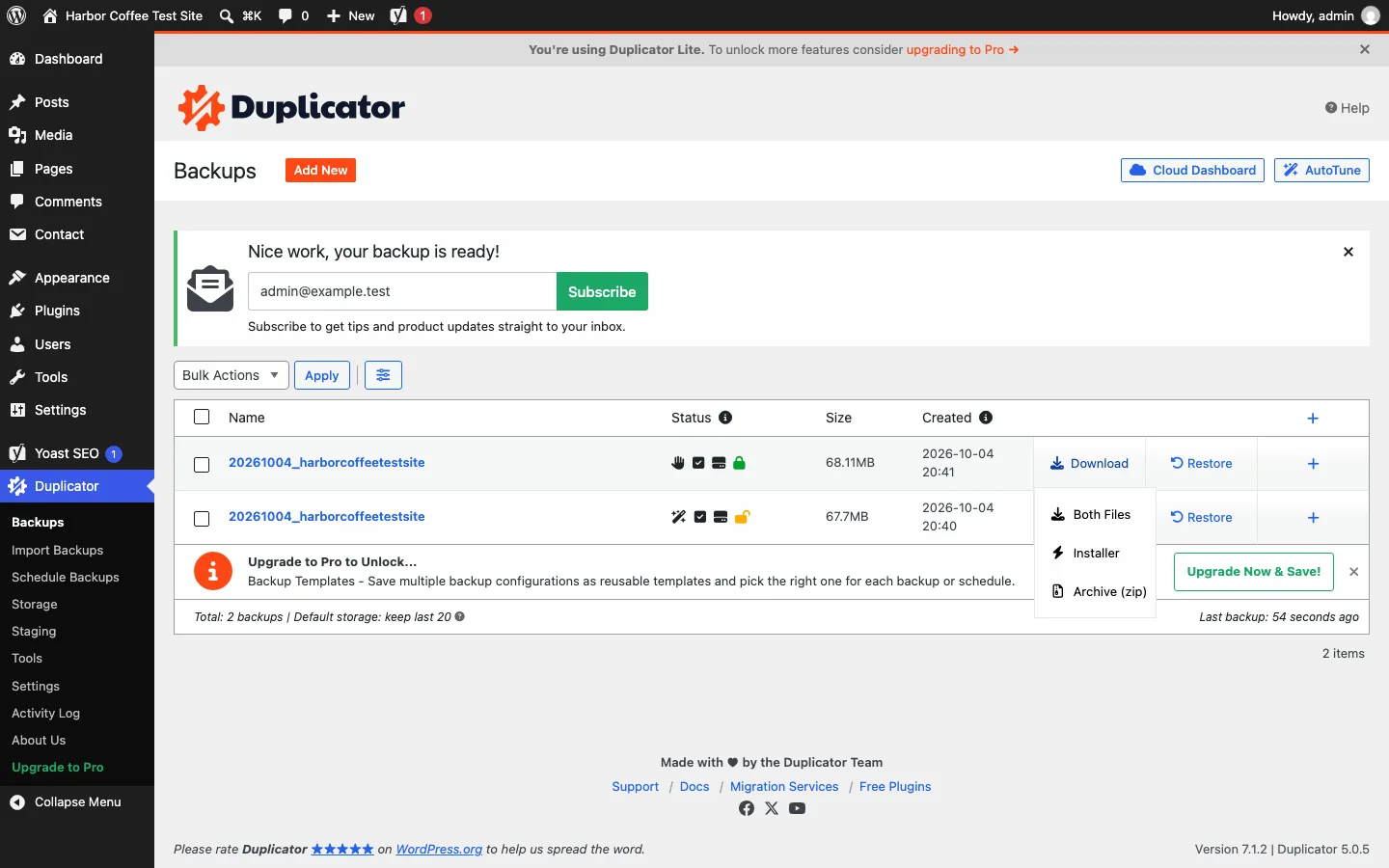
Duplicator Backups page with two finished backups of 68.11 MB and 67.7 MB, and the Download menu open showing Both Files, Installer and Archive (zip)

The Backups page in the free Duplicator plugin on our test site, with the Download menu open, version 5.0.5, October 2026.

Our verdict: Duplicator is one of the best free tools for moving a WordPress site to a new host or domain. On our test site it built a 68 MB backup in 27 seconds, and its installer.php rebuilt the whole site on an empty server, with the new address swapped in, in under 20 seconds. Version 5.0 also made password encryption and a dashboard restore button free. It is a weak pick for day-to-day backups, though: the free version has no schedules and no Google Drive or Dropbox storage. Our first move also hit two database errors that needed a manual fix. Pro costs $69.30 to $239.60 for the first year, then renews at $99 to $599.

Below: what Duplicator is, a step-by-step account of the backup and site move on our test install, real size limits, what the free version locks, and how Pro pricing works.

Duplicator Quick Facts

Facts below come from the WordPress.org listing and duplicator.com, checked in October 2026.

Item Details
Latest free version 5.0.5 (updated September 29, 2026)
Active installs 1,000,000+ on WordPress.org
Rating 4.9 out of 5 from about 4,940 reviews
Made by Duplicator (Snap Creek LLC), owned by Awesome Motive since January 2023
Requirements WordPress 5.3 or newer, PHP 7.4 or newer
Free version Full-site backups, installer.php migrations, one-click restore, password encryption, local storage plus Duplicator Cloud
Pro price, first year $69.30 (2 sites), $99.50 (5), $159.60 (20), $239.60 (100)
Pro renewal price $99, $199, $399 and $599 a year; the vendor says all renewals are at full price
Refunds 14 days; renewals are not refundable, per the terms of service
Backup time on our test site 27 seconds for a 158 MB site (68 MB archive)
Move time on our test site About 17 seconds inside the installer, once we fixed a collation setting
Best for Moving or cloning a site, and one-off backups before big changes

What Is Duplicator?

Duplicator is a WordPress plugin that packs your whole site into two files: an archive (a .zip or .daf file with every WordPress file and a copy of the database) and an installer script called installer.php. You upload both to a new server, open installer.php in a browser, and it rebuilds the site there. WordPress does not need to be installed on the new server first, which is what sets Duplicator apart from most backup plugins.

The plugin has been on WordPress.org since June 2011. Snap Creek built it, and Awesome Motive (the company behind WPForms, MonsterInsights and All in One SEO) bought it in January 2023. The free plugin is officially called Duplicator Lite; the paid version is Duplicator Pro.

Version 5.0, announced on September 22, 2026, was a big change. The vendor says Lite now runs on the same backup engine as Pro, and it moved several Pro features into the free plugin:

  • a Restore button that brings a backup back from the dashboard, without FTP
  • password encryption of the archive (AES-256)
  • AutoTune, which runs test backups to find settings that work on your server
  • off-site storage in Duplicator Cloud, the vendor’s own paid storage service
  • “AI backups” that an AI assistant can start through the WordPress Abilities API (WordPress 6.9 or newer)

Many reviews were written before 5.0, so their lists of free features are out of date.

How We Moved a Test Site With Duplicator

We installed the free Duplicator 5.0.5 on a fresh test site: WordPress 7.1.2 on PHP 8.3 and MariaDB 11.8, in a local Docker sandbox. The site had 21 posts, 5 pages, 12 photos, Yoast SEO and Contact Form 7, which came to 158 MB of files and a 4 MB database. Loopback requests were allowed (the server can call itself, which Duplicator uses to build backups in the background).

Then we moved the site into a second, empty sandbox: an empty folder and an empty database, the same starting point you get on a new host.

Task Result on our test site
Setup No wizard and no account; usage tracking was off by default
AutoTune 1 test backup, 16 seconds; switched the archive engine from DupArchive to ZipArchive
Pre-backup scan About 3 seconds; every check “Good”
Backup build 27 seconds from click to finished (14 seconds of processing in the log)
Backup size 68.1 MB archive (158 MB of files compressed) plus a 134 KB installer
First move (Basic mode) About 12 seconds; site worked, but 2 database errors and 2 Yoast SEO tables missing
Second move (Advanced mode, collation set) About 17 seconds from opening installer.php; all 21 tables created, every status “good”
Cleanup Installer files deleted automatically on first login

This was one session on a small site on a fast local machine. A large site on shared hosting will take much longer, plus the time to download and upload the archive.

First Run and AutoTune

Duplicator opens on an empty Backups page with an Add New button. There is no setup wizard and nothing to sign up for. A banner suggests running AutoTune, and every screen has a thin “upgrading to Pro” bar at the top.

Duplicator AutoTune page with the session completed after 1 attempt in 16 seconds and a Results table showing the archive engine changed from DupArchive to ZipArchive and the query limit from 128K to 1M

AutoTune results after one test backup on our test site, Duplicator 5.0.5, October 2026.

AutoTune first checks the server. On ours it found 7 things in order and 2 warnings: the Shell Zip and Mysqldump engines were not available, so Duplicator used its built-in PHP options instead. It then ran one test backup, which passed, and changed two settings: the archive engine from DupArchive to ZipArchive, and the database query size from 128K to 1M. The whole session took 16 seconds.

One thing to know: AutoTune kept its test backup. A 67.7 MB backup sat in our Backups list afterwards, taking up disk space until we deleted it.

Building the Backup

Add New opens one settings page. You pick a name format, a storage location (the default is a folder on your own server), a set of files to include, and a security mode.

Duplicator New Backup screen with the name format, Default local storage ticked, Duplicator Cloud with a Connect button, and Security options for No protection, Installer password and Archive encryption

The New Backup screen in Duplicator Lite on our test site, version 5.0.5, October 2026.

The security choices are no protection, an installer password, or archive encryption. We chose archive encryption and set a password. The plugin warns that a lost password cannot be recovered, and it means it: without it, nobody can restore the backup.

Under Backup Filters, the free version offers Full Site or Database Only. Media Only and Custom are locked to Pro.

Next runs a scan. Ours took about 3 seconds and showed 157.91 MB of files (7,850 files) and a 4.06 MB database, with every check marked “Good”. Then Create Backup starts the build, with a progress box and a Stop Build button. Our backup was finished 27 seconds after the click. Duplicator’s log counted 14 seconds of real work, 12 of them compressing files.

A “Nice work, your backup is ready!” box then asks you to subscribe to a newsletter, with the admin email already filled in; nothing is sent unless you click Subscribe.

The Download menu’s Both Files option gave us the 68.1 MB archive and the installer. By default the installer has a long name with a random code in it, so strangers cannot guess its address.

If the build stalls, look at your host. On a server that blocked loopback requests, in our Midphase review, Duplicator sat at “Initializing” for a few minutes before switching to running the build from the open browser tab.

Running installer.php on the New Site

We copied the archive and installer into the second sandbox’s empty folder, the same as uploading them by FTP or a host’s file manager, and opened the installer in a browser.

Because the archive was encrypted, the installer first asked for the password. Then came Step 1 of 2: Deployment, where you type in the new database’s host, name, user and password. Duplicator detects the new web address and folder by itself. A cPanel tab can create the database for you on cPanel hosts.

Validate runs the checks. General, File System and PHP passed. The database got a warning: a collation on our database (a collation is a set of rules for sorting and comparing text) “isn’t supported” and would be “replaced with default values”. That was odd, because both sandboxes ran the same MariaDB 11.8 server. You tick a box to accept the notices, click Next, confirm a summary, and the installer unpacks everything.

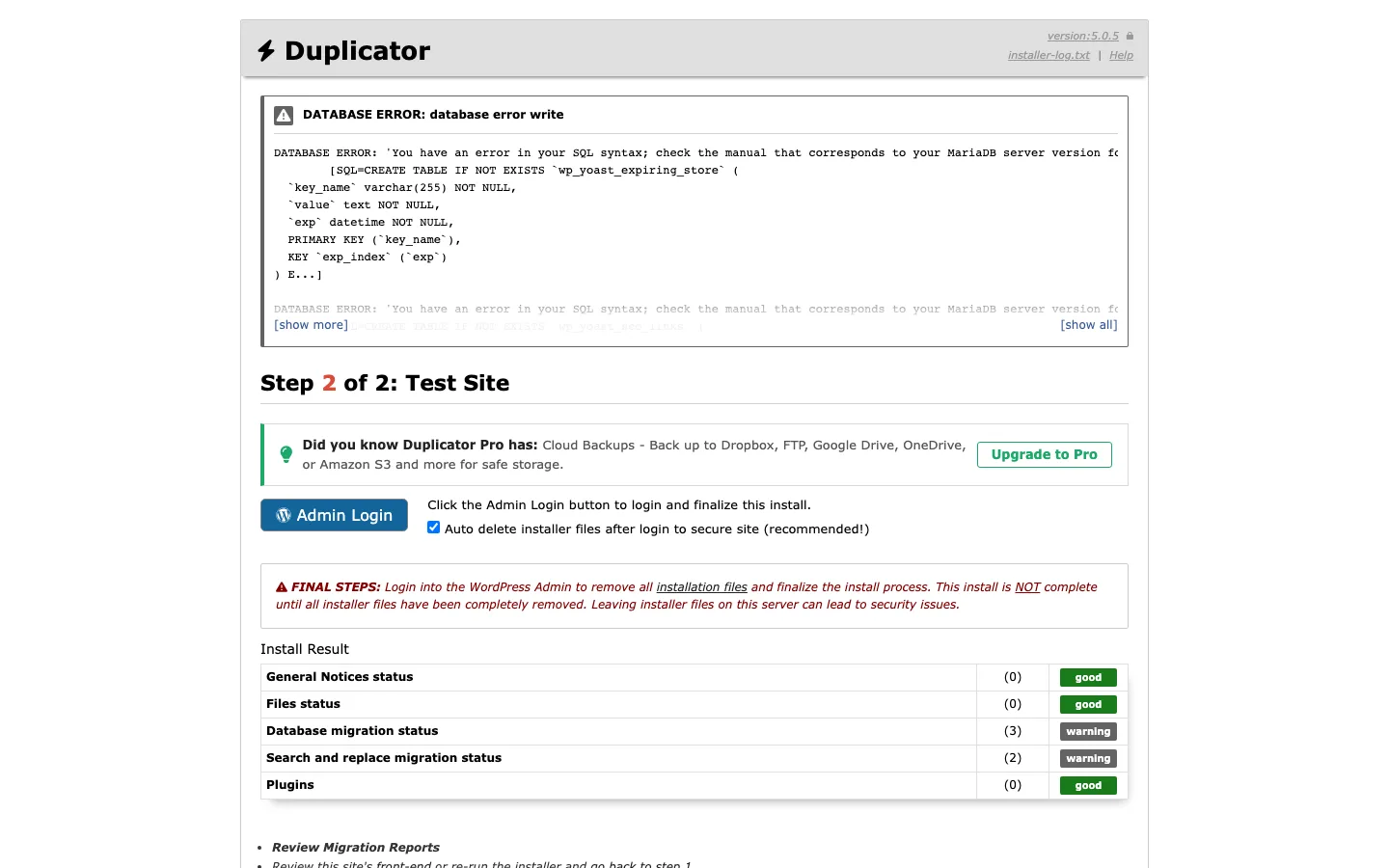
Duplicator installer Step 2 of 2 with two DATABASE ERROR messages about SQL syntax in the wp_yoast_expiring_store and wp_yoast_seo_links tables, and an Install Result table showing 3 database warnings and 2 search and replace warnings

The first install on our second test site, with two database errors, Duplicator 5.0.5, October 2026.

About 12 seconds later we were on Step 2 of 2: Test Site, with two red database errors. The installer had written an empty collation into the code that creates two Yoast SEO tables, so MariaDB rejected both. The result table showed 3 database warnings and 2 search-and-replace warnings.

The site itself worked: all 21 posts and 12 photos were there, and images loaded from the new address. But the two Yoast SEO tables were missing, and Yoast did not recreate them when we opened its dashboard. Our backup plugin roundup hit the same two missing Yoast tables with Duplicator’s Restore button, so this was not a one-off.

The Fix: Set the Collation in Advanced Mode

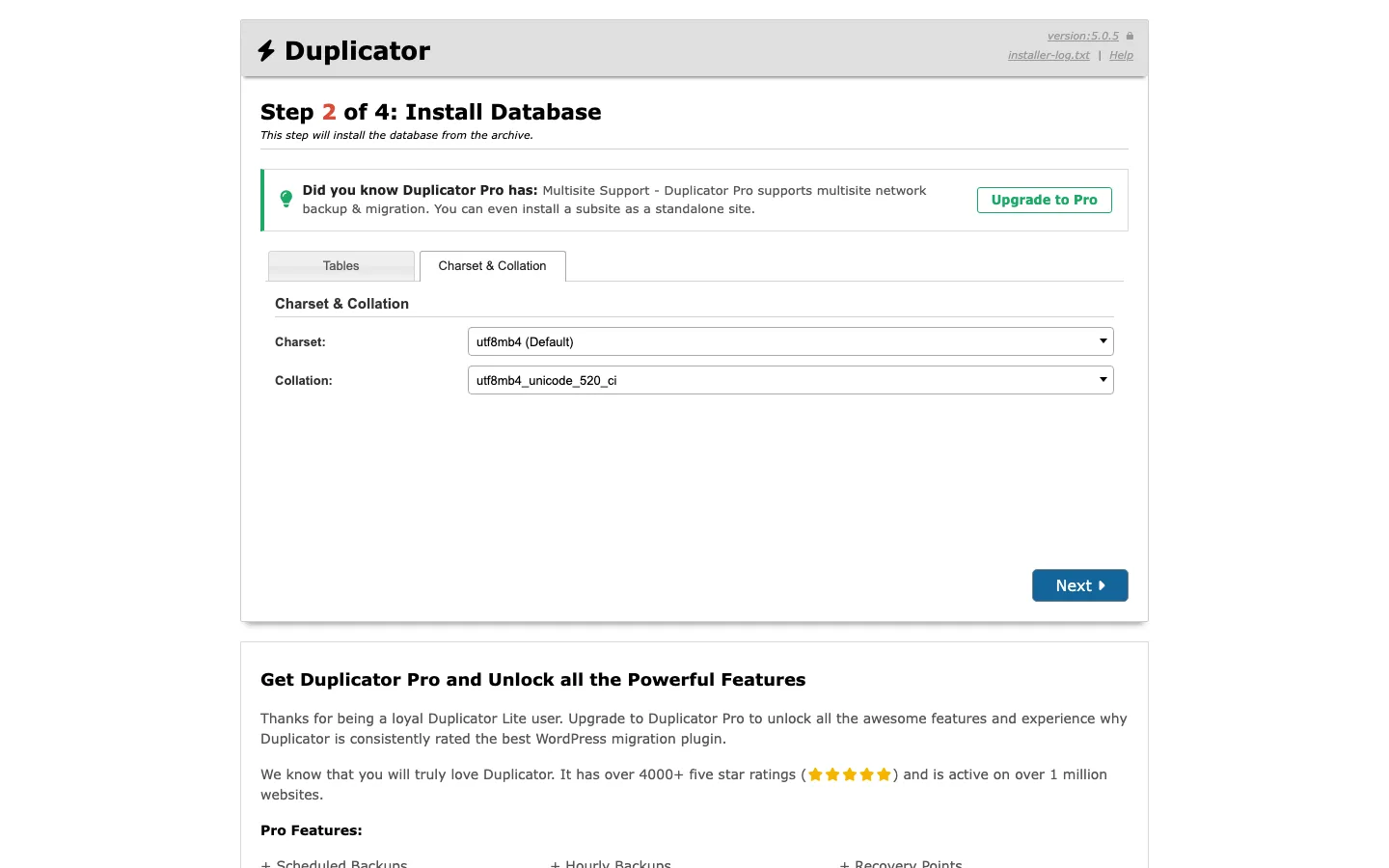
We emptied the second sandbox and ran the installer again, this time in Advanced mode (a button at the top of Step 1). Advanced mode has 4 steps instead of 2, and Step 2 has a Charset & Collation tab. The collation box was blank. We picked utf8mb4_unicode_520_ci, the collation WordPress normally uses.

Duplicator installer Step 2 of 4 Install Database, Charset and Collation tab with the charset set to utf8mb4 (Default) and the collation set to utf8mb4_unicode_520_ci

Setting the collation by hand in the installer’s Advanced mode, Duplicator 5.0.5, October 2026.

That fixed it. All 21 tables were created, Duplicator updated 49 database rows to swap the old address for the new one, and every status line was “good”. From opening installer.php to the final screen took about 17 seconds of processing. Filling in the forms yourself will add a few minutes.

Duplicator installer Step 4 of 4 Test Site with an Admin Login button, the auto delete installer files box ticked, all five Install Result lines marked good, and a Database Report showing 21 tables created and 4 tables updated

A clean install on our second test site after setting the collation, Duplicator 5.0.5, October 2026.

If your installer shows a collation warning, use Advanced mode and set the collation before you run the database step. It is easier than fixing missing tables afterwards.

After You Log In

The last screen has an Admin Login button and a ticked box to delete the installer files. You log in with the old site’s username and password, since they come across with the database. On our test site, Duplicator then showed “This site has been successfully migrated!” and listed what it removed: the archive, the installer and its working folder.

It also showed an “Encrypted Settings Reset” notice. Duplicator encrypts its saved settings, and the notice says this reset “typically happens after migrating, cloning, or manually editing the site’s wp-config.php file.” Any saved storage logins are wiped, so if you had connected cloud storage, connect it again. (Our guide on editing wp-config.php explains what that file holds.)

Size Limits: What Actually Limits Duplicator

Many older reviews, including a 2026 comparison written by a competing plugin’s maker, say free Duplicator stops at 500 MB and that its DupArchive format is Pro only. That does not match version 5.0.5. DupArchive, ZipArchive and Shell Zip were all available on our free install, and the vendor now advertises “backups without size limits”, saying its engine works in small chunks so long jobs do not hit server timeouts. Our site was only 158 MB, so we could not confirm how a multi-gigabyte site behaves.

What limits you in practice is your server:

  • Time limits. Our scan reported a 30-second PHP execution limit, which Duplicator works around by building in chunks. The scan still warns that “compressing larger sites on some budget hosts may cause timeouts.” A Server Throttle setting slows the build to avoid resource complaints on cheap hosting, and a build is cancelled after 90 minutes by default.
  • Disk space. The archive is saved on the same server first, so you need free space for it. Our 158 MB site made a 68 MB archive. Duplicator keeps the last 20 backups by default, and AutoTune’s test backup counts too.
  • Upload size. With the classic installer you upload files by FTP or a file manager, so your host’s PHP upload limit does not apply. This is where Duplicator beats All-in-One WP Migration, whose free import is capped by that limit.
  • Database version. Moving from a newer MySQL or MariaDB to an older one can cause the collation warnings described above.

Duplicator Lite vs Pro: What the Free Version Locks

The free plugin shows every Pro menu item, then blocks it. The Schedule Backups, Import Backups and Staging pages each show sample rows behind an “Upgrade to Duplicator Pro Now” box.
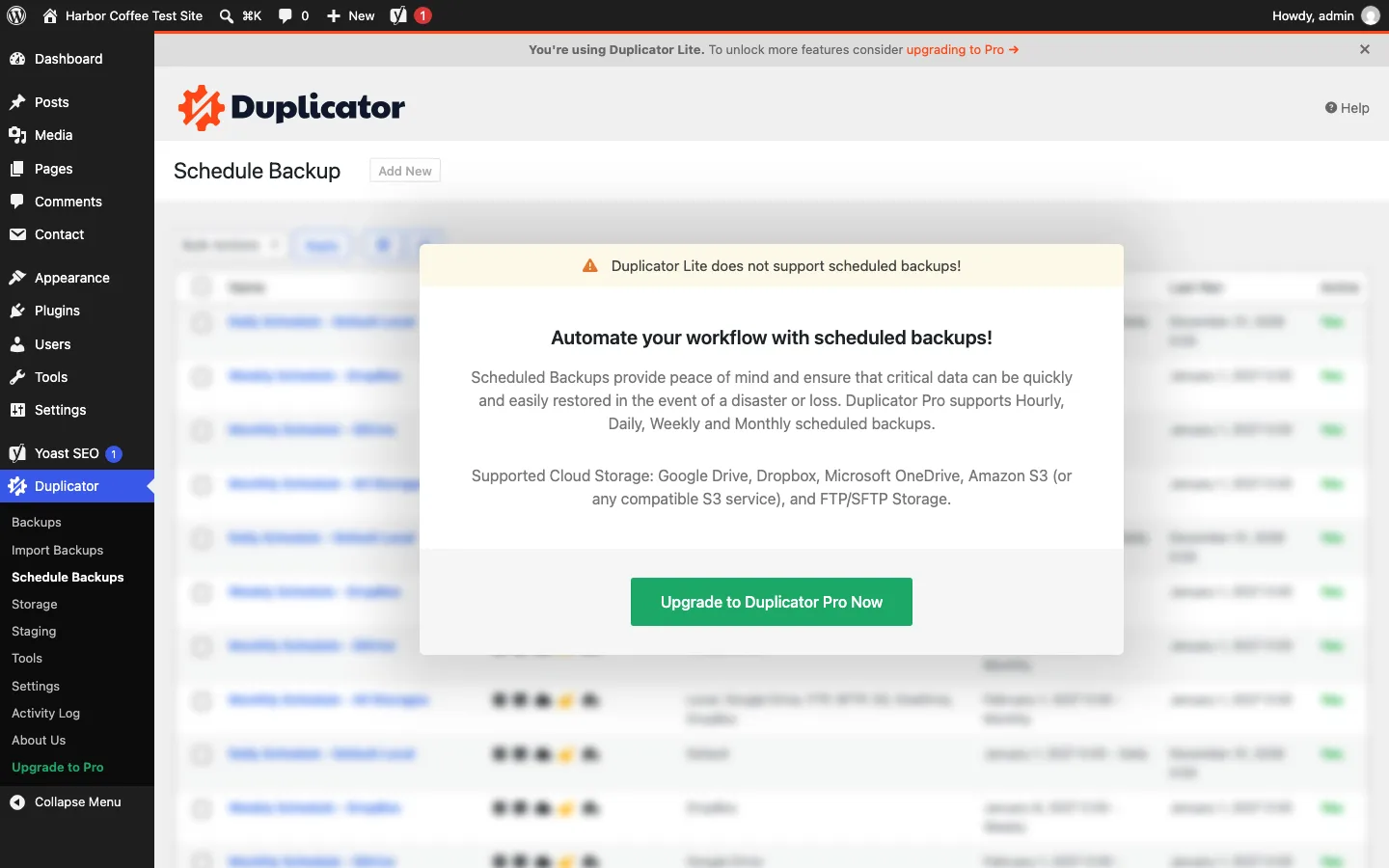
Duplicator Schedule Backup page with blurred sample schedules behind a box reading “Duplicator Lite does not support scheduled backups!” and an Upgrade to Duplicator Pro Now button

The Schedule Backups page in the free plugin, Duplicator 5.0.5, October 2026.

Feature Duplicator Lite (free) Duplicator Pro
Full-site backup and download Yes Yes
installer.php migration to an empty server Yes Yes
Restore from the dashboard Yes (new in 5.0) Yes, plus recovery points for quick rollbacks
Archive encryption Yes (new in 5.0) Yes
Database-only backup Yes Yes, plus media-only and custom backups
Scheduled backups No Yes (hourly from the Plus plan)
Cloud storage Duplicator Cloud only, paid separately Dropbox, Google Drive, OneDrive, Amazon S3, FTP/SFTP and any S3-compatible service
Drag-and-drop or server-to-server import No Yes
Staging sites No Pro and Elite plans only
Multisite networks No Pro and Elite plans only
Support WordPress.org forum Ticket support

Upgrade prompts are everywhere. Besides the top bar, most Duplicator screens have an “Upgrade to Pro” box, and so does every step of the installer, which ends with a long list of Pro features. None of them stop you from finishing a backup or a move.

Duplicator Pro Pricing (Intro vs Renewal)

These are the prices on duplicator.com in October 2026. Every plan is billed yearly and renews automatically. The pricing page says the lower prices are “special introductory pricing” and that “all renewals are at full price”.

Plan Sites First year Renews at Main additions
Basic 2 $69.30 $99/year Scheduled backups, recovery points, drag-and-drop and server-to-server import, 1 cloud destination
Plus 5 $99.50 $199/year Hourly backups, unlimited cloud destinations, installer branding
Pro 20 $159.60 $399/year Staging sites, multisite, custom and media-only backups, WP Media Cleanup and DB Optimizer, priority support
Elite 100 $239.60 $599/year Everything in Pro plus the Activity Log plugin and premium support

The vendor offers a 14-day money-back guarantee. Its terms say renewals are not refundable, so cancel before the renewal date if you only need Pro once.

Duplicator Cloud is a separate subscription and works with the free plugin too. It runs from $29/year for 2 GB up to $199/year for 150 GB.

For a single site, Basic is the plan to compare. At $99 a year after the first year, it costs more than UpdraftPlus Premium ($70 a year for 2 sites, per our UpdraftPlus review), and the free UpdraftPlus already has scheduled backups to Google Drive or Dropbox.

Is Duplicator Safe?

Two old security flaws show why you should keep Duplicator updated and never leave installer files on a server:

  • CVE-2020-11738 (April 2020) let attackers download files from a server running Duplicator before version 1.3.28. The U.S. National Vulnerability Database rates it high severity.
  • CVE-2022-2551 (August 2022) showed visitors the address of the full site backup if the installer had been run and left in place, in versions before 1.4.7.

Both were fixed years ago. Today the installer has a hard-to-guess name, it can be password protected, and it deletes itself when you log in. Our test site showed all three working. Keep the plugin updated, and delete old backups you no longer need from the server.

Pros and Cons

Pros

  • Moves a whole site to an empty server, with no need to install WordPress there first
  • Fast on our test site: a 27-second backup and about 17 seconds to install
  • Free encryption and dashboard restore since version 5.0
  • Cleans up its own installer files after the move

Cons

  • No scheduled backups or Google Drive, Dropbox or S3 storage in the free version
  • Our first move hit two database errors and left out two Yoast SEO tables until we set the collation by hand
  • Upgrade prompts on almost every screen, including the installer
  • Renewals cost far more than the first year ($99 to $599)

Duplicator vs the Alternatives

All-in-One WP Migration is simpler: install WordPress on the new host, add the plugin, and import one file. But the free import is capped by your host’s upload limit, and restoring from its backup list needs the $69/year Unlimited Extension. Pick it for small sites on hosts with high upload limits; pick Duplicator for larger sites or when you want to move files by FTP. Our All-in-One WP Migration guide walks through it.

UpdraftPlus is the better choice for ongoing backups. Its free version runs on a schedule and sends copies to your own cloud storage. The vendor says a free backup can be restored on a new site, and Premium adds direct site-to-site migration. Many site owners use UpdraftPlus for nightly backups and Duplicator for moves.

Your host’s migration service. Many hosts move WordPress sites for free, which may be the easiest path.

Staging. Duplicator’s staging sites need the $399/year Pro plan. If you just need a safe copy to test updates, WP Staging does that for free; see our staging plugin roundup.

Who Should Use Duplicator?

  • You are moving a site to a new host or domain: use free Duplicator. Download a backup first, and use Advanced mode if the installer warns about collation.
  • You build sites locally and copy them to clients’ servers: Duplicator fits well. Pro adds drag-and-drop imports and installer branding.
  • You want automatic nightly backups: use a free scheduled backup plugin instead; our best WordPress backup plugin roundup compares eight.
  • Your site was hacked: restore a backup from before the hack, but save a copy of the infected site first. Our guide on removing spam links from a hacked site covers the cleanup.

FAQ

Is Duplicator free?

Yes. Duplicator Lite on WordPress.org is free and can back up, restore and move a full site. As of October 2026, scheduled backups, third-party cloud storage, drag-and-drop imports and staging need Duplicator Pro, which costs $69.30 to $239.60 for the first year and renews at $99 to $599.

Does the free Duplicator have a 500 MB limit?

Not in version 5.0.5. The vendor says the free plugin has no size limit, and the DupArchive engine that older reviews call Pro-only was available on our free install. Large sites can still fail on cheap hosting because of time limits or low disk space. Our 158 MB test site built a 68 MB backup in 27 seconds.

Do I need to install WordPress on the new host first?

No. You upload the archive and installer.php to an empty folder, create an empty database, and open the installer in a browser. It installs WordPress, your files and your database, and changes the old address to the new one.

Why did the Duplicator installer show database errors?

On our test install, the installer said a database collation was not supported and wrote an empty collation into the code for two Yoast SEO tables, so they were not created. Running the installer in Advanced mode and choosing utf8mb4_unicode_520_ci on the Charset & Collation tab fixed it, with every check passing.

Is Duplicator better than All-in-One WP Migration?

For large sites, usually yes, because you move the files by FTP and avoid upload limits. All-in-One WP Migration is quicker for small sites since it imports one file into an existing WordPress install. Neither free version runs scheduled backups.