WordPress Malware Removal: A Free Step-by-Step Fix (2026)
Start malware cleanup by saving a backup and restricting access, then replace infected software with clean copies and inspect the places scanners miss. If the hack keeps returning or you cannot safely check the server, use professional help. For database spam, also see our spam link cleanup guide.
Signs your WordPress site has malware
Some infections are loud. Many hide from the site owner on purpose. Look for:
- Redirects to spam, scam or “you won a prize” pages, sometimes only for visitors on phones or arriving from Google.
- Browser or Google warnings such as “Dangerous site” or “This site may be hacked” in search results.
- A notice from your host that your account was suspended or that malware was found.
- Admin users you did not create, often with names that look official, like
wp_sys_maintorsupport. - New or changed files you did not add, especially PHP files in
wp-content/uploads. - Spam in Google for your domain, such as pill, casino or Japanese pages. A
site:yourdomain.comsearch shows them. - A slow site or high server load with no traffic spike, or your server sending spam email.
- Search Console’s Security Issues report listing malware, hacked content or harmful downloads.
If you see any of these, assume the site is compromised until you have checked every place in the steps below.
What our controlled test shows
We used seven harmless markers on a local sandbox to represent changes in content, users, uploads, core files, must-use plugins, scheduled tasks and configuration. No real malware was installed. The results below show which locations the tools inspected, not a guarantee of detection or cleanup for a real compromise.
Which free tools found what
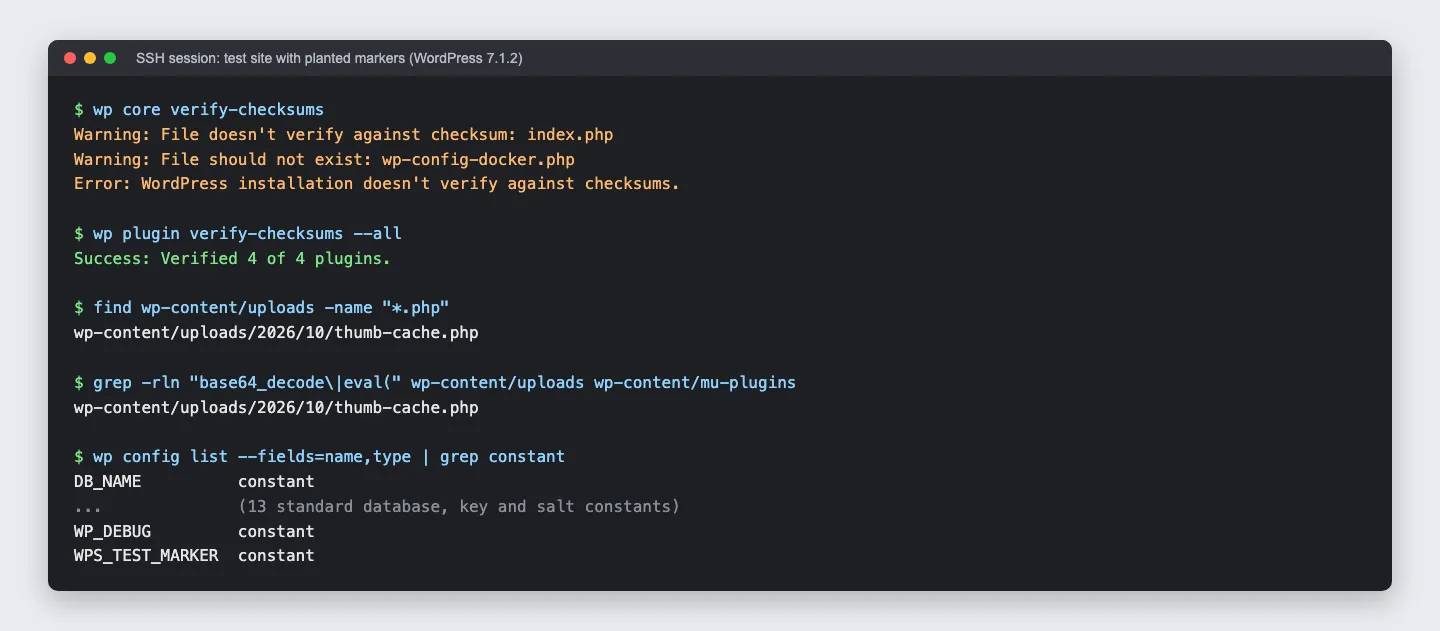
WP-CLI and shell checks found every fixture: database search found the post and revision, the user list found the account, file searches found PHP in uploads, checksums found the changed core file, and plugin, cron and config listings exposed the remaining items. There was one false alarm from the Docker setup.
NinjaScanner found the modified index.php with a side-by-side diff and identified the must-use plugin, but missed the account, upload file, cron event and config constant. It did not check the hidden post links on the first scan and produced four false alarms, including three default-theme files. Wordfence could not be tested because scanning required registration.
wp-cli: found all seven, but you have to read the output
wp-cli is the official command-line tool for WordPress, and most hosts that offer SSH include it. Two lessons stood out on our test site.
First, checksums only cover what WordPress.org ships. wp core verify-checksums caught the edited index.php straight away, but it says nothing about wp-config.php, uploads, must-use plugins or the database. That is why the other commands matter.
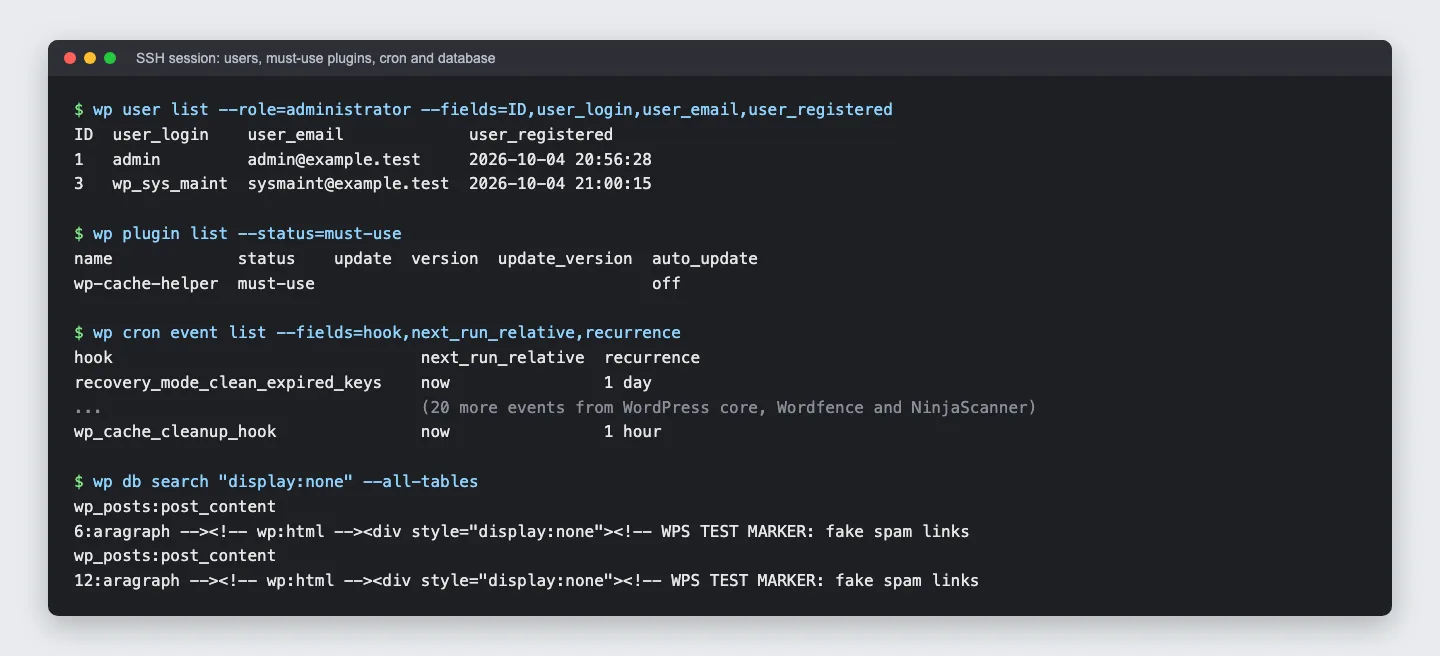
Users, must-use plugins, cron events and a database search on the test site, before cleanup.
Second, several commands do not flag anything; they list everything and leave the judgement to you. wp cron event list printed 22 events, and the fake one sat among normal ones from WordPress, Wordfence and NinjaScanner. wp config list printed 16 constants, and only one was unusual. Knowing what a normal site looks like is half the job, so it helps to save this output while your site is healthy.
NinjaScanner (free): best for seeing what changed
NinjaScanner is a free scanner on WordPress.org with about 30,000 active installs as of October 2026. It runs on your own server with no account. On our test install it scanned 4,500 files in about 20 seconds, in the background, and split the report into eight pages: core, plugins, themes, files and folders, Google Safe Browsing, anti-malware, snapshots and other checks.
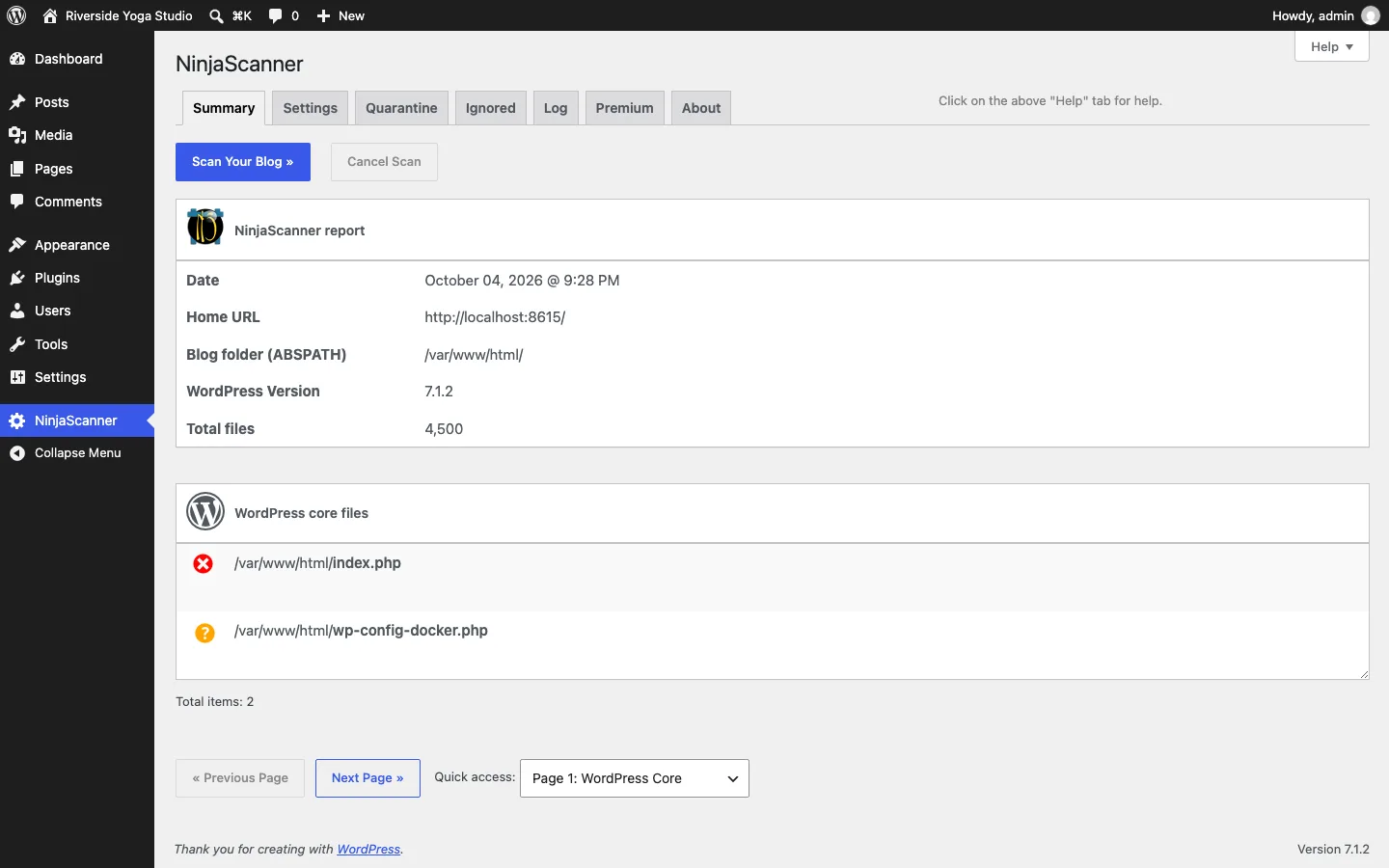
NinjaScanner’s first report on the test site, flagging the changed index.php.
It flagged the edited index.php and offered “View changes”, “Restore file” and “Ignore file”. Its diff view was the most useful thing we saw in a free tool. It puts the original file next to yours and highlights the added line.

NinjaScanner’s “View changes” diff for the planted line in index.php.
It also listed the must-use plugin as a file that does not match any known package. It missed the admin user, the cron event, the wp-config.php change and the uploads file. Its anti-malware signatures did not flag our uploads file, which makes sense: the file was harmless, and signature scanners look for known malicious code. That is the point of the find check. A PHP file in uploads is suspicious no matter what it contains.
Its database snapshot compares posts and pages with the previous scan, so a first scan cannot catch spam that is already there. Three of its four false alarms were Twenty Twenty-Five theme files that differed from the WordPress.org copy only in a “Tested up to” line. Scheduled scans and WP-CLI support are Premium only. On our sandbox the first scan attempt stalled because of a file permission problem in our own setup; once fixed, it ran normally.
Wordfence (free): needs a license first
Wordfence is the most installed security plugin on WordPress.org, with over 5 million active installs as of October 2026. The vendor says its free scanner checks for malware, backdoors, SEO spam, malicious redirects and code injections, with new malware signatures arriving 30 days later than in Premium.
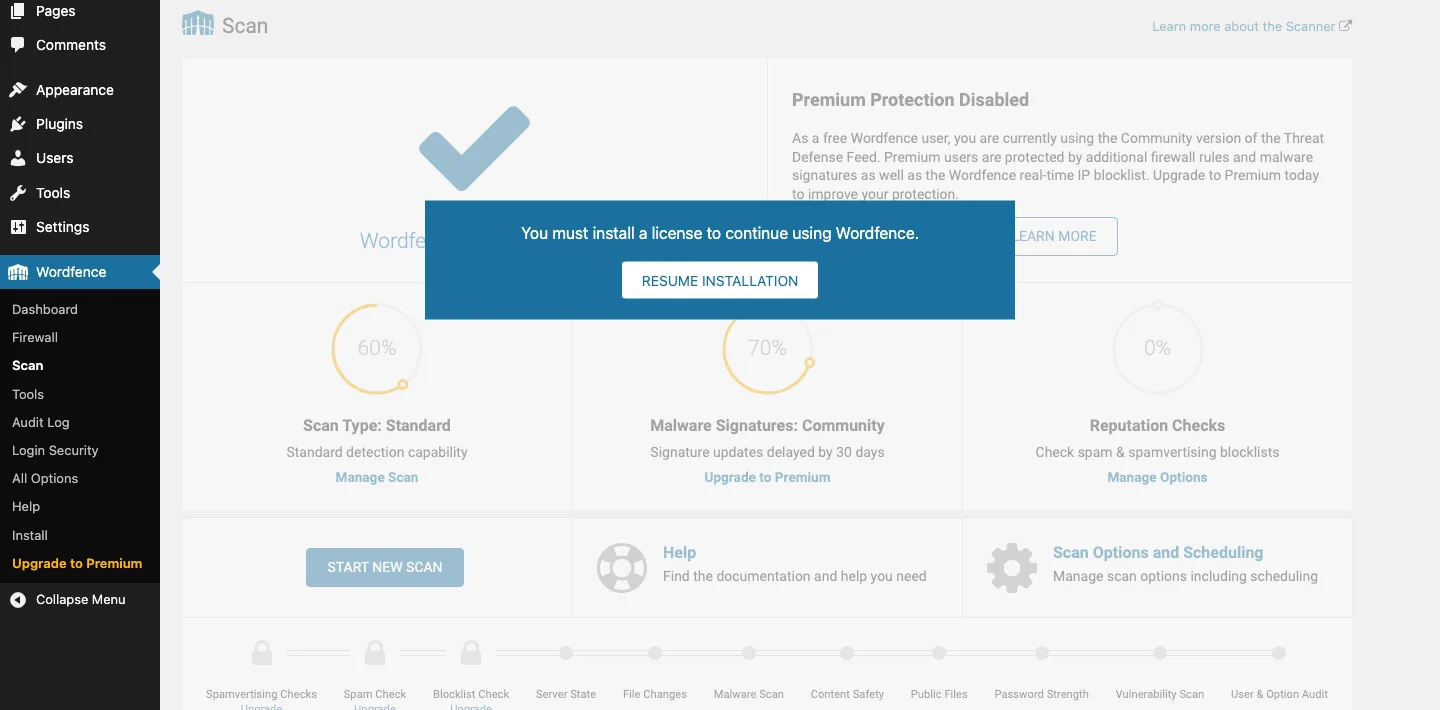
Wordfence on the test site, asking for a license before it will scan.
On our test install, version 9.0.2 would not start a scan until we entered an email address and installed a free license from Wordfence. We did not create an account, so we cannot report what it would have found. If you are fine with registering, the free license costs nothing, and Wordfence publishes its own step-by-step cleaning guide.
WP Crontrol: see what cron actually runs
Cron events are a favorite reinfection trick: you delete the bad file, and an hourly task puts it back. The free WP Crontrol plugin, version 1.21.2 with over 300,000 active installs, shows every event in the dashboard and the function each one runs.
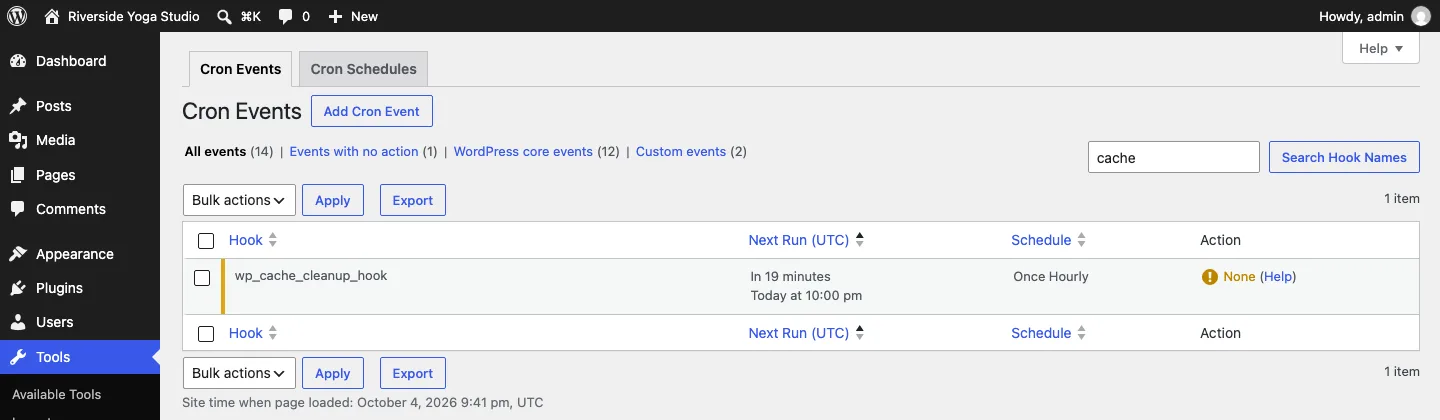
WP Crontrol showing the planted hourly event on the test site.
Our test event had no code behind it, so WP Crontrol marked its action as “None” and counted it under “Events with no action”. A real malicious event usually points to a function hidden in a rogue file, so look for hook and action names you do not recognize rather than for a warning.
How to remove malware from WordPress, step by step
These are the steps we used to clean the test site. The commands assume SSH with wp-cli. With only cPanel, you can do the same checks with File Manager and phpMyAdmin, just more slowly. Do the work from a computer you trust, since some infections start with a stolen password.
1. Back up the hacked site as it is
Copy the files and the database before you change anything, and store the copy outside your web folder.
wp db export backup-hacked.sql
tar czf site-files-hacked.tgz .
Label it as infected. If you have a backup from before the hack, restoring it is often the fastest fix, but you still need steps 3, 4 and 11, or the attacker can walk back in. Our WordPress backup plugin comparison shows real restores with free tools, and our UpdraftPlus review covers the most popular one in detail.
2. Put the site in maintenance mode
wp maintenance-mode activate shows visitors a short “briefly unavailable” message while you work. WordPress ignores that message after 10 minutes, so for a longer cleanup block public access at the server level or ask your host to do it.
3. Remove unknown admins and change every password
wp user list --role=administrator --fields=ID,user_login,user_email,user_registered
wp user delete 3 --reassign=1
Check the registration dates: an administrator created recently that nobody on your team added is a red flag. Reassign its content to a real user, then change the passwords for every admin, your hosting account, SFTP or SSH, and the database user. A new database password must also go into wp-config.php; our guide on how to edit wp-config.php shows where.
4. Reset the secret keys
wp config shuffle-salts replaces the keys in wp-config.php that sign login cookies. Everyone gets logged out, including an attacker with a stolen session.
5. Replace WordPress core files
wp core verify-checksums
wp core download --force --skip-content --version=7.1.2
Use your own version number. On our test site this overwrote the changed index.php in a few seconds, and the next checksum run passed. The download does not delete extra files, so remove anything reported as “should not exist” unless you know where it came from. On our sandbox, wp-config-docker.php belonged to the Docker image and was safe.
6. Reinstall plugins and themes from clean copies
Run wp plugin verify-checksums --all, then reinstall anything that fails with wp plugin install <slug> --force. This only covers WordPress.org plugins; download paid plugins and themes fresh from the vendor. Delete what you do not use, and never install nulled copies, meaning pirated paid plugins, which often ship with backdoors.
Then check the two places the normal Plugins list hides:
wp plugin list --status=must-use
wp plugin list --status=dropin
Must-use plugins in wp-content/mu-plugins run on every page, and you cannot turn them off from the dashboard. Drop-ins such as advanced-cache.php or db.php in wp-content are normal for some caching plugins, but you should recognize each one. In the dashboard, the Must-Use tab only appears on the Plugins screen when that folder has files in it.
7. Remove PHP files from uploads and look for hidden code
find wp-content/uploads -name "*.php"
grep -rln "base64_decode\|eval(\|gzinflate\|str_rot13" wp-content --include=*.php
find . -name "*.php" -mtime -7
Uploads should hold images and documents, not PHP. The grep will also match normal code inside some plugins, so focus on files you cannot explain. The last command lists PHP files changed in the past seven days, which is useful if you know roughly when the hack started.
8. Check wp-config.php and .htaccess by hand
Neither file is covered by checksums. Open wp-config.php next to wp-config-sample.php and look for include or require lines, long encoded strings, code above the opening comment, and constants you did not add. wp config list gives a quick list of what is defined. In .htaccess, remove rules you did not add, especially redirects that check where the visitor came from; our spam link cleanup guide shows an example.
9. Clean the database
wp db search "<script" --all-tables
wp db search "display:none" --all-tables
wp option get siteurl
wp option get home
Clean each infected post in the code editor, then delete old revisions that still hold the bad code. On our test site the hidden links were in the post and in revision 12; wp post list --post_type=revision --post_parent=6 listed it and wp post delete 12 --force removed it. Also check that siteurl and home still point to your own domain.
10. Delete unknown cron events
wp cron event list --fields=hook,next_run_relative,recurrence
wp cron event delete wp_cache_cleanup_hook
Delete only events you can identify as bad. If you are unsure, look the hook name up in the plugin that should own it, or check its action in WP Crontrol.
11. Check again, reopen and ask Google to review
Run every check a second time. On our test site the second run was clean apart from the known Docker file, and NinjaScanner’s second scan took about 10 seconds.
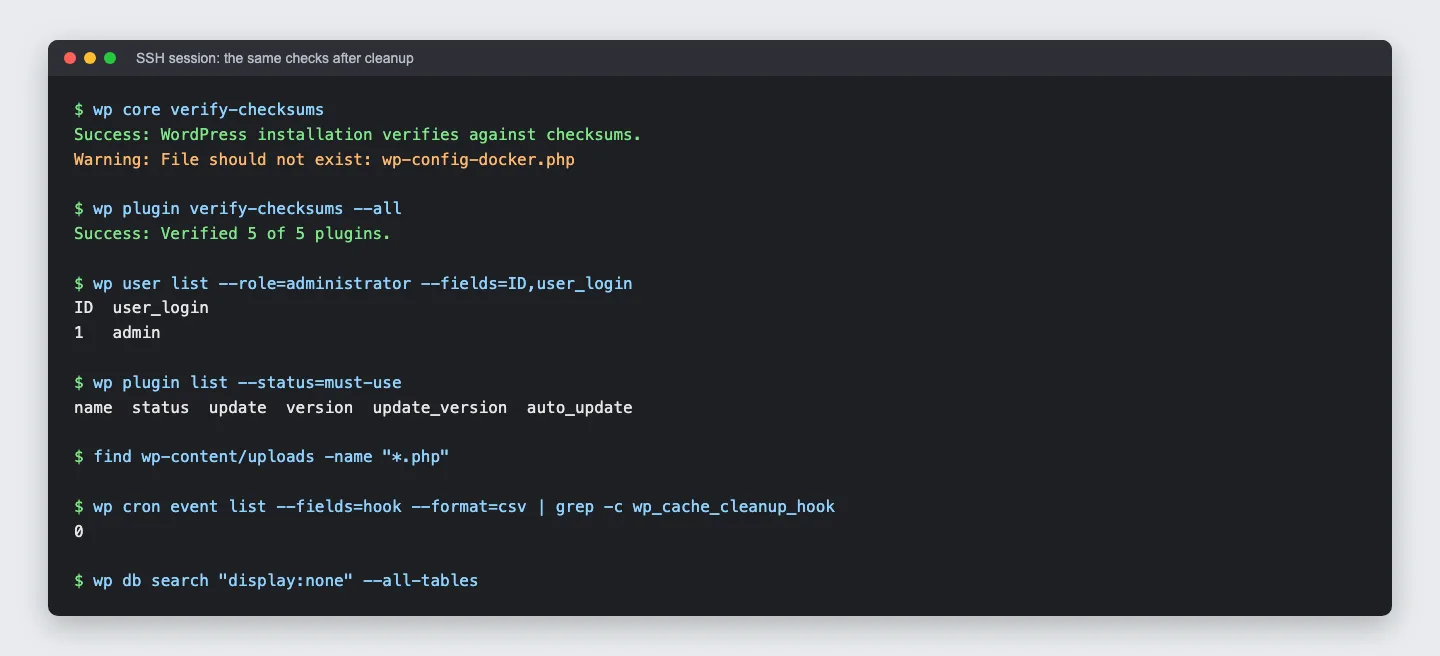
The same checks after cleanup on the test site.
Then run wp maintenance-mode deactivate, update everything, and test the site on your phone and from a Google result. If Search Console shows a security issue, fix every listed problem, then click Request Review in the Security Issues report and describe what you did. Google says a review takes from a few days to a few weeks, and asks you not to resubmit before you get a decision.
Without SSH, use the host’s file manager, check administrator accounts and must-use plugins in the dashboard, and inspect scheduled events with a tool such as WP Crontrol. A known-clean backup can be quicker than manual cleanup, but still close the entry point, update software and reset credentials before reopening.
Free vs paid malware removal
Doing it yourself costs nothing but time, and on a small site with SSH access it is a few hours of careful work, not a week. Paying makes sense when you cannot use SSH, the site makes money every hour it is down, the infection keeps coming back, or your host has suspended the account and wants proof of a cleanup.
Most security companies sell cleanup as a yearly plan, not a one-off fee. These are the public prices as of October 2026:
Sucuri lists Basic at $229 annually, Pro at $339 and Business at $549, with unlimited manual cleanups, respective response targets of 30, twelve and six hours and a 30-day guarantee. MalCare Repair lists at $299 annually, discounted to $179.40 at our check, for cleanup, a report and an expert response within 24 hours. Fortify lists at $499, discounted to $299.40, for unlimited manual fixes, hourly scans and a six-hour expert response.
Wordfence Care costs $590 annually per site for cleanup during weekday 9 a.m.-to-8 p.m. Eastern hours, audits and Premium features. Response costs $1,250 per site annually for round-the-clock one-hour response; the vendor says security issues are resolved within 24 hours. These are vendor service commitments, not response times we tested.
A few things to check before you pay: whether the plan covers every site on the same server (Wordfence says sites that are not isolated from each other all need a license), whether staging copies cost extra, and what happens at renewal. MalCare’s cheapest paid plan, Protect, does not include cleanup. Also ask your host first. Some include cleanup in the plan: Kinsta, for example, says every plan has a hack-fix guarantee, as our Kinsta review explains.
How to keep malware from coming back
Most hacks come through known holes in plugins. Patchstack’s State of WordPress Security in 2026 report counted 11,334 new vulnerabilities in 2025, up 42% from 2024. It found 91% were in plugins, 9% in themes and only 6 in WordPress core, and 46% had no fix from the developer by the time they were made public.
- Update quickly. Turn on automatic updates for plugins you trust, and test bigger updates on a staging copy of your site first.
- Delete what you do not use. Inactive plugins and themes can still be attacked.
- Lock down logins. Use strong, unique passwords, two-factor login and as few admin accounts as possible.
- Turn off the file editor with
define( 'DISALLOW_FILE_EDIT', true );inwp-config.php, so a stolen admin login cannot edit PHP from the dashboard. - Block PHP in uploads. Your host or a security plugin can add the rule for you.
- Keep off-site backups that go back several weeks, since some infections sit quietly for a while. All-in-One WP Migration can also move a clean copy to a new server.
- Choose a host that helps. Managed WordPress hosting isolates sites, keeps server software current and often includes malware scanning.
Once a month, run the checks from this guide: core and plugin checksums, the admin list, must-use plugins, PHP files in uploads and the cron list. Saving the output from a healthy site makes the next comparison much faster.