Jupiter X Review (2026): We Tested the Full Theme With a License
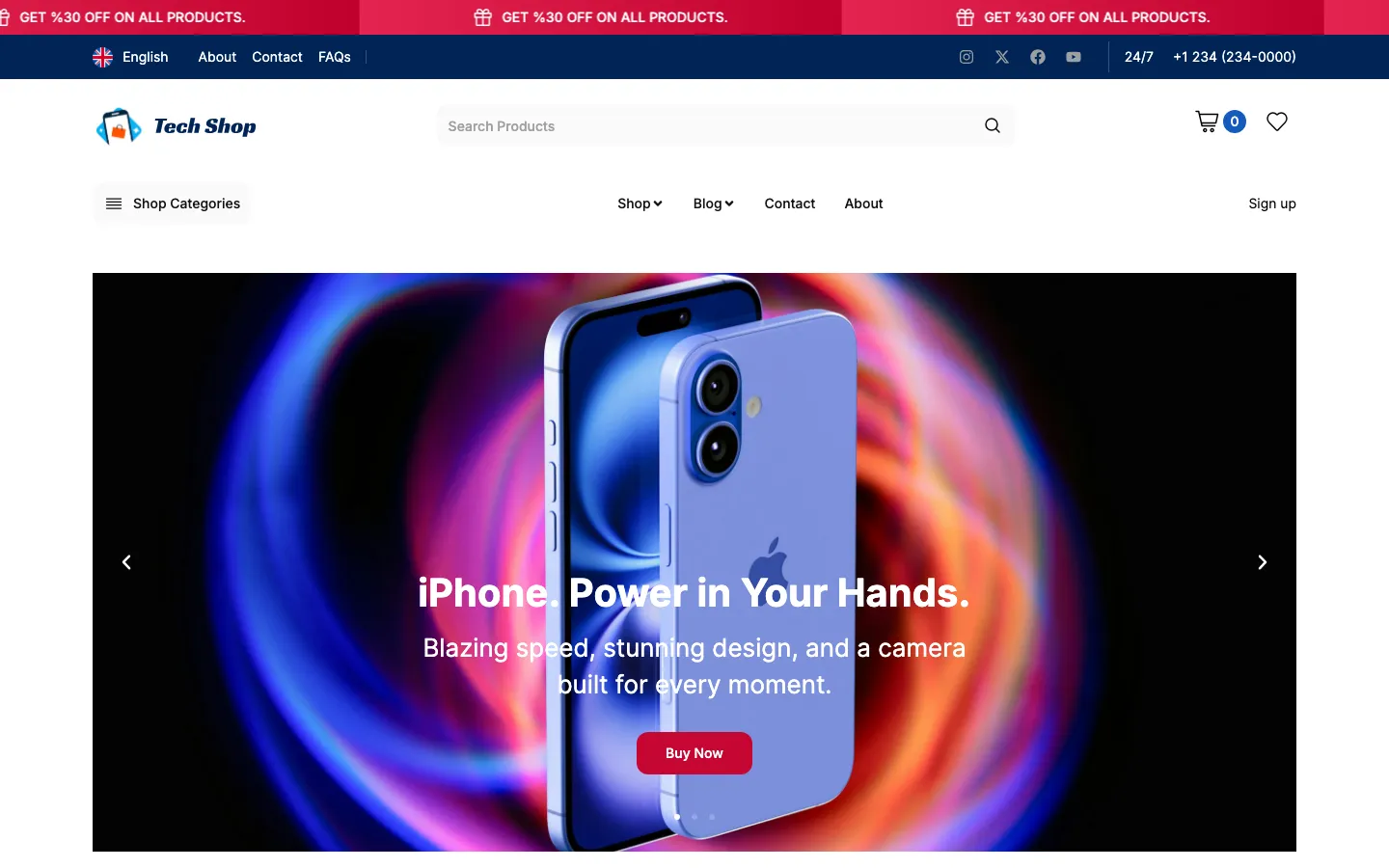
The Electronics And Gadget Shop template after a full import on our test install, Jupiter X 4.61.0, October 2026.
Our verdict: Jupiter X is the current version of the Jupiter WordPress theme. It is an Elementor theme with its own header, footer, product page and popup builders, a mega menu, 81 extra Elementor widgets and a library of 461 ready-made websites. With a license, it worked well on our test install. The Elementor editor opened in a few seconds, which the free Lite version could not do. Display conditions, popups, the mega menu, one-click updates and rollbacks all worked too. It is good value for agencies, at $20 to $35 per site on the bulk plans. The weak spot is the templates. The shop template we imported had missing images and text copied from other templates, and its homepage weighed about 9 MB. Plan to clean up any template before you launch.
How we reviewed it. We started a fresh WordPress 7.1.2 install on PHP 8.3 in an isolated Docker sandbox used only for this review. We installed Jupiter X 4.61.0, Jupiter X Core 4.61.0 and the child theme from files we downloaded from the Artbees account. Then we activated a license, ran the setup wizard and imported a full shop template from the library. After that we built a header, a product page template and a popup in the Layout Builder, placed a test order as a shopper, measured speed and tested updates. Everything below comes from that install on October 11 and 12, 2026, unless we say otherwise. Our October 4, 2026 test of the free JupiterX Lite is summed up near the end.
Disclosure: Artbees, the company behind Jupiter X, gave us a complimentary Jupiter X license for this review. That did not affect our verdict, and we point out the problems we found.
Jupiter X Quick Facts
Prices and store figures were checked on ThemeForest and jupiterx.com on October 12, 2026.
| Item | Details |
|---|---|
| Developer | Artbees (founded 2010, selling themes on Envato since 2013) |
| Version we tested | Jupiter X 4.61.0 (released September 21, 2026) with Jupiter X Core 4.61.0 |
| Price | $58 for one site on ThemeForest; 10 sites for $349 or 100 sites for $1,999 from Artbees |
| Support | 6 months with the $58 license (12 months for $17.25 more); 1 year with 10 sites; unlimited with 100 sites |
| Updates | Lifetime updates on every plan, no yearly renewal |
| Page builder | Free Elementor (Elementor 4.3.4 on our install) |
| Ready-made websites | 461 in the template library on our test install (Artbees says 460+) |
| Extra Elementor widgets | 81 Jupiter X widgets on a normal page, plus 12 product widgets in product templates |
| Requirements | ThemeForest lists PHP 7.4 to 8.3 and WordPress 6.5 to 7.0. It also ran on WordPress 7.1.2 in our test |
| Rating and sales | 4.76 out of 5 from 6.9K reviews and 184,217 sales on ThemeForest |
| Free version | JupiterX Lite 2.0.9 on WordPress.org, last updated June 3, 2022 |
| Best for | Agencies and freelancers who build many Elementor sites from templates |
Jupiter vs Jupiter X: What Happened to the Original Theme?
Jupiter launched on ThemeForest in 2013 as Artbees’ first big multipurpose theme. Artbees says it went on to sell more than 200,000 licenses. In 2018 Artbees rebuilt it as Jupiter X. The big change was the page builder:
- Jupiter, now called Jupiter 6, used a modified version of WPBakery Page Builder and its own theme options panel.
- Jupiter X uses Elementor for page design and adds its own builders on top.
Classic Jupiter is in maintenance mode. The Artbees changelog shows Jupiter 6 releases in December 2025, August 2026 and September 2026, mostly security and compatibility fixes. New features go into Jupiter X, and the ThemeForest listing now sells Jupiter X. The files we downloaded from the Artbees account were the Jupiter X theme, Jupiter X Core and a child theme. Pages built with WPBakery do not convert to Elementor, so moving an old Jupiter 6 site to Jupiter X means rebuilding those pages.
Installation, License and Setup Wizard
We installed the theme zip and the child theme zip and activated Jupiter X. A “Welcome to JupiterX” notice then asked us to install and activate Jupiter X Core, Advanced Custom Fields and Elementor. We had already added Jupiter X Core from its zip. One click on “Install & Activate Required Plugins” got ACF and Elementor from WordPress.org and activated all three plugins. About 15 seconds later, the setup wizard opened.
The wizard has six steps: Registration, Colors, Typography, Layout, Content and Done. The Registration step asks for your email and Envato purchase code, or an API key, plus a consent box for Artbees’ privacy policy. We registered our API key by running Jupiter X Core’s own license check from the command line, so the key never appeared on screen. The License screen then showed “License Active”, with support until January 12, 2027, and the wizard skipped its Registration step.
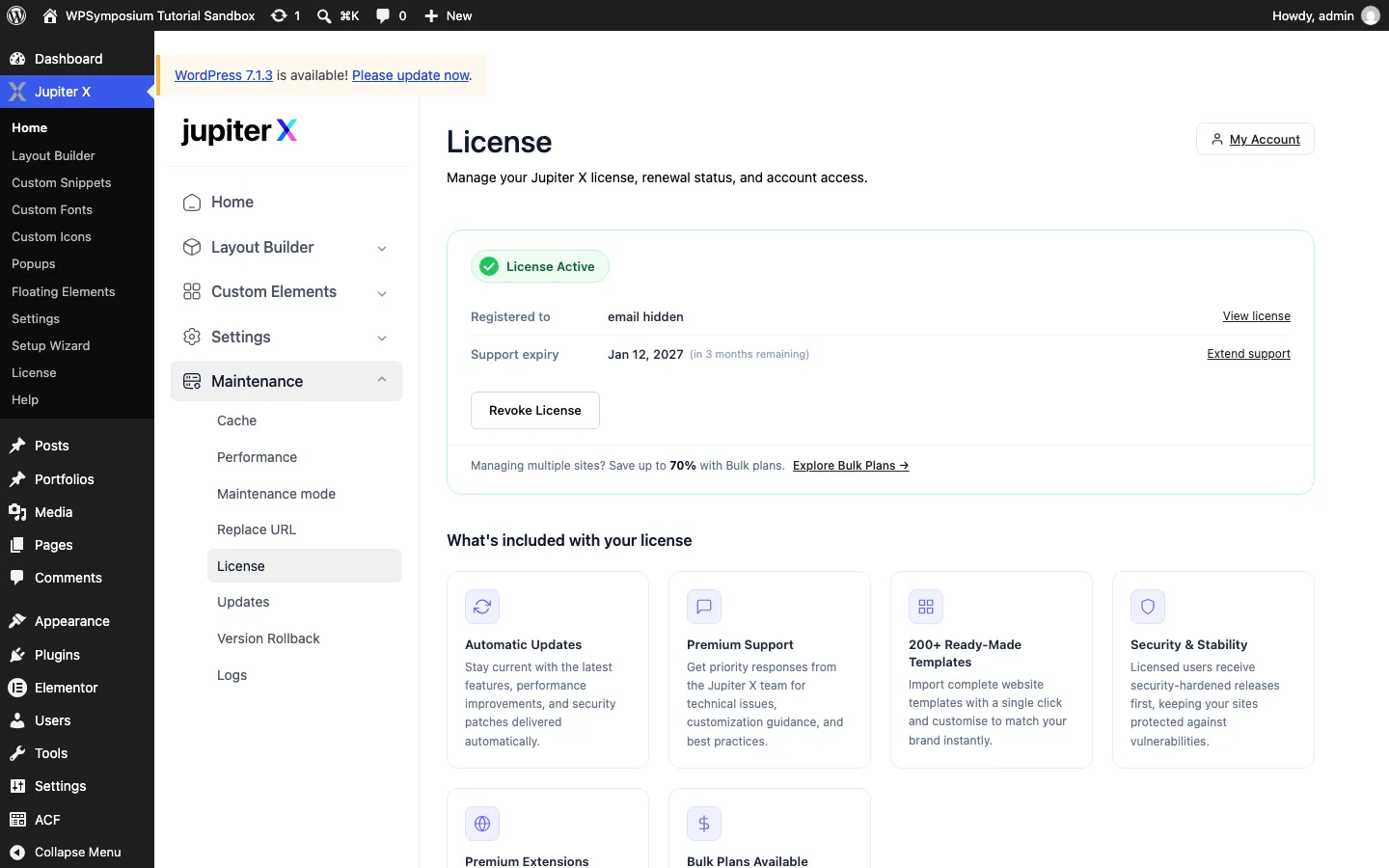
The Jupiter X License screen after activation on our test install. We hid the account email. October 2026.
The other steps work like this:
- Colors offers a grid of ready-made color palettes.
- Typography offers font pairings, each shown as a sample heading, paragraph and button.
- Layout lets you upload a logo and pick a global header and footer.
- Content asks whether you are building a Standard site or an Online Shop. It then imports seven starter pages, such as a homepage, about and contact page. It also adds templates for posts, archives and the 404 page, plus optional sample content. The shop option adds templates for the shop, product, cart and checkout pages.
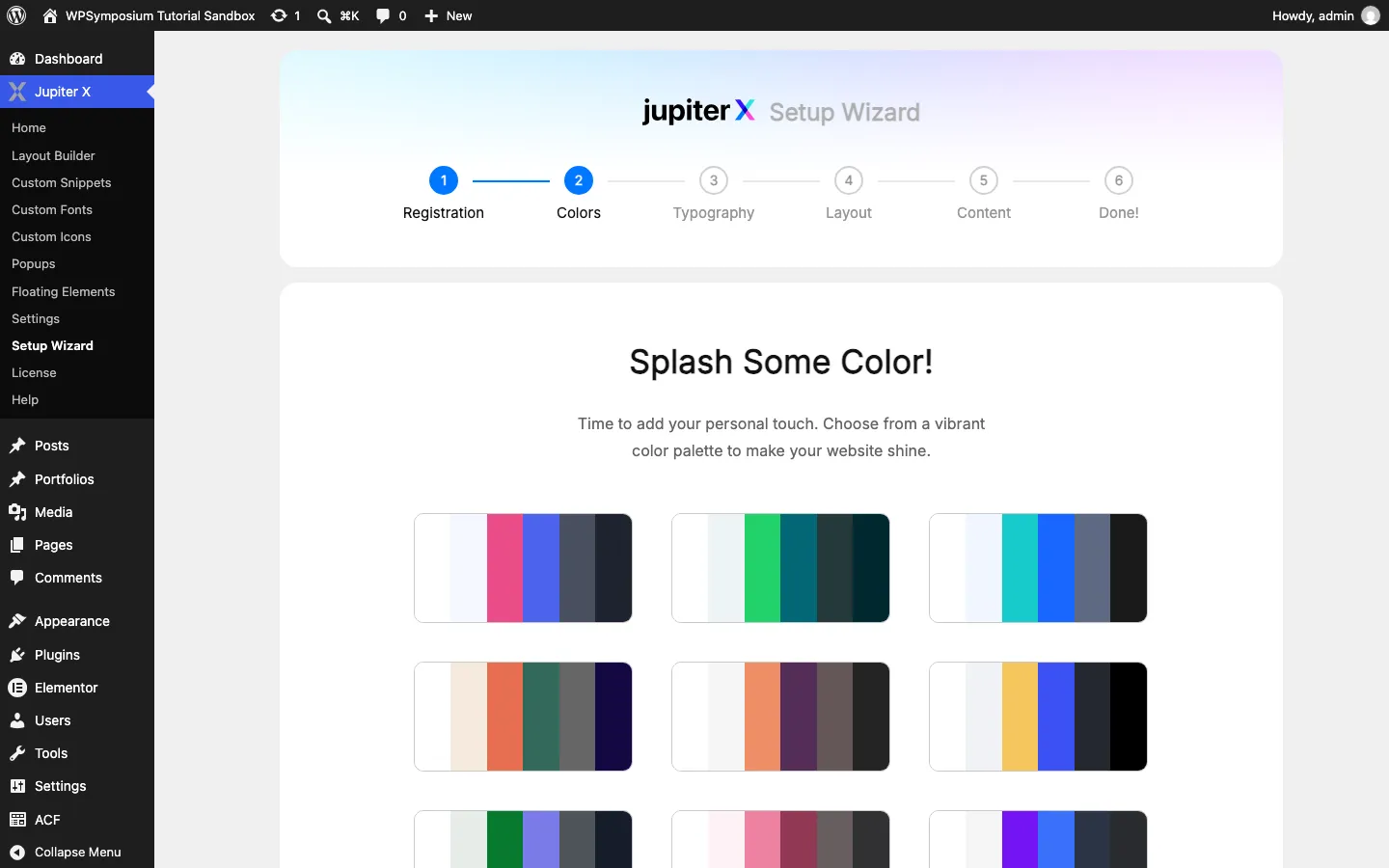
The Colors step of the Jupiter X setup wizard on our test install, October 2026.
We picked Online Shop with sample content, and “Complete Setup” finished in 45 seconds. It installed WooCommerce 11.2.1, SellKit 2.8.0 and SellKit Pro 2.2.0. WooCommerce was in its “coming soon” mode after setup, so logged-out visitors saw a placeholder on shop pages until we switched the store to live.
Importing a Template From the Library
The template library listed 461 templates, the same number we counted with JupiterX Lite. You can search by name. You can also filter by 16 categories, by style and header type, by components such as an order bump or variation swatches, and by one-page or multi-page layout. The Shop category had 68 templates. The two newest templates, Car Parts Store and Electronics And Gadget Shop, only had a Preview button in Lite. With a license, both had an Import button.
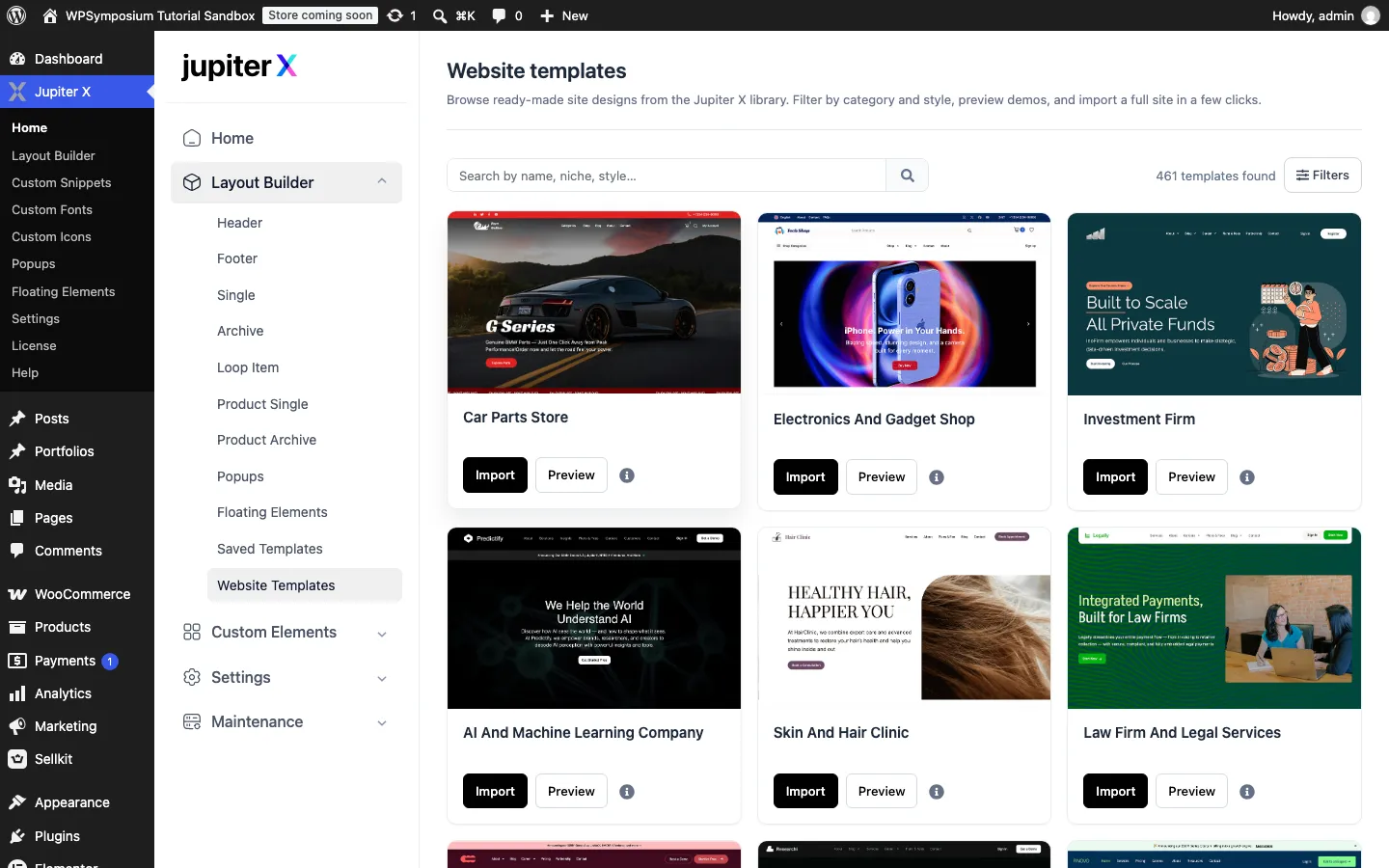
The Jupiter X template library with a license, 461 templates, on our test install, October 2026.
Clicking Import gives two choices. Full Import removes your current content and settings, then installs the template. Content Import keeps your site and only adds the template’s pages. An “Include media (copyrighted)” box is ticked by default, with a note that SVG uploads will be turned on. Before a full import, Jupiter X shows your database size and how many posts, pages, media items, menus and products it will remove. You have to type the site URL and tick a box before it runs. That is a good safety check.
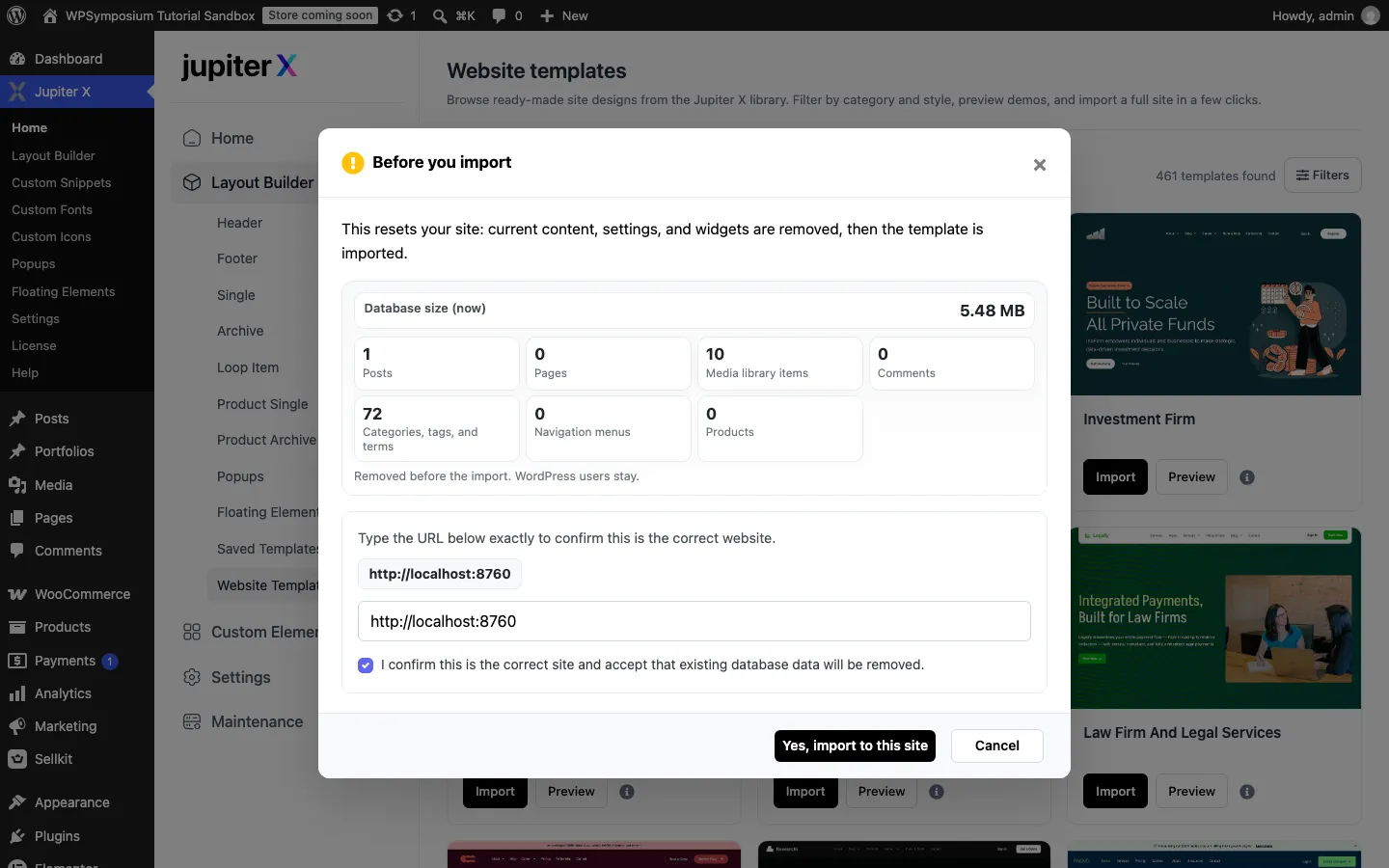
The full import confirmation dialog on our test install, October 2026.
We ran a full import of Electronics And Gadget Shop. Keep the browser tab open while it runs. The import is driven from the page, and our first attempt stopped after 18 seconds when the tab closed. The second full import took 3 minutes and 53 seconds across 14 steps and ended with “Template import complete”. The finished site had 12 pages, 9 blog posts, 24 products, 196 media files, three headers, two footers, a mega menu and a popup.
The homepage looked like the demo, but we found problems:
- Missing images. 97 of the 293 image downloads failed with “not found” errors from Artbees’ demo server. Most of them were not used on the homepage, but at least one product showed a placeholder image and one category tile was blank.
- Text copied from other templates. The footer of this electronics shop says “Part Online is your go-to shop for quality car parts and accessories”, with link columns called “Fun Managers” and links named “Rolling Funds”. The promo bar reads “GET %30 OFF”. The iPhone 17 Pro Max description talks about “the iPhone 16 Plus”, and a Bose speaker is described as headphones.
- Variable products lost their options. All 8 variable products, such as the iPhone 17 Pro Max with storage options, came in without their options. The product page showed an “Out of Stock” badge and a greyed-out Add to cart button, while simple products worked. This happened on our second full import, after the first one was cut off. The importer’s code points to a re-import bug, not bad template data. Its reset emptied WooCommerce’s list of attributes but left WooCommerce’s saved copy of that list in place, so the importer did not create the attributes again. We did not repeat the import on a fresh site, so a single clean import may well work.
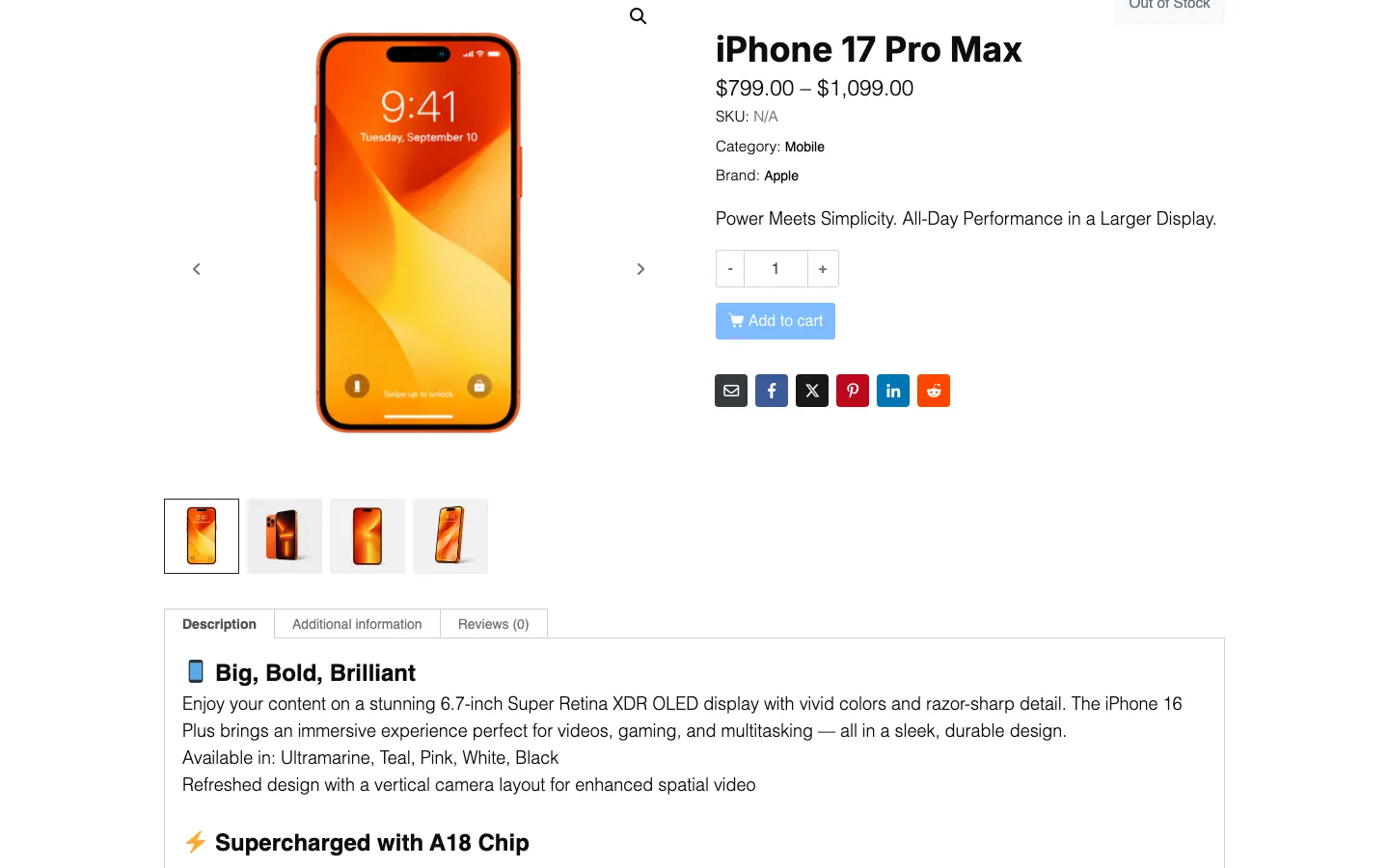
An imported variable product with no options to choose after our second import, so it could not be added to the cart, on our test install, October 2026.
None of this is hard to fix in WooCommerce and Elementor. But a shop template should not need this much cleanup before launch, so check every page and product before you go live.
Does the Elementor Editor Open Now?
Yes. This was the main failure in our Lite test, where every attempt to edit a page in Elementor ended in a “critical error” screen. With the full version and an active license, the imported homepage opened in the Elementor editor in 5.6 to 8.0 seconds across seven tries. A new page made with Pages > Add New > “Edit with Elementor” opened in 3.8 seconds. We saw no error screens.
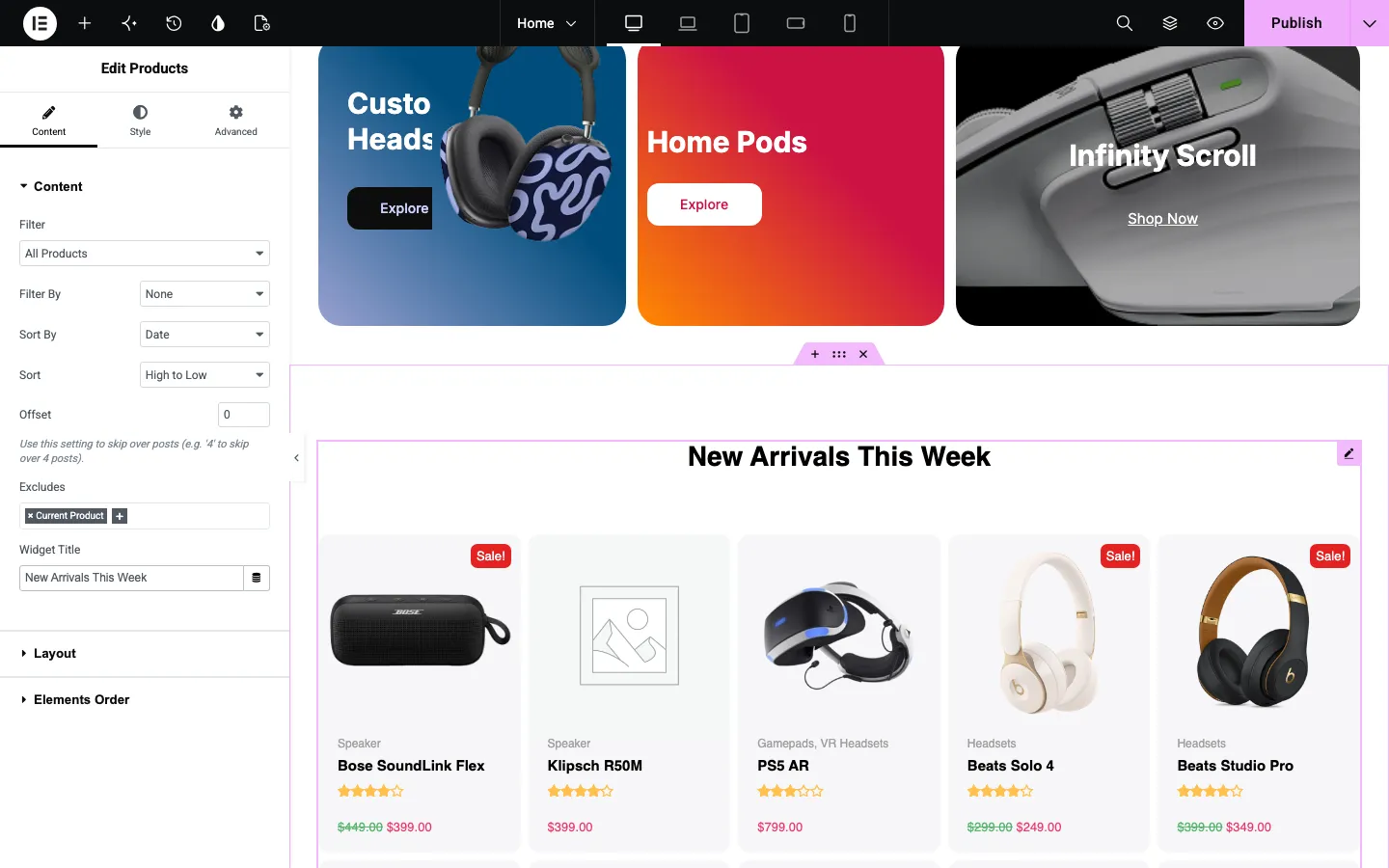
Editing the Jupiter X Products widget on the imported homepage in Elementor, on our test install, October 2026.
We changed the title of the “New Arrivals” product grid, a Jupiter X Products widget, published the page and saw the new title on the live site. The only interruption was Elementor’s own pop-up about its “Angie” AI tool on first load. That comes from Elementor, not Jupiter X.
Jupiter X Widgets: Do You Need Elementor Pro?
Not for most sites. On a normal page, the Elementor panel had a “Jupiter X Elements” group with 81 widgets. Product templates added 12 product widgets, and SellKit added 4 widgets for checkout, order details and opt-in forms. The list covers forms, login and register forms, loop grids and carousels, an Advanced Menu, charts, timelines, a flip box, a media gallery, sliders, pricing tables, Lottie animations, PayPal and Stripe buttons, a cart and a My Account widget. The Manage Elements settings screen has close to 100 switches to turn widgets and features off if you do not use them.
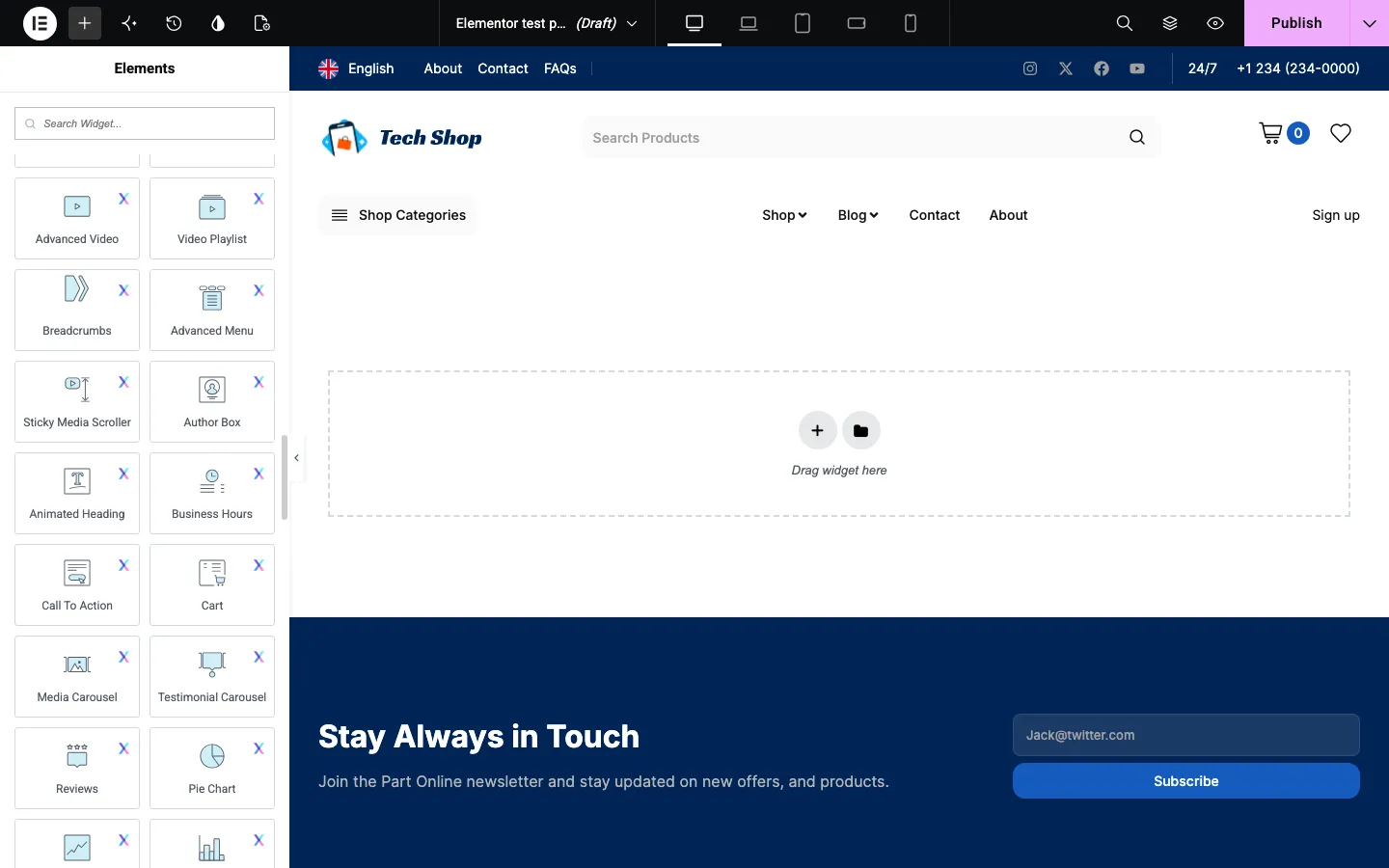
Jupiter X widgets in the Elementor panel, each marked with an X badge, on our test install, October 2026.
One older review said the gallery and flip box widgets need Elementor Pro. On our install, with only free Elementor, we dragged the Jupiter X Flip Box, Form and Media Gallery widgets onto a page and published it, and all three worked. We also sent a test message through the Form widget as a logged-out visitor and got “The form was sent successfully!”. Be aware that the panel also shows 90 locked Elementor Pro widgets as upgrade teasers.
Layout Builder: Headers, Footers and Product Pages
The Layout Builder does the job of Elementor Pro’s Theme Builder. It has sections for headers, footers, single posts and pages, archives, loop items, product pages, product archives, popups, floating elements and saved templates. Each template has display conditions, so you can show it on the whole site, on chosen pages, or on certain product categories or user roles.
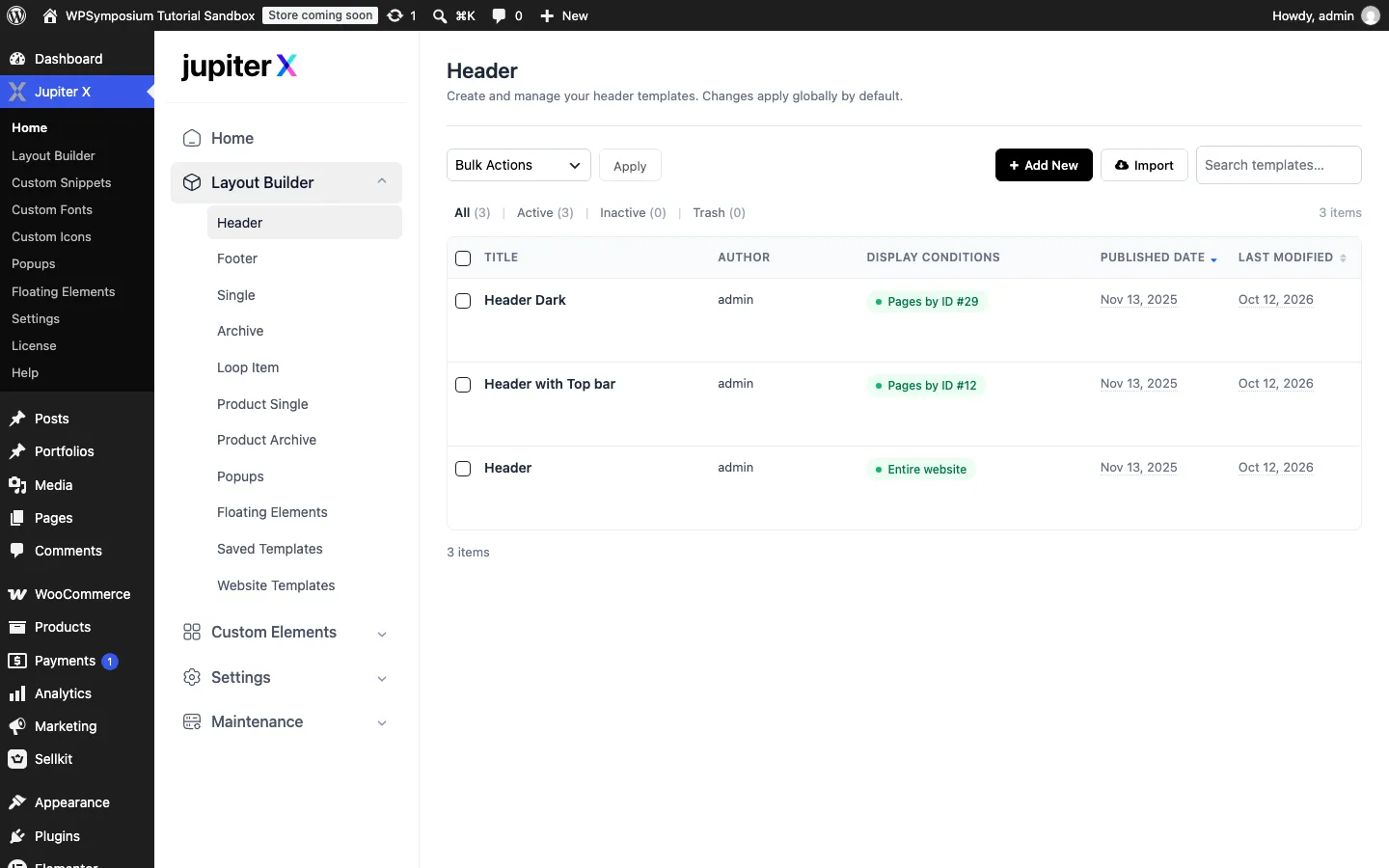
Header templates and their display conditions in the Layout Builder after the template import, on our test install, October 2026.
Here is what we built:
- A header for one page. We made a new header, gave it a heading and a search form, and set its condition to the Contact page. Contact showed the new header, while the About page kept the template header. When the new header first opened in Elementor, the Elementor library popped up with ready-made Jupiter X blocks to start from.
- A footer fix. We opened the site-wide footer and replaced the copied car parts text. The change showed on the live site as soon as we saved it. The footer opened in the editor in 4.4 seconds.
- A product page template. We built a two-column product page from the Jupiter X product widgets: gallery, title, rating, price, short description, Add to cart, product meta and data tabs. Then we set its condition to all products. The product pages we checked switched to the new layout.
A note on how we built these. In our test browser, widgets dragged into Elementor 4’s flexbox containers did not drop into place. So we added the widgets in the Contact header, the product page template and the test popup below with Elementor’s own editor commands. We set every display condition and popup trigger by clicking through the normal dialogs.
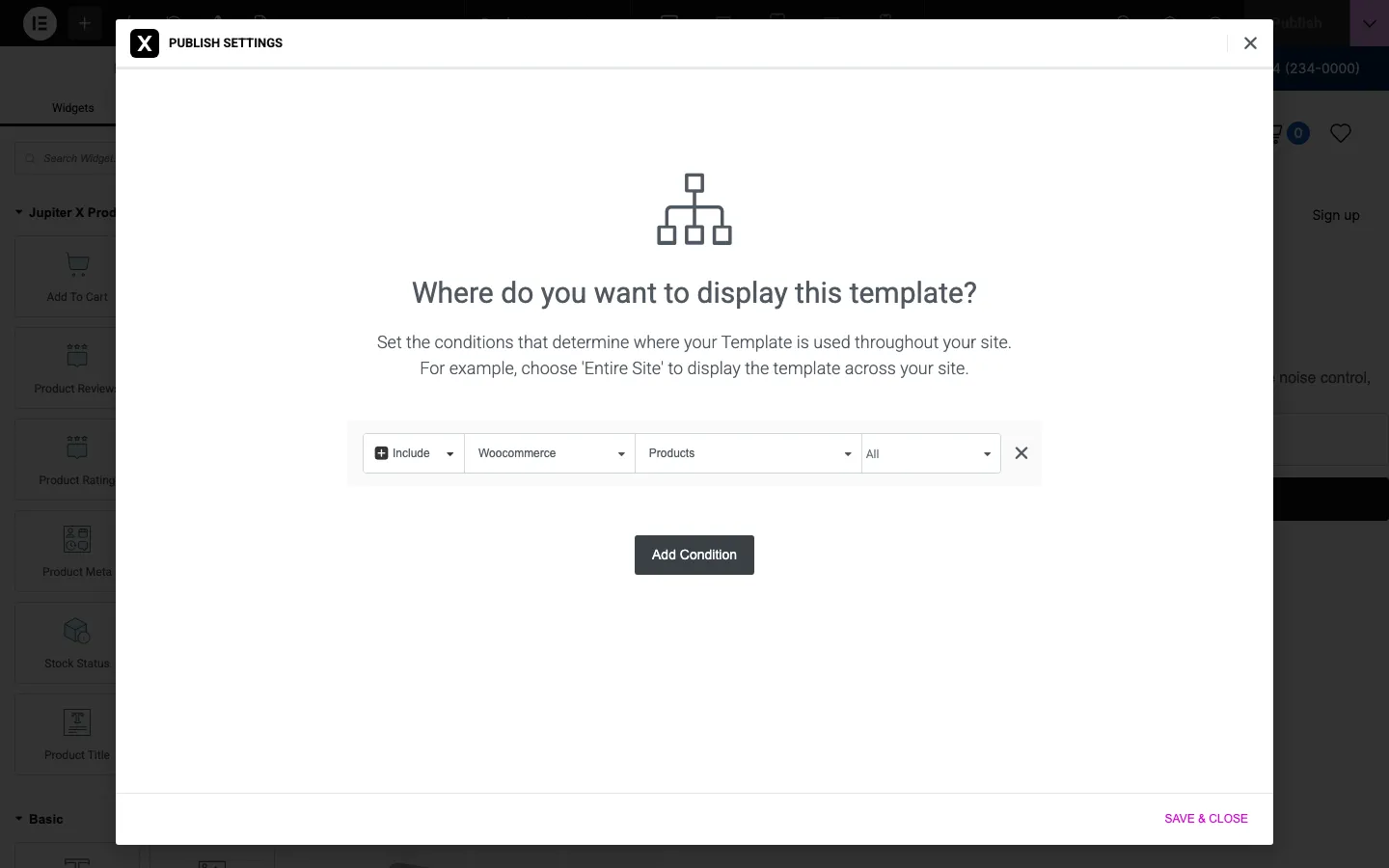
Setting the product page template to show on all products, on our test install, October 2026.
You set conditions from a “Display Conditions” item in the Publish menu, or in a dialog the first time you publish. That menu item was not always there. It was missing when we opened a header from a plain Elementor link instead of from the Layout Builder list, and now and then it did not show even when we opened the template from the Layout Builder.
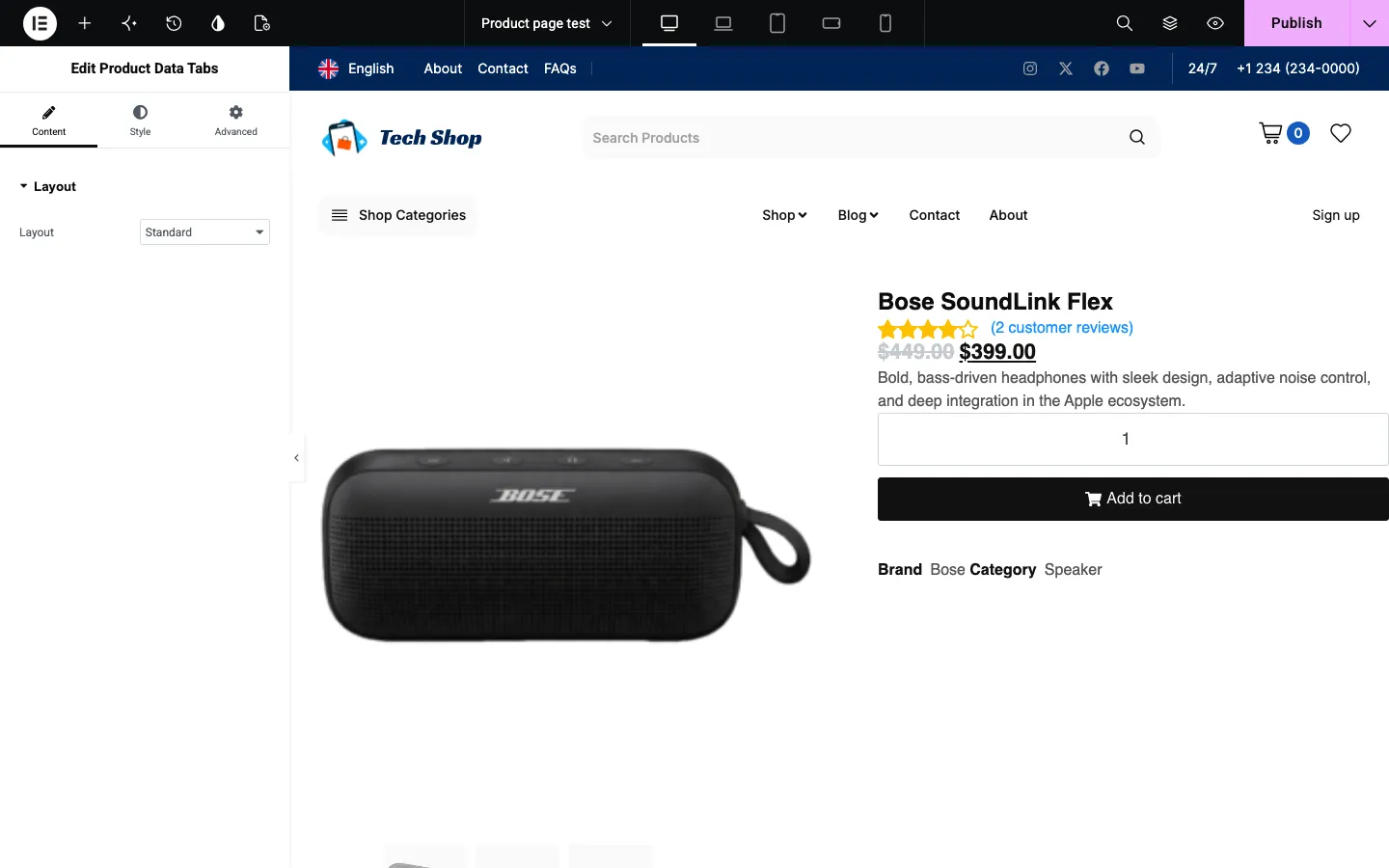
Our product page template built with Jupiter X product widgets, on our test install, October 2026.
A note for SEO: the product title widget printed the name as a level-two heading by default, so our product pages had no H1. They also lost WooCommerce’s Product structured data, the hidden code that lets Google show price and stock in search results. With the theme’s default product layout, the same page had an H1 title and the Product data. If you build product templates, set the title tag to H1, and once the site is live, check with Google’s Rich Results Test that the Product data is still there.
Popup Builder
Jupiter X has its own popup builder. We created a popup with a heading and a button. When you publish, it asks for display conditions and triggers. Conditions can target the entire site, archives, single pages or WooCommerce pages. There are 21 trigger types, including on page load, on scroll, exit intent, after inactivity, after a number of page views or visits, by date or time range, by device, browser, user role and by UTM tags. You can combine triggers with “Or” or “And”.
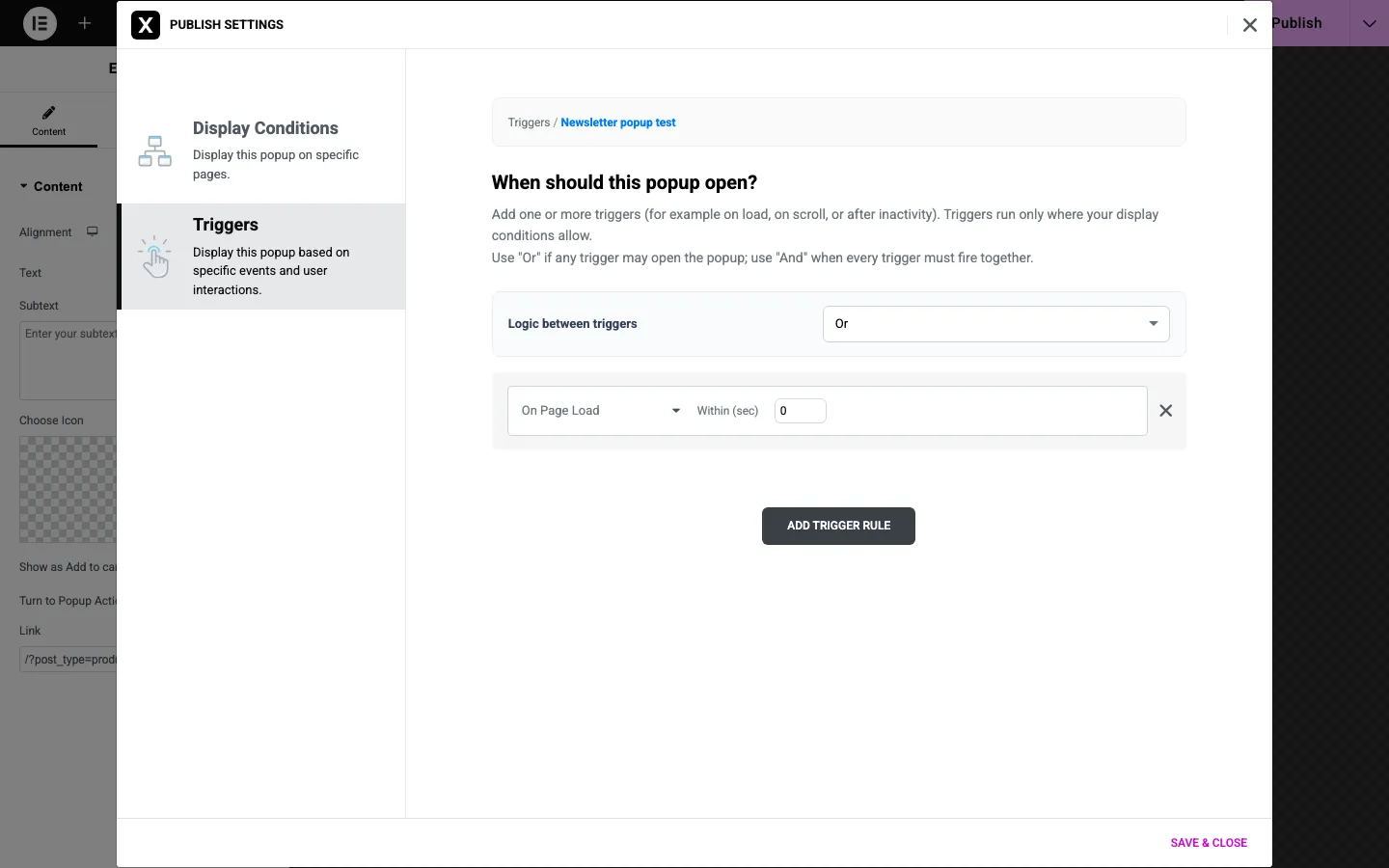
Popup triggers in the Jupiter X popup builder on our test install, October 2026.
With “On Page Load” and “Entire Site”, the popup opened for a logged-out visitor on the About page, and the close button hid it. On the homepage, our popup and the template’s own “New Offer” popup opened at the same time, stacked on top of each other. So check which popups a template brings with it.

Our test popup on the About page, captured while we were logged in, on our test install, October 2026.
Mega Menu
The template’s “Shop Categories” button opens a full-width mega menu with categories, brands, operating systems, price ranges and a product image. It is built with the Jupiter X Advanced Menu widget: a menu item set to “Sub Menu” shows a saved Elementor section called “Mega Menu”. So a mega menu is just another Elementor design, which makes it easy to change. On a phone, the menu button opened a simple list of the main links.
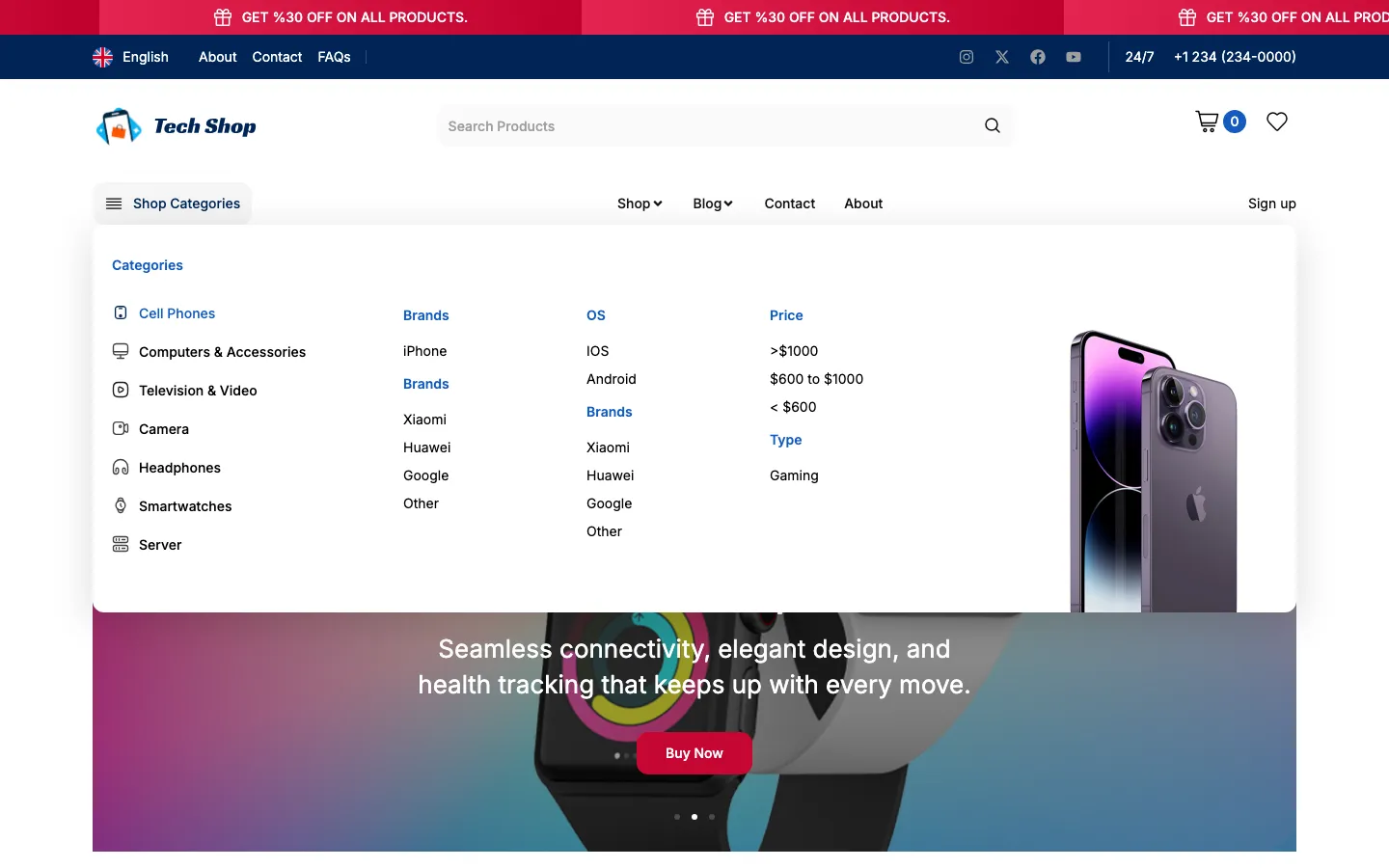
The Shop Categories mega menu from the imported template, on our test install, October 2026.
Customizer and Simplicity Mode
Simplicity Mode was already on in our fresh install. It is a Jupiter X setting that hides the older theme options and leaves design work to Elementor and the Layout Builder. With it on, the Customizer only had the standard WordPress panels plus WooCommerce. When we turned it off, the Customizer grew to more than 25 panels. These include header, footer, typography, layout, blog, 404, maintenance, and shop panels for the product list, product page, cart, checkout and a “Cart Quick View”.
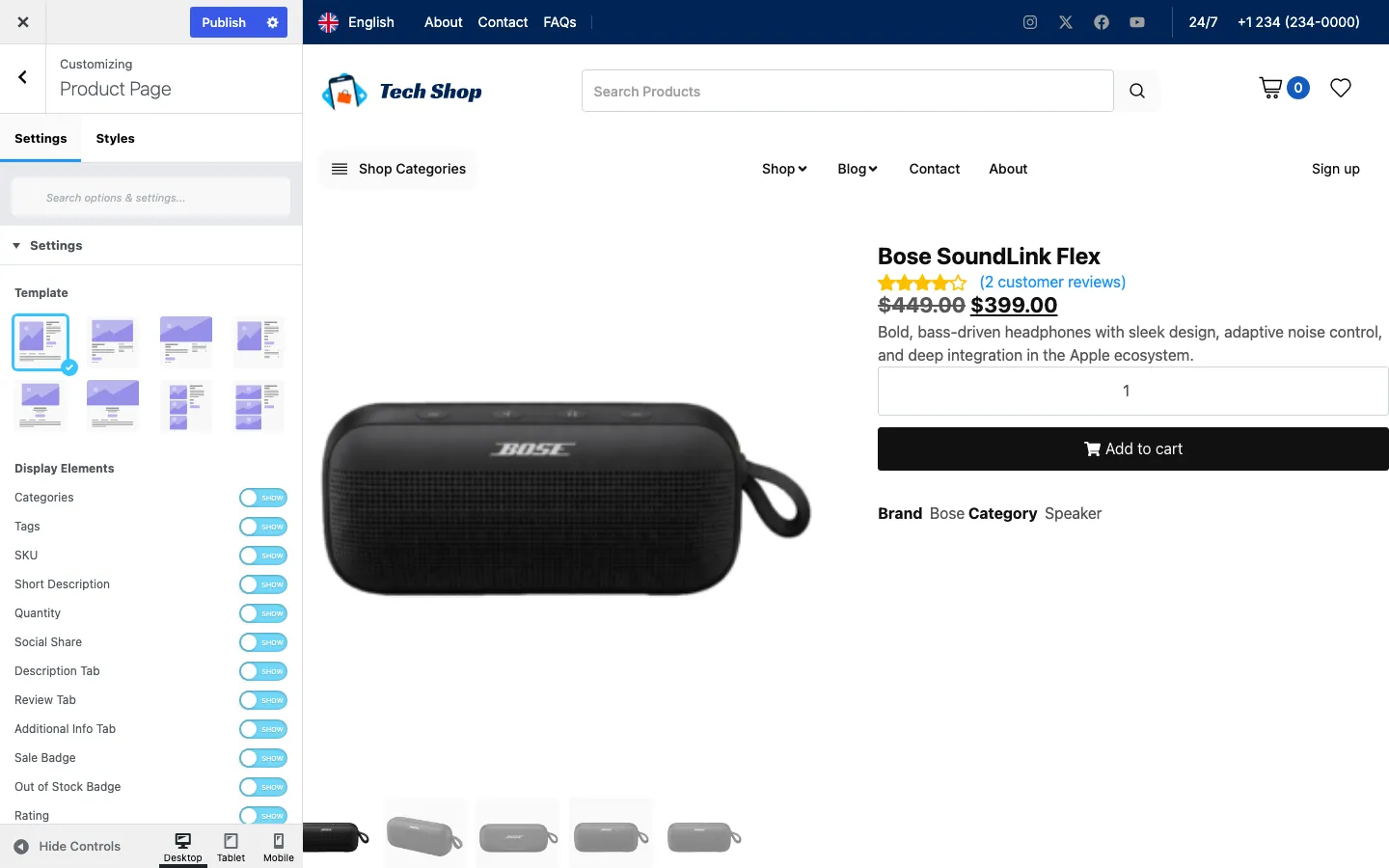
The Product Page panel in the Customizer with Simplicity Mode turned off, on our test install, October 2026.
The Product Page panel offers eight layouts and show or hide switches for most parts of the page. These older options matter if you do not want to build product templates in Elementor. Turning Simplicity Mode off also added a sidebar to our shop page and cut the homepage from 9.4 MB to 5.8 MB after scrolling. Two things changed. The product grids loaded small 300-pixel thumbnails instead of full-size product images. And the header logos came from the theme’s own logo setting, which after the import pointed to Artbees’ demo server, so the visitor’s browser loaded the logo from Artbees. The 62 stylesheets and 43 scripts stayed the same. We turned it back on for the rest of the test, and Jupiter X showed a warning to test first and keep a backup.
WooCommerce Features
Jupiter X covers most of what a small store needs, but some selling tools come from SellKit, a separate plugin. Here is what we saw:
- Shop and product pages. The shop page used the theme’s own layout with sorting and Add to cart buttons. Product pages can come from the Customizer layouts or a Layout Builder template.
- Slide-in cart. Adding a product from the shop opened a cart panel with the item, subtotal, View Cart and Checkout buttons.
- Cart and checkout. The cart page showed a three-step bar: Shopping Cart, Checkout Details and Order Complete. The checkout was a SellKit checkout form with contact details, a promo code box, billing details and payment on one page.
- A complete test order. As a logged-out shopper, we bought a pair of AirPods with Cash on Delivery and fake details. We got “Thank you. Your order has been received.” about 4 seconds after clicking Complete Order, and the order appeared in WooCommerce.
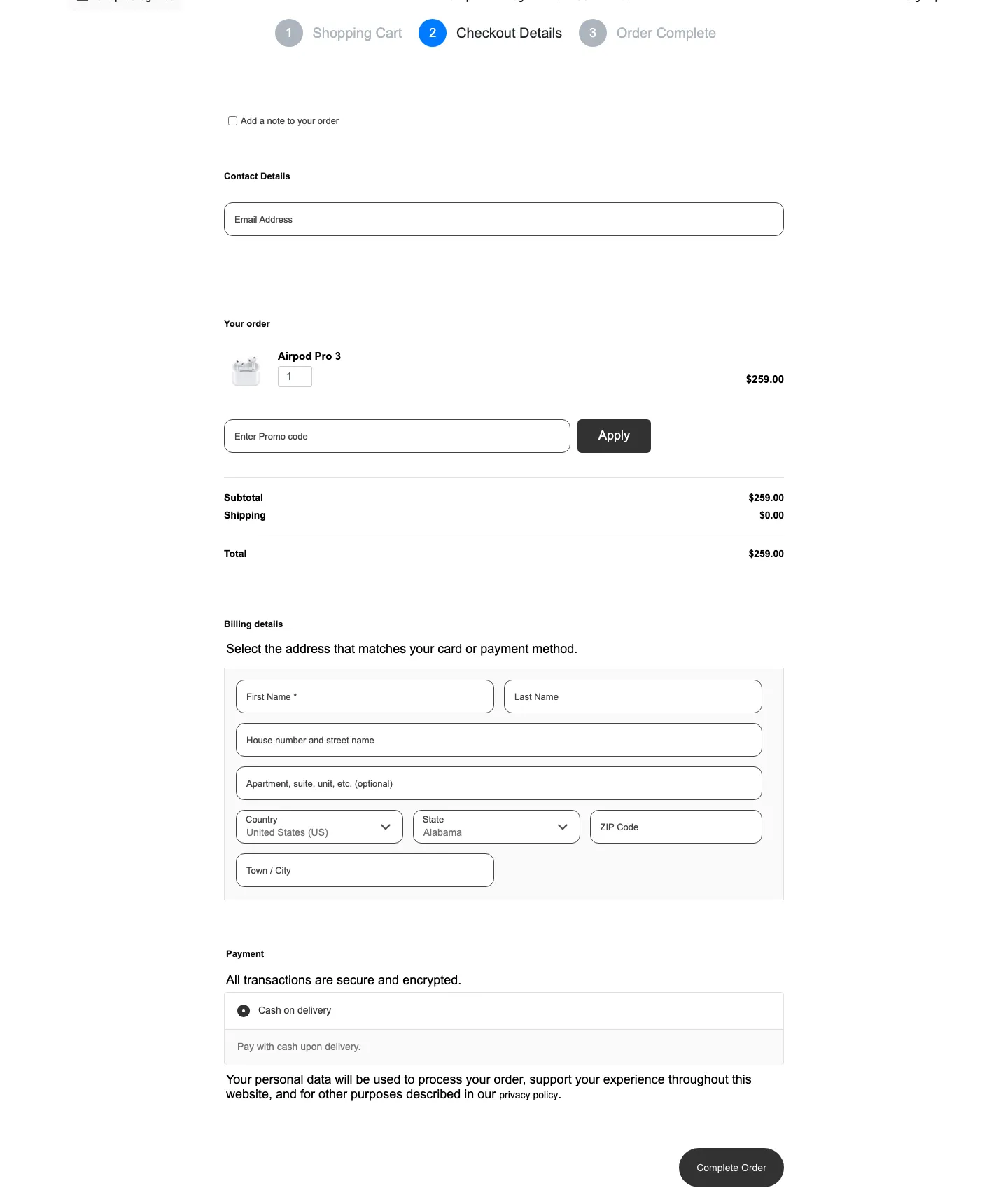
The SellKit checkout that came with the shop template, on our test install, October 2026.
The catch is SellKit Pro. The setup wizard installed it, but Dynamic Discount, Smart Coupons, Smart Notices and new Global Checkout funnels all said “Connect your Sellkit Pro license to use this feature.” SellKit Pro is free for Jupiter X license owners, as both Artbees’ help center and a notice in the theme say. But it needs a one-time connection. You click “Connect & Activate” on the SellKit License screen, sign up or log in at getsellkit.com, and link your Jupiter X license. One Jupiter X license covers SellKit Pro on one site. We did not create that account, so we could not test dynamic discounts or smart coupons. We also did not build a funnel with an order bump or upsell, and we did not test Stripe, PayPal or Amazon Pay buttons, because they need merchant accounts.
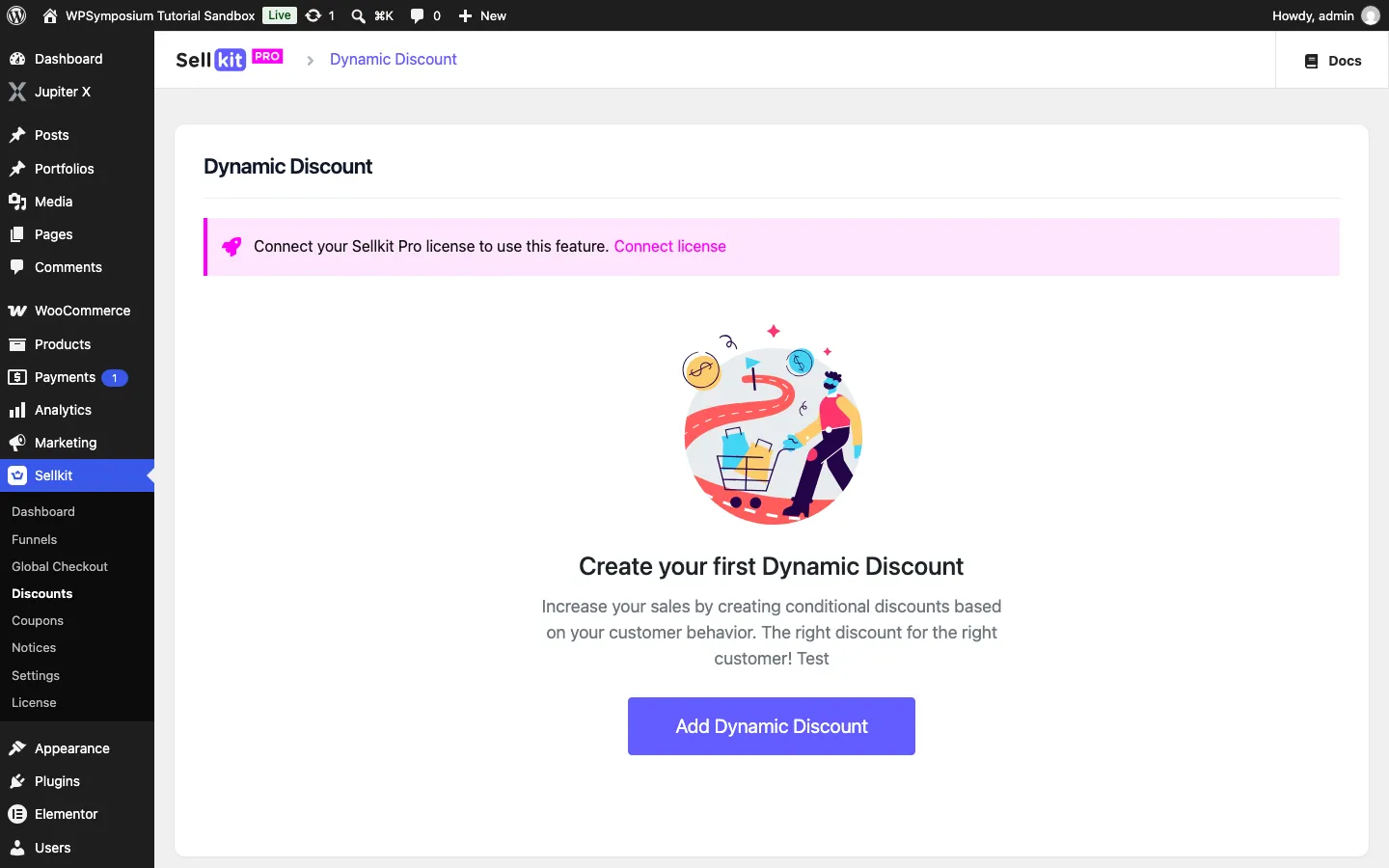
SellKit Pro features waiting for the one-time SellKit connection on our test install, October 2026.
One more thing for store owners: the WooCommerce status report flagged three outdated theme templates. The cart template was written for WooCommerce 11.0.0, the thank-you page for 8.1.0 and the product meta for 9.7.0, while WooCommerce 11.2 was installed. Outdated templates often still work, but they are a common cause of store bugs after WooCommerce updates.
Mobile
On a phone-sized screen 390 pixels wide, the imported template stacked well, and the menu button opened the main links. Our product template put the gallery above the title and price.
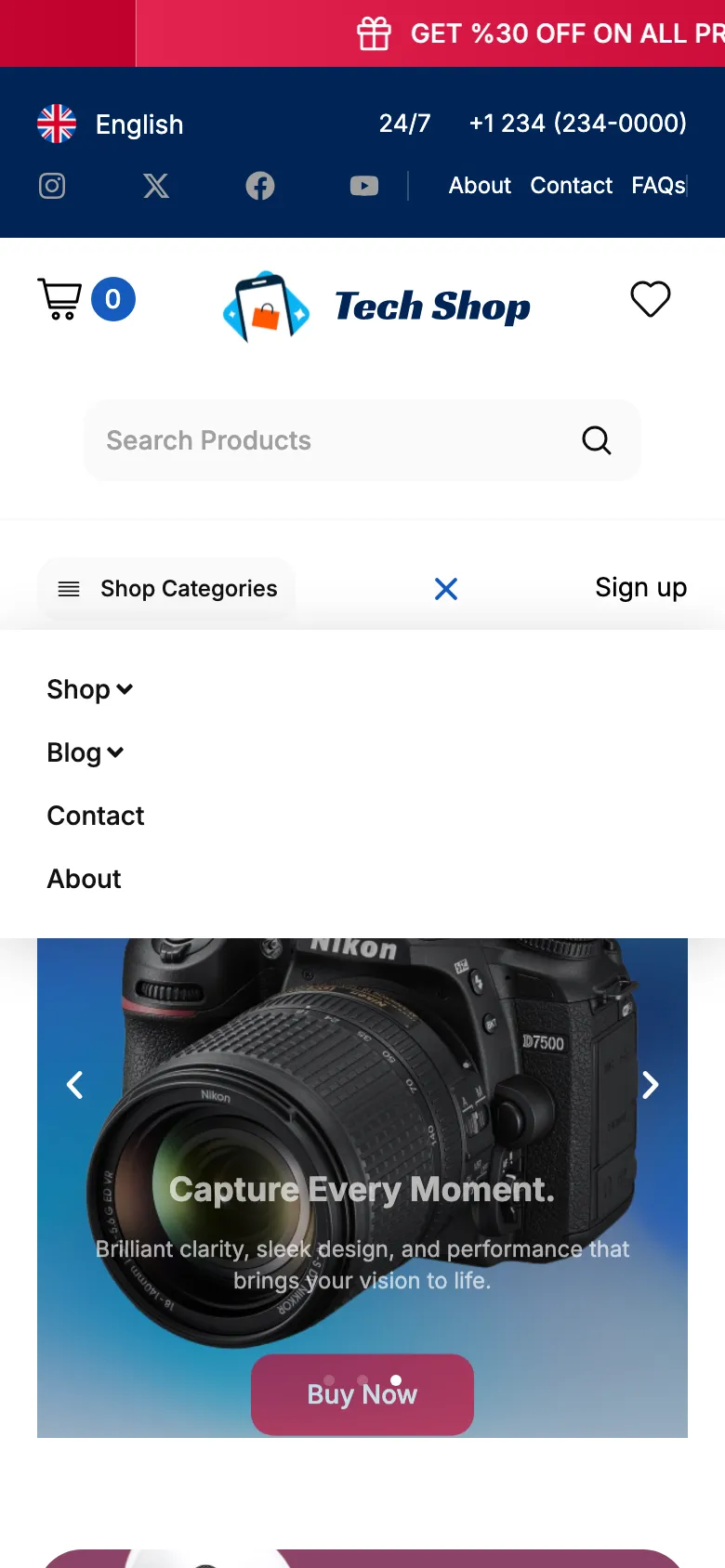
The mobile menu of the imported template on a phone-sized screen, on our test install, October 2026.
The template’s “New Offer” popup was a problem on the phone. It was wider than the screen, so its right side and its close button were cut off. The “Skip” link at the bottom still closed it.

The template’s popup was wider than a phone screen on our test install, October 2026.
Performance: Local Lab Test
These numbers come from our local Docker sandbox on a Mac, not from real hosting. So treat them as a comparison, not as real-world speed. We tested logged out, with the browser cache off and Simplicity Mode on, which is the default.
| Test (imported homepage) | Result |
|---|---|
| Requests when the page loads | 140 |
| Page weight when the page loads | 7.7 MB |
| Requests and weight after scrolling to the bottom | 152 requests, 9.4 MB |
| Images, after scrolling | 43 images, 8.4 MB |
| Stylesheets and scripts, after scrolling | 62 stylesheets (306 KB) and 43 scripts (505 KB) |
| Lighthouse, mobile test (2 runs) | 56 and 56; main content in about 28 seconds on its slow-phone setting |
| Lighthouse, desktop test (2 runs) | 71 and 71; main content in 5.5 seconds |
Most of the weight is images, and the biggest single files were the template’s logo. The logo SVG was 1.2 MB, and a light version that also loaded was 836 KB. The product grids loaded full-size PNG files, such as a 479 KB speaker image shown about 240 pixels wide. Lighthouse also flagged about 190 KB of unused CSS and 220 KB of unused JavaScript, and the hero slider image was not found early by the browser. With JupiterX Lite, the Marketing template’s homepage made 64 requests, so the shop template is much heavier.
Jupiter X has a Performance screen that matches Elementor’s speed settings. On our install, optimized image loading, lazy-loaded background images and trimmed block editor files were on, and local Google Fonts was off. The homepage loaded fonts from Google’s servers. Swapping the template’s PNG files and its 1.2 MB logo for smaller files would cut most of that weight, and local fonts would stop the calls to Google. If speed is your top priority, our fastest WordPress theme test and the light Hello Elementor theme are better starting points than any template-heavy theme.
For comparison, on October 4 we ran Lighthouse on Artbees’ public Law Firm demo. It scored 95 on desktop and 53 to 56 on mobile.
Updates, Rollback and Support
The Updates screen checks for theme and plugin updates and has “Update all” and “Enable auto update” buttons. To test it, we used Version Rollback to put Jupiter X Core back to 4.60.0. That took about 6 seconds after a “Reinstall” confirmation. The Updates screen then offered 4.61.0, and one click updated it back in about 6 seconds. Version Rollback lists the current theme version and nine older ones, back to 4.10.1, plus older versions of Jupiter X Core, Elementor, WooCommerce and ACF.
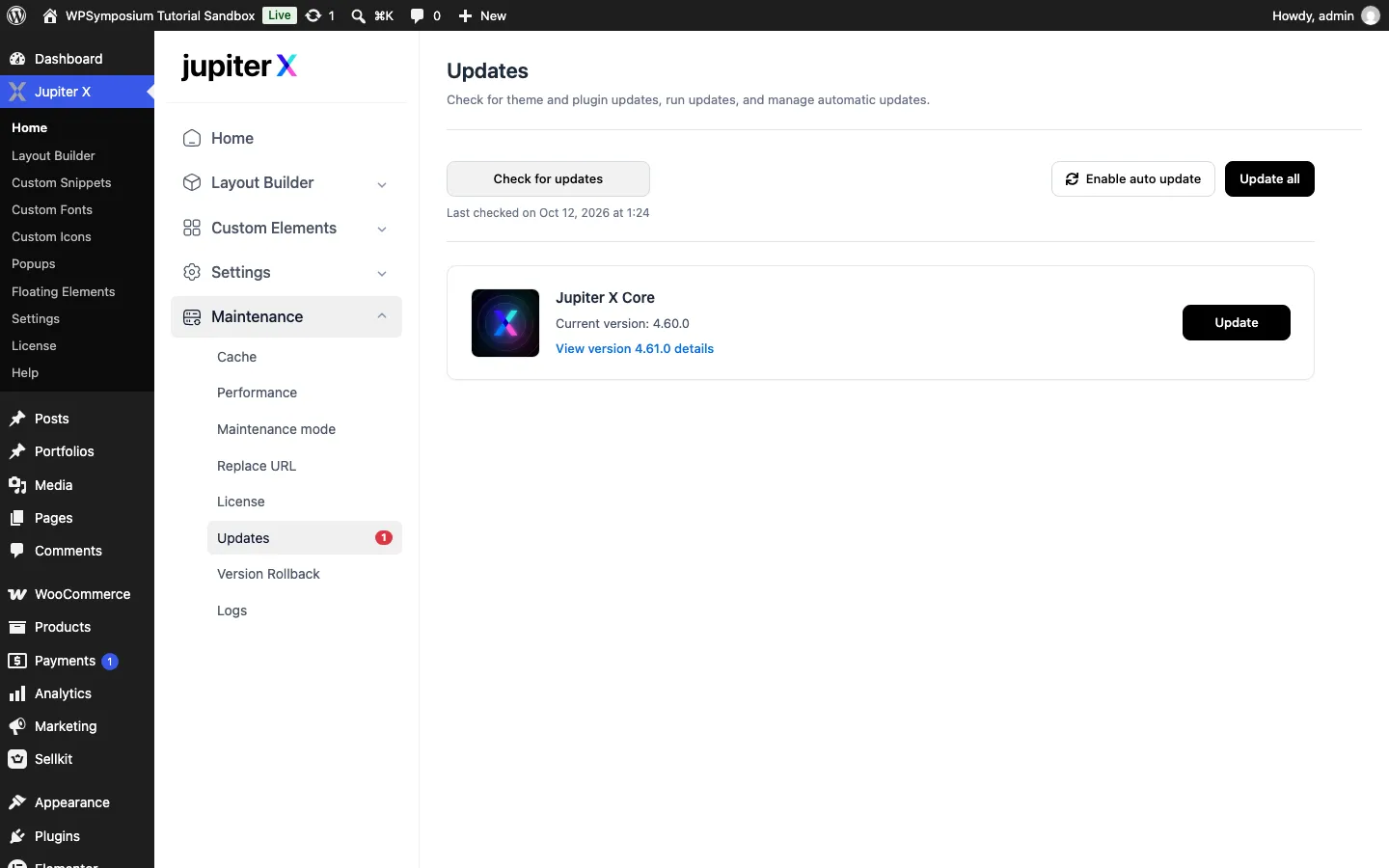
An update waiting after we rolled Jupiter X Core back to 4.60.0, on our test install, October 2026.
Updates are frequent. The changelog shows Jupiter X releases in January, April, June, August and September 2026, and the September release included a security fix. With a license, the dashboard’s Upgrade menu item from Lite was gone. The License screen still links to the bulk plans.
Support runs through a ticket system in your Artbees account. The Jupiter X home screen links to the help center, the changelog, a community group and Artbees’ paid help service. We did not open a ticket, so we cannot rate support.
What Jupiter X Connects To
We logged every outbound request the site made during the test. On the live site, page views by visitors made no outbound requests from the server. The visitor’s browser did load fonts from fonts.googleapis.com and fonts.gstatic.com. With Simplicity Mode off, it also loaded the logo from Artbees’ demo server, as described above.
In the dashboard, Jupiter X talks to Artbees servers for the license check, the template list, template files, the plugin list and updates. Its Elementor block library loads from blocks.jupiterx.com. It also fetched a list of promotional banners from an Artbees content server 123 times as we moved around the Jupiter X screens. We did not see any banner ads. Both the theme and SellKit Pro also ask my.getsellkit.com for the latest SellKit Pro version.
Switching Away From Jupiter X
Your layouts are tied to Jupiter X and its Core plugin. We switched the test site to Twenty Twenty-Five, a default WordPress theme. The header, mega menu, footer and slider all disappeared. The homepage became a few empty colored blocks, and product pages fell back to the plain WooCommerce layout. Switching back to Jupiter X restored everything. The included child theme also worked, with all layouts in place. If you might leave in a few years, plain Elementor Pro with a light theme is easier to move away from. Our guide to the best page builders for WordPress compares the options.
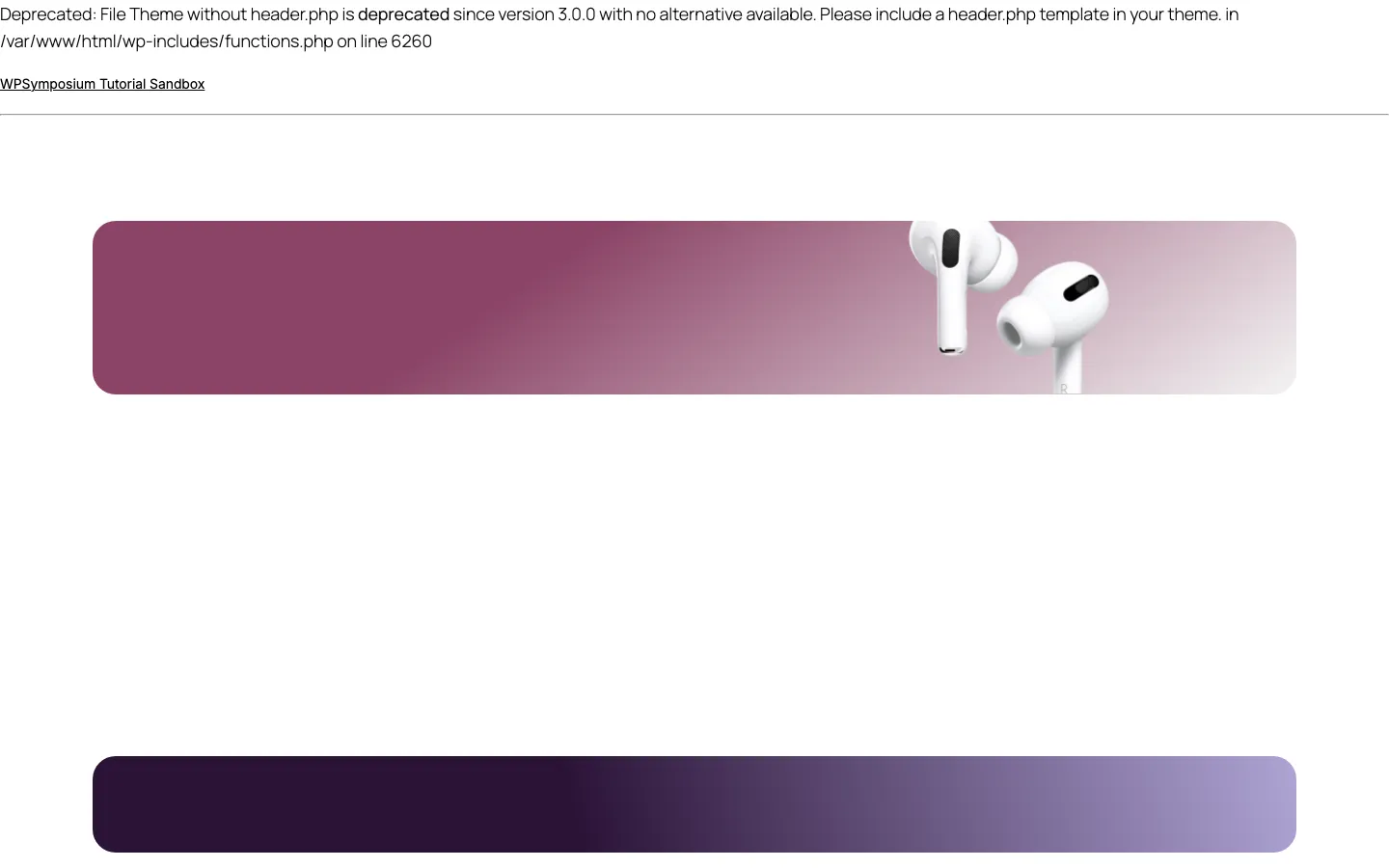
The homepage after switching to Twenty Twenty-Five on our test install. Our test site shows PHP notices on screen. October 2026.
Bundled Plugins
Older reviews say Jupiter X comes with the Jet plugins, Slider Revolution and LayerSlider. The plugin list that the theme downloads from Artbees still includes JetEngine, JetSmartFilters, Jet Elements, Slider Revolution, LayerSlider, Master Slider and a modified WPBakery for Jupiter 6. There is no screen in the 4.61.0 control panel to install them. Artbees’ help center says JetEngine, the three slider plugins and the older Jet plugins are manual downloads from the downloads page of your Artbees account. It also says some listing and booking templates install JetEngine during import. We did not download or test them. The setup wizard and our shop template installed only WooCommerce, SellKit and SellKit Pro. On our install, 6 plugins were active after setup.
The Free JupiterX Lite Version
A free version called JupiterX Lite is on WordPress.org. On October 12, 2026, it was still version 2.0.9 from June 3, 2022, with 400+ active installs and a WordPress.org warning that it has not been updated in over 2 years.
We tested it on October 4, 2026, with Jupiter X Core 4.60.0 and Elementor 4.3.3. It imported the Marketing template in 34 seconds, and the Customizer worked. But with Jupiter X Core active, every attempt to open a page in Elementor ended in a “critical error” screen. The error came from Core calling a feature it only loads for licensed installs. The update to 4.61.0 failed with “Something went wrong” without a license. With a license and Core 4.61.0, the editor problem was gone, as shown above. As of October 2026, we would not build a real site on Lite.
Pricing and License Terms
There are two ways to buy Jupiter X, checked on October 12, 2026:
| Option | Where | Sites | Price | Support |
|---|---|---|---|---|
| Regular License | ThemeForest | 1 | $58 one-time | 6 months, or 12 months for $17.25 more |
| 10-site plan | Artbees | 10 | $349 one-time | 1 year |
| 100-site plan | Artbees | 100 | $1,999 one-time | Unlimited |
All plans include lifetime updates with no yearly renewal. The bulk plans work out to about $35 per site for 10 sites and $20 per site for 100 sites, and you manage the licenses from your Artbees account. The ThemeForest price includes the item price and a buyer fee, but not tax. Under Envato’s Regular License, one license covers one end product that its users are not charged for. The item page offered only the Regular License when we checked.
Jupiter X Pros and Cons
Pros
- A huge library of 461 ready-made websites, with a careful full-import warning.
- Builders for headers, footers, product pages, popups and mega menus that work with free Elementor.
- Flexible display conditions and 21 popup triggers.
- 81 extra Elementor widgets, and the ones we tried worked without Elementor Pro.
- The Elementor editor opened in a few seconds, unlike our Lite test.
- One-click updates and version rollback worked.
- Cheap per-site pricing for agencies, with lifetime updates.
Cons
- The shop template we imported had 97 missing images and text copied from other templates.
- The imported homepage weighed about 9 MB and scored 56 on Lighthouse’s mobile test in our local lab.
- SellKit Pro comes free, but its discount, coupon and notice tools need a separate SellKit account connection first.
- Three of the theme’s WooCommerce templates were out of date for WooCommerce 11.2.
- Layouts do not survive a theme switch.
Jupiter X vs Avada and Other Alternatives
Avada is the best-selling theme on ThemeForest and uses its own builder instead of Elementor. Choose Avada if you want one mature, self-contained builder. Choose Jupiter X if you already know Elementor and want templates plus Pro-style builders on top of the free version.
Other options worth comparing:
- WoodMart: a WooCommerce-first theme with filters, bundles and discounts built in, if your site is mainly a store.
- Blocksy: a light theme with a strong free version. Pro costs $69 a year or $199 one time for one site.
- The7: supports Elementor, WPBakery and the block editor, now sold on a yearly plan.
- BeTheme: an even bigger pre-built website library and its own builder.
- Salient and Uncode: design-led themes for agencies and portfolios.
- Divi: a theme and builder sold as a yearly or lifetime membership for unlimited sites. See our Divi review.
- Astra or Kadence: lightweight themes that pair well with Elementor or the block editor.
You can browse all of our theme reviews on the themes hub.
Verdict: Is Jupiter X Worth It in 2026?
For agencies and freelancers who build many Elementor sites, yes. With a license, the parts that matter worked on our test install. Those were the Layout Builder with conditions, the popup builder, the mega menu, the widget library, one-click updates and rollback. The bulk plans bring the price down to $20 to $35 per site with lifetime updates.
For a single site, $58 with six months of support is a fair price if you like Elementor. But do not expect a template to be launch-ready. The shop template we imported needed real cleanup: missing images, copied text and a heavy homepage. Budget time for that, or start from a lighter template. If you mainly want a store, compare WoodMart, which builds in more shop features, and Blocksy, which is much lighter, before you buy.
FAQ
Is the Jupiter theme still available?
Not as a separate product. Classic Jupiter is now called Jupiter 6 and only gets maintenance and security releases for existing sites. New buyers get Jupiter X, which Artbees sells through the original Jupiter listing on ThemeForest and through bulk plans in its own account area.
Is Jupiter X free?
There is a free version called JupiterX Lite on WordPress.org, but it was last updated in June 2022. In our test, the Elementor editor crashed when Lite ran with the Jupiter X Core plugin. The full Jupiter X theme needs a paid license, and with a license the editor opened normally.
How much does Jupiter X cost?
As of October 12, 2026, one site costs $58 on ThemeForest with 6 months of support. Artbees sells 10 sites for $349 and 100 sites for $1,999. All plans are one-time payments with lifetime updates.
Does Jupiter X need Elementor Pro?
No. Jupiter X runs on free Elementor and adds its own header, footer, product page, popup, form and loop builders. On our test install, its flip box, form and gallery widgets worked without Elementor Pro.
How many templates does Jupiter X have?
The template library on our test install listed 461 templates in October 2026, including 68 in the Shop category. Artbees says 460+.
Does the Elementor editor work with Jupiter X?
Yes, with the full version and a license. On our test install, the imported homepage opened in the editor in about 6 to 8 seconds and a new page in about 4 seconds. The editor crash we saw was with the free JupiterX Lite and Jupiter X Core 4.60.0. With the full theme, a license and Core 4.61.0, it did not happen.
Can I move my old Jupiter site to Jupiter X?
Yes, but not automatically. Classic Jupiter pages are built with WPBakery and Jupiter X uses Elementor, so you will need to rebuild those pages. Back up the site and work on a staging copy first.